

What Shopware 6 includes for SEO, which settings can afford to be wrong and which can’t: SEO URLs, canonicals, sitemap, robots.txt, hreflang, structured data, page speed, content, and migration.
Shopware 6 comes with the technical foundation for SEO, but not fully configured. SEO URLs, canonicals, sitemap, robots.txt, hreflang, and structured data are all part of the core. Whether they help or hurt depends on the settings behind them.
The biggest levers are variants, filters, and page speed. Colliding variant URLs, an outdated sitemap, and undersized hosting cost more visibility than missing meta descriptions.
Plugins solve edge cases, not fundamental problems. An SEO extension doesn’t replace clean product data or category copy that actually answers a search query.
Before founding solution25, we built our own online store and grew it to more than 500 orders a day, a large share of them via Google. Since 2017, we’ve been delivering Shopware projects, and in almost every store audit we see the same SEO mistakes in the settings.
These mistakes cost revenue, because in our projects organic search is usually one of the two highest-revenue channels. This article is for store owners and ecommerce managers running their own Shopware 6 store, as well as merchants moving from Shopware 5 or another platform.
After reading it, you’ll be able to check your store’s SEO settings yourself, fix the most damaging mistakes first, and decide what you need a plugin or an agency for and what you don’t.
All information applies to Shopware 6.7 and has been checked against Shopware’s documentation, release notes, and source code (as of October 2026, version 6.7.15). All prices as of October 2026, excluding VAT.
Shopware 6 covers the technical SEO fundamentals without any extension. The table shows what’s included and where you still need to step in.
| Area | Included in Shopware 6.7 | What you need to configure |
|---|---|---|
| SEO URLs | Templates for products, categories, and landing pages, manual SEO paths per sales channel | Adjust the template, enable 301 behavior |
| Canonicals | Automatic on product and category pages, pagination with page number since 6.7.13 | Set the canonical variant for variant products |
| Sitemap | Generated, compressed, and split into multiple files | Choose the update method, exclude hidden products |
| robots.txt | Since 6.7.1 maintainable in the admin, with default rules and sitemap reference | Domain-specific rules, check staging mode before go-live |
| hreflang | Can be enabled per sales channel, x-default via the default domain | Set the default domain and localization per domain |
| Structured data | Microdata, JSON-LD via feature flag since 6.7.9 | Enable the flag, maintain GTIN, brand, shipping, and returns data |
| Meta data | Fields per product, category, and homepage with fallbacks | Custom titles and descriptions for revenue-relevant pages |
| Redirects for external legacy URLs | Not included, only for your own changed SEO URLs | Extension or server configuration |
For each setting, the following sections name where it is in the admin and the decision behind it: which setting is right, and what happens if it’s wrong.
Shopware generates URLs from templates in the Twig template language, found under Settings > SEO. The default template for products is {{ product.translated.name }}/{{ product.productNumber }}, categories use the category path ({% for part in category.seoBreadcrumb %}{{ part }}/{% endfor %}), and landing pages use the URL assigned in the layout.
The product number at the end of the product URL isn’t a cosmetic flaw; it serves a purpose: it makes the URLs of variants that share the same name unique. If you remove it, you need another unique variable, or the paths will collide.
Under Settings > SEO, there’s the option to redirect to the most recent URL via HTTP 301 instead of using canonical URLs. If it’s off, the old URL stays reachable after a rename and only points to the new one via canonical. If it’s on, Shopware redirects directly with a 301.
We enable this option in every project, because a 301 passes signals faster and more clearly than a canonical hint.
According to the Shopware documentation, a changed template only takes effect after the SEO URLs are rebuilt, via the dal:refresh:index command. Since 6.7.14, Shopware triggers the regeneration itself in batches when a template changes. Plan such a change like a small relaunch: outside your peak season, with the 301 option enabled, and with an eye on Search Console in the weeks that follow.
In Shopware 6, every variant has its own URL. In the SEO tab of the parent product, the option to use the same canonical URL for all variants, together with the variant for the canonical URL, determines which variant counts as the canonical page. Shopware always points to a specific variant, not to the parent product.
The sitemap follows the same logic, as the source code of the sitemap provider shows: parent products with variants aren’t in the sitemap, but all variants are. If a canonical variant is set, the sitemap only contains that one.
In Shopware, filters, sorting, and manufacturers are appended to the category URL as parameters. The canonical of a filtered category points to the unfiltered category, and the robots.txt generated since 6.7.1 contains Disallow: /*? by default. So filter pages are neither crawled nor indexed.
For most stores, that’s correct. If a filter combination has real search volume, such as “waterproof women’s running shoes,” create a dedicated category or landing page with copy for it; only for very large product ranges does an extension for filter landing pages pay off.
Shopware spreads long categories across several pages (pagination). Since Shopware 6.7.13 (August 5, 2026), category pages from page 2 onward carry their page number in the canonical; before that, they pointed to page 1. Because the default robots.txt blocks parameter URLs, these pages still aren’t crawled; Google finds products from page 2 onward via the sitemap and internal links.
For categories with several hundred products, split the category into subcategories or add an allow rule for the p parameter.
Shopware serves the sitemap at /sitemap.xml, compressed and split into multiple files if needed. The sitemap settings offer three update methods: “Manual” (only via the sitemap:generate command), “Scheduled” (via scheduled tasks every 24 hours), and “Live” (regenerated after an interval in seconds).
We recommend “Scheduled,” provided the message queue and scheduled tasks are running on the server. “Manual” without a cron job is the most common reason for sitemaps that contain products deleted months ago. In the SaaS version, Shopware handles the sitemap itself.
The option to exclude hidden products from the sitemap keeps out products that are hidden in listings and search; inactive products and folder and link categories are left out anyway. More on this in our article on the Shopware sitemap.
Since Shopware 6.7.1 (July 24, 2025), Shopware generates robots.txt itself and automatically includes all sitemaps. You maintain it in the basic settings in the robots.txt rules section, per domain with its own allow and disallow rules, as described in the documentation on the basic settings. Older versions need a file in the public folder.
The default rules allow everything except parameter URLs and permit theme, media, and thumbnail files. Important: if staging mode is active (Shopware’s way of marking a test copy of the store), robots.txt outputs Disallow: / and blocks the entire store.
You also set the default value of the robots meta tag in the basic settings; the default is index,follow. Shopware serves search results pages with noindex,follow, and always cart and checkout. There’s no noindex for individual products or categories in the core; for that, you need an extension or a theme customization.
You enable hreflang per sales channel and choose a default domain there, which Shopware outputs as x-default. Per domain, the hreflang localization setting determines whether the code is generated according to the ISO standard (de-DE, de-AT) or only with the language (de).
According to its documentation on localized pages, Google requires every language version to point to all others and to itself, or the tags are ignored. Shopware handles this for all domains of a sales channel; across separate sales channels, you need an extension.
| Page type | Default behavior in Shopware 6.7 | Our recommendation |
|---|---|---|
| Product page | Indexable, self-referencing canonical, in the sitemap | Custom meta title and description, maintain GTIN and brand |
| Variant page | Own URL, canonical to the canonical variant if set | Decide by search volume: consolidate or build out separately |
| Category | Indexable, canonical to the category URL, in the sitemap | Copy, internal links, and at least a handful of products |
| Category with filter | Canonical to the unfiltered category, blocked via robots.txt | Leave as is, serve demand through dedicated categories |
| Category from page 2 | Canonical with page number, blocked via robots.txt | For large categories, allow rule for p and subcategories |
| Search results | noindex,follow, blocked via robots.txt | Leave as is |
| Cart, checkout, account | Always noindex,follow | Leave as is |
| Landing page (Shopping Experience) | Own SEO URL, indexable, in the sitemap | Use for buying guides, brands, and promotional topics |
Up to version 6.7.8, Shopware writes structured data as Microdata directly into the HTML: product, offer, reviews, and breadcrumb. Shopware 6.7.9.0 from April 16, 2026, added JSON-LD in the head, controlled via the feature flag JSON_LD_DATA (a switch for new, still optional features). The flag is off by default; Microdata is deprecated and will be dropped with 6.8.
With the flag enabled, Shopware outputs much more: WebSite with SearchAction, Organization with logo, ItemList on category and search pages, VideoObject, Product with all images, AggregateRating, up to ten reviews, as well as gtin13 and mpn (EAN and manufacturer part number), if maintained. Shipping details and return policy only appear with the corresponding master data.
For merchant listings in Google Search, Google’s merchant listings documentation requires at least name, image, and offer; brand, GTIN, description, and reviews are recommended. So the markup is only as good as the data maintenance in the admin.
Google evaluates pages based on Core Web Vitals at the 75th percentile of real user measurements, separately for mobile and desktop. The thresholds come from web.dev; Google says that good scores align with what its core ranking systems reward and explicitly recommends them.
| Metric | Good | Needs improvement | Poor | Typical cause in Shopware stores |
|---|---|---|---|---|
| LCP (Largest Contentful Paint) | up to 2.5 s | 2.5 to 4.0 s | over 4.0 s | Oversized hero and product images, no HTTP cache, slow hosting |
| INP (Interaction to Next Paint) | up to 200 ms | 200 to 500 ms | over 500 ms | JavaScript from many plugins, tracking scripts, consent layer |
| CLS (Cumulative Layout Shift) | up to 0.1 | 0.1 to 0.25 | over 0.25 | Images without dimensions, late-loading banners, web fonts |
Shopware itself isn’t the bottleneck. The storefront lazy-loads listing images, generates thumbnails in several sizes with a matching srcset, and since 6.7.13 writes JPEG thumbnails progressively. The slowdowns are almost always in hosting, extensions, and images.
Measure with PageSpeed Insights and the Experience report in Search Console, not just with Lighthouse in the lab. Our guide to Shopware performance describes tools for load testing and profiling.
Without a custom meta title, Shopware builds the title of a product page from the product name, selected variant options, and product number, separated by vertical bars. If the meta description is missing, Shopware takes the beginning of the product description and truncates it to 255 characters in the template. Categories fall back to the category name and category description, and the homepage to the sales channel fields.
That’s better than nothing, but rarely click-worthy. For main categories and top sellers, write custom titles with 50 to 60 characters and descriptions with 150 to 160 characters, with a benefit, price anchor, or delivery promise. According to Shopware, the “Keywords” field has no influence on rankings and can stay empty.
In most stores, categories are the pages with the highest search volume, and at the same time the ones with the least copy. A Shopping Experience layout with a short intro text above the listing and a buying guide text below it answers the search query without pushing products down.
A category with two products won’t rank. Merge thin categories or fill them via dynamic product groups.
Manufacturer descriptions appear on dozens of stores at once. Your own description with use case, dimensions, what’s in the box, and a comparison with similar products sets your page apart and also gives you material for the meta description.
Maintain alt text and descriptive file names in the media management, not just in the theme. Reviews bring content you don’t have to write yourself and feed the AggregateRating markup. Cross-selling blocks are the simplest form of internal linking between products.
Keep navigation flat (three clicks to the product), enable the breadcrumb, and link from landing pages to categories and products with descriptive anchor text. If a product is in several categories, the main category determines which breadcrumb Google sees.
There’s no blog module in the Shopware 6 core like there was in Shopware 5. Instead, buying guides, purchase advice, and brand pages are created as landing pages in Shopping Experiences, with their own SEO URL, layout, and meta data; a classic blog structure is available as an extension from the Store.
Good topics sit one step before the purchase: “Which mattress for back pain” instead of “buy mattress.” Every buying guide page links to the matching categories and two or three specific products, or the traffic won’t generate revenue. Brand pages with a product range overview capture searches for manufacturer names, for which Shopware doesn’t provide dedicated manufacturer pages.
One buying guide a month, properly linked and revised after a year, beats twenty articles nobody maintains anymore.
Shopware 5 has been without security updates since July 31, 2024, as documented by endoflife.date. The most important SEO measure for a Shopware 5 store is therefore a move that brings the rankings along.
According to the Shopware documentation, the migration assistant transfers SEO URLs from Shopware 5 as a separate data selection, along with products, categories, customers, orders, and media. Theme, shopping worlds, and store pages aren’t transferred. So every content page that ranked in Shopware 5 needs a new home and a redirect in Shopware 6.
Our approach is described on our page on migrating from Shopware 5 to 6; our article on SEO during platform migrations explains the details of redirects and monitoring. What such a project costs overall is covered in our article on Shopware pricing.
The three vape stores VaporFi, South Beach Smoke, and VaporBeast each ran on Magento 2 with their own infrastructure. We merged the three stores into one Shopware 6 environment, with more than 300,000 historical orders and 100,000 customers. One requirement was to preserve all existing Magento URLs to protect the rankings.
To do this, we recreated all Magento URLs in Shopware 6 and secured them with custom redirect rules. According to the project report, SEO performance remained stable. When Miniature Market moved from Magento to Shopware 6, organic traffic was also preserved during the transition with rebuilt SEO structures and redirect rules.
For your project, that means URL inventory and mapping belong at the start of the migration, not at the end.
The Shopware 6.7 core covers the fundamentals. Extensions pay off where the built-in tools reach their limits: redirects for external legacy URLs, noindex per page, filter landing pages, hreflang across sales channels, and image formats. The examples come from the SEO optimization category in the Shopware Store, with prices as listed in the Store.
| Task | Built-in in Shopware 6.7 | Extensions (examples) | Price according to Store |
|---|---|---|---|
| Redirects for old URLs | Only for your own changed SEO URLs | SEO Redirect (301/302) from scope01; SEO Redirect Pro from ACRIS | free; from €8.25 a month |
| noindex per product or category | Only a store-wide default value | Robots noindex & nofollow from weedesign | from €3.49 a month |
| Filter landing pages | Not included | Filter SEO Url and SEO Filter Landingpages from Dreischild | from €16.25 a month |
| Set canonical freely, variant URLs | Only canonical variant | SEO Professional from Dreischild; SEO URL Manager from Atloss | from €33.25 a month; see Store |
| hreflang across multiple sales channels | Only within one sales channel | hreflang Manager from ACRIS | see Store |
| WebP delivery | Thumbnails in the format of the original | Convert images to WebP from weedesign | from €15.99 a month |
Three rules for choosing: First check whether the current Shopware version now handles the task itself (robots.txt and JSON-LD were plugin topics until recently). Then check compatibility and reviews. And plan for every extension as an update risk.
Our take: We advise buying an SEO plugin only when a specific task from the table comes up, such as redirects after a platform switch. In store audits, we almost always find the bigger lever in misconfigured settings and missing category copy, and no extension fixes either.
These are the issues we find most often in store audits. None of them needs a plugin, and all of them cost visibility.
The order from our projects follows one principle: first prevent Google from seeing the wrong things, then make sure Google finds the good things. You’ll need admin access, access to Google Search Console, and a server on which the message queue and scheduled tasks are running.
The limits of the plan: clean settings make sure Google finds the right pages. Those pages have to rank with content, and against competitors with significantly more authority, technical work alone isn’t enough.
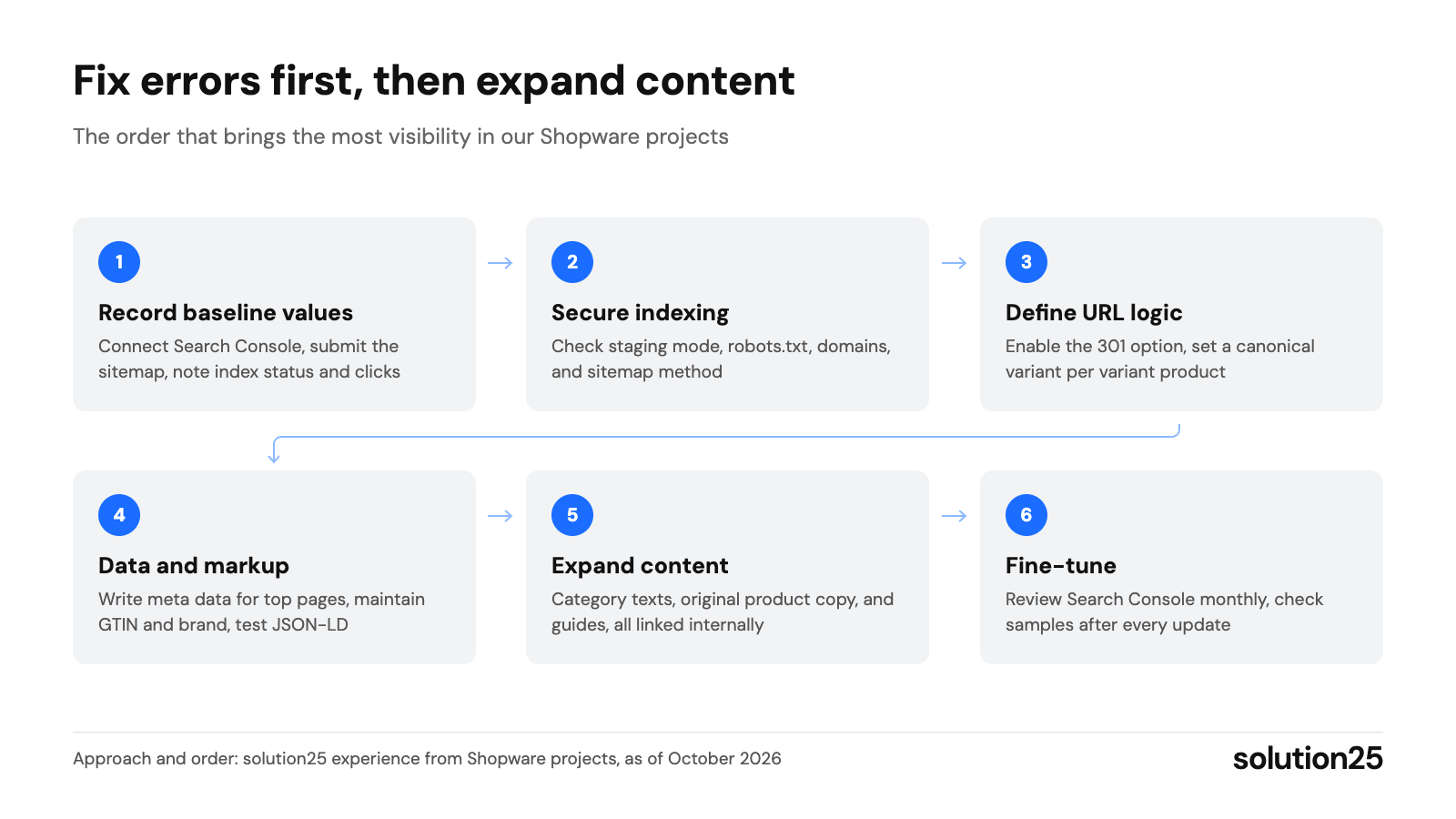
Figure: The six steps show the order for Shopware SEO: copy and markup only pay off once indexing and URLs are right. Approach and order: solution25 experience from Shopware projects, as of October 2026
Yes. Even with AI overviews in Google Search, organic search remains a channel without cost per click, and in our projects it’s usually one of the two highest-revenue channels. AI systems also use the technical fundamentals from this guide to understand a store.
Shopware is an ecommerce platform from Schöppingen, Germany. Shopware 6 is based on PHP and Symfony; the core is open source, the Community Edition is free, and the Rise, Evolve, and Beyond plans are paid. It runs self-hosted, as PaaS, or as SaaS.
In our experience, a one-time technical setup according to this guide costs €2,000 to €6,000, depending on product range and languages. Ongoing support with content and monitoring costs €1,500 to €5,000 a month at specialized agencies. These figures are based on agency project experience, not a price list.
SEO (search engine optimization) covers all measures that help a store get found better on Google for relevant searches without paying for clicks. For Shopware, that means technical setup (URLs, indexing, page speed), content (categories, products, buying guides), and authority (links and brand).
Not for the fundamentals. Shopware 6.7 includes SEO URLs, canonicals, sitemap, robots.txt, hreflang, and structured data. Extensions pay off for redirects of external legacy URLs, noindex per page, filter landing pages, and hreflang across multiple sales channels.
Only as preparation for the migration, because Shopware 5 hasn’t received security updates since July 2024. What makes sense now is a URL inventory, clean product data, and category copy that can be reused in Shopware 6.
In Search Console, compare the number of indexed pages with the number of URLs in your sitemap. Higher numbers point to parameter or variant URLs, lower ones to crawling problems or noindex. The “Pages” report gives the reason for each URL.
Technical fixes such as redirects, canonicals, and sitemap usually show up in Search Console within two to six weeks. In our experience, new content takes three to six months to rank consistently.
Running a Shopware store and want to know which of these settings are wrong in yours? Our free store audit crawls your store, checks status codes, sitemap, canonicals, hreflang, structured data, and Core Web Vitals, and delivers a prioritized list of issues with the three biggest problems within two business days.
Planning a new store or a migration to Shopware 6? Get in touch: we’ll build URL mapping, redirects, and SEO settings into the plan from the start, so go-live doesn’t cost you rankings.
Learn more about how we work, our certifications, and our locations on the solution25 Shopware agency page.
Besar Bilalli is co-founder and Co-CEO of solution25, the Shopware agency based in Bremen. Before founding the agency in 2017, he and Besnik Bilalli built their own online store without any startup capital and grew it to more than 500 orders a day. Since then, he has guided merchants through Shopware projects, from platform selection to day-to-day operations. He’s happy to answer questions about this article personally: get in touch.
Responsible for content and updates: Besar Bilalli. Last updated: October 2026. Next content review: January 2027.
