• DE
  • EN
    • +1 929-264-76 02
    • Request free audit
    • n8n-Shopware
  • Solution25 Logo Dark 1
  • Group 3
  • Shopware

    SUPPORT

    • Shopware Core Concepts
    • Who Uses Shopware?
    • Become a Good Shopware Partner
    • Shopware Hosting
    • Shopware Pre Go-Live Checklist
    • Why Shopware in 2025?

    MUST KNOW

    • B2B on Shopware
    • B2C on Shopware
    • Shopware Performance
    • Shopware Paas on Platform.sh
    • Shopware for the U.S Market
    • Shopware Seo Guide

    Start your secure migration with us.

    Solution25 6 Certified Advanced Developer
    Solution25 6 Certified Advanced Template Designer
    Solution25 6 Certified Solutions Specialist
    Solution25 6 Certified PaaS Specialist
    Migrate now!
  • Shopify

    SUPPORT

    • What is Shopify?
    • Who should use Shopify?
    • What can you do with Shopify?
    • How much does Shopify cost?
    • How do you choose your Shopify theme?

    MUST KNOW

    • Can you connect Amazon to Shopify?
    • Who Owns Shopify?
    • Shopify Disadvantages
    • Benefits of Shopify

    Migrate your store with expert Shopify support.

    Group 1321315317 Certified Advanced Developer
    Solution25 6 Certified Advanced Template Designer
    Solution25 6 Certified Solutions Specialist
    Solution25 6 Certified PaaS Specialist
    Free consultation!

    SUPPORT

    • What is Shopify?
    • Who should use Shopify?
    • What can you do with Shopify?
    • How much does Shopify cost?
    • How do you choose your Shopify theme?

    MUST KNOW

    • Can you connect Amazon to Shopify?
    • Who Owns Shopify?
    • Shopify Disadvantages
    • Benefits of Shopify

    Migrate your store with expert Shopify support.

    Group 1321315317 Certified Advanced Developer
    Solution25 6 Certified Advanced Template Designer
    Solution25 6 Certified Solutions Specialist
    Solution25 6 Certified PaaS Specialist
    Free consultation!
  • Integrations

    Integrations

    BlueSnap Logo

    Shopware 6 Blue Snap

    Cybersource Icon

    Shopware 6 Cybersource

    Solution25 Icon

    Shopware 6 Abandoned Cart Saver

    Solution25 Icon

    Shopware 6 Store Credit

    Optimizely Icon

    Shopware 5 Optimizely Campaign

    Optimizely Icon

    Shopware 6 Optimizely Campaign

    Paytrace Icon

    Shopware 6 PayTrace Payment

    Nmi Payment Icon

    Shopware 6 NMI Payment

    Maxmind Icon

    Shopware 6 MaxMind Fraud Prevention

    Solution25 Icon

    Shopware 6 Quotes & Customer-Specific Pricing

    Solution25 Icon

    Shopware 6 Subscription

    Listrak Icon

    Shopware 6 Listrak

    Solution25 Icon

    Shopware 6 Multi Channel

    Solution25 Icon

    Shopware 6 Partial Delivery

    Age Checker Icon

    Shopware 6 AgeChecker.net

    Pudo Point Icon 1

    Shopware 6 Pudo Point

    SUPPORT

    • Why API First Opens Doors?
    • Reduce the cost of ERP integrations
    • PyPal Payment Provider
    • Klaviyo Integration Guide for Shopware 6
    • Klaviyo - Email Marketing Integration

    MUST KNOW

    • Reviews.io Integration Guide for Shopware 6
    • Hubspot - Integration for Shopware 6
    • Mailchimp - Email Marketing Integration
    • Google Analytics - Integration Guide
    • Integrate Zapier with Shopware 6

    Explore secure integrations now.

    Solution25 6 Certified Advanced Developer
    Solution25 6 Certified Advanced Template Designer
    Solution25 6 Certified Solutions Specialist
    Solution25 6 Certified PaaS Specialist
    Free consultation
  • Migration

    Migration

    Shopware5 To Shopware6

    Shopware 5 to Shopware 6

    Shopify To Shopware6

    Shopify to Shopware 6

    Magento To Shopware6

    Magento to Shopware 6

    Oxid To Shopware6

    Oxid to Shopware 6

    SUPPORT

    • Migrations
    • Prep for Shopware Platform Migrations
    • Our Shopware Process
    • Painful Shopware 6 Migrations if Done Wrong

    MUST KNOW

    • Shopware Prep: Historical Order Data
    • Shopware Data Ready
    • Shopware Content Migrations
    • SEO Considerations in Platform Migrations

    Ready to migrate your shop?

    Solution25 6 Certified Advanced Developer
    Solution25 6 Certified Advanced Template Designer
    Solution25 6 Certified Solutions Specialist
    Solution25 6 Certified PaaS Specialist
    Migrate now!
  • Company

    Company

    • About Us
    • Events
    • Blogs
    • Careers
    Solution25 Company
  • Language: EN

    Select Language

    • DE
    • EN
  • Free consultation
  1. Home /
  2. MaxMind Fraud Prevention
GitHub

MaxMind Fraud Prevention

432285110 D37c88d5 0bdd 4ca9 Ba14 9d2a26cc988a
Share

Table of content

Free 15 min initial consultation directly with our experts.

Free consultation +49 421 438 1919–0
Share

Introduction

The MaxMind plugin is a powerful tool designed to help Shopware store owners detect, prevent, and manage fraudulent transactions effectively. By integrating directly with MaxMind’s fraud detection service, the plugin evaluates every order placed in the store, analyzing multiple risk factors to generate a detailed fraud risk score. This score helps merchants identify potentially suspicious transactions before they are processed.
When an order is assigned a high-risk score, the plugin automatically flags it for further review, allowing store owners to take precautionary measures such as verifying the customer’s information or contacting them directly.

By providing these insights directly in the Shopware admin panel, the plugin enables merchants to make informed decisions quickly and efficiently.
In addition to real-time risk scoring, the MaxMind plugin helps reduce chargebacks, financial losses, and operational disruptions by automating the fraud detection process. It also offers configurable settings to adapt to different business needs and transaction volumes, making it suitable for both small online shops and large-scale e-commerce platforms. With MaxMind, merchants gain a reliable partner in safeguarding their store and customers, improving overall security and customer trust.

Key Features

The MaxMind plugin offers comprehensive fraud detection for Shopware stores by analyzing every order using MaxMind’s service and assigning a detailed risk score to evaluate potential threats. Orders that exceed a predefined risk threshold are automatically flagged for automatic order review as “Fraud Review,” helping store owners take precautionary measures before processing potentially suspicious transactions. With seamless admin panel integration, merchants can easily configure API keys, adjust risk thresholds, and manage other plugin settings directly within Shopware, ensuring full control over the fraud detection workflow.

The plugin also incorporates device tracking by injecting MaxMind’s JavaScript into the storefront, allowing for accurate identification of unusual device behavior that may indicate fraudulent activity. For easy monitoring, all fraud scores are displayed clearly in the Orders grid and within the Order Detail view, giving merchants immediate visibility into order risk levels. The MaxMind plugin is fully Shopware compatible, supporting versions 6.4 through 6.6 and future updates, making it a reliable solution for both current and evolving Shopware environments.

Get Started

  • Installation & Activation

1.Download

GIT

  • Clone the Plugin Repository:

  • Open your terminal and run the following command in your Shopware 6 custom plugins directory (usually located at custom/plugins/):

git clone https://github.com/solution25com/maxmind-fraud-prevention-shopware-6-solution25.git

Packagist

composer require solution25/maxmind

2.Install the Plugin in Shopware 6

  • Log in to your Shopware 6 Administration panel.

  • Navigate to Extensions > My Extensions.

  • Locate the newly cloned plugin and click Install.

3.Activate the Plugin

  • After installation, click Activate to enable the plugin.

  • In your Shopware Admin, go to Settings > System > Plugins.

  • Upload or install the “MaxMind” plugin.

  • Once installed, toggle the plugin to activate it.

4.Verify Installation

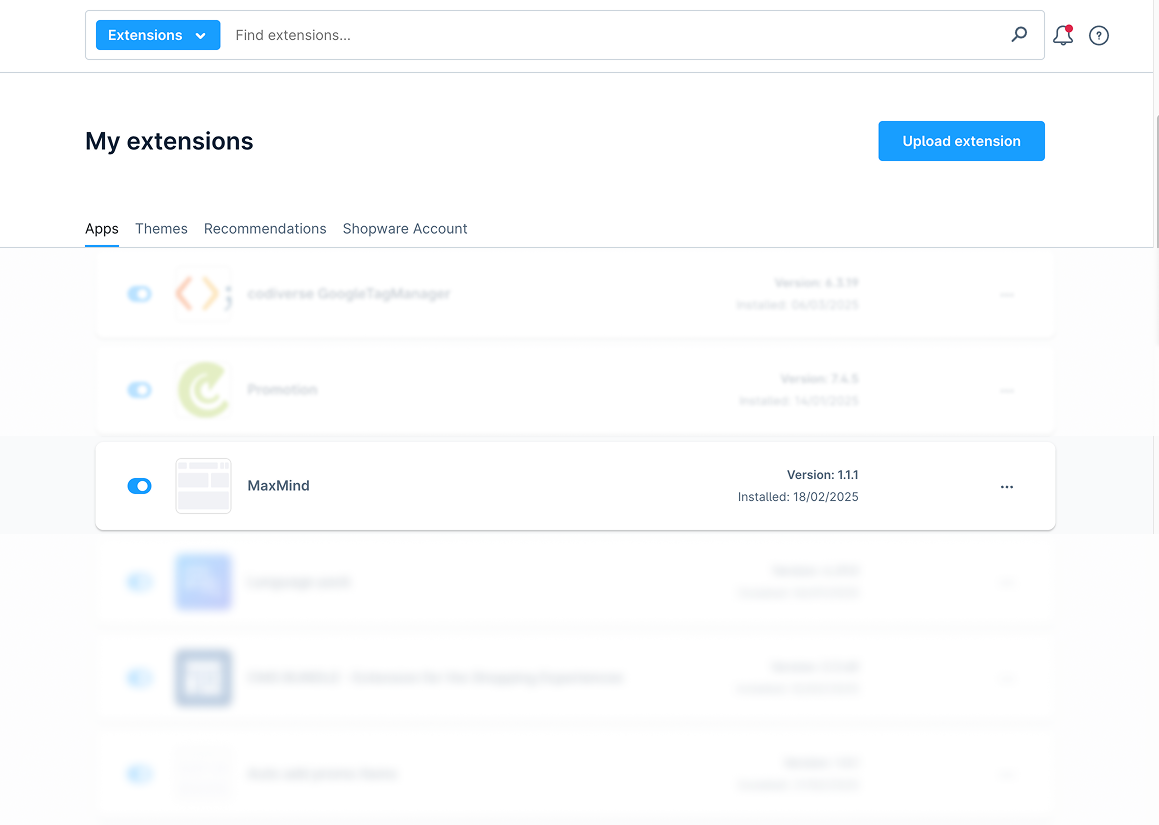
  • After activation, you will see MaxMind in the list of installed plugins.

  • The plugin name, version, and installation date should appear as shown in the screenshot below.

432285237 3052ef31 11ef 4cb3 Ad68 D483343a8412

Plugin Configuration

1.Access Plugin Settings

  • Go to Settings > System > Plugins.

  • Locate MaxMind and click the three dots (...) icon or the plugin name to open its settings.

2.General Settings

Sales Channel
Select the sales channel(s) where you want MaxMind to be active. If you choose “All Sales Channels,” it will apply to every channel in your store.
MaxMind Account ID
Enter the Account ID provided by MaxMind.
MaxMind License Key
Enter the License Key from your MaxMind account.
Risk Threshold (0 to 99)
If an order’s risk score exceeds this threshold, the order status is set to Fraud Review.

3.Save Configuration
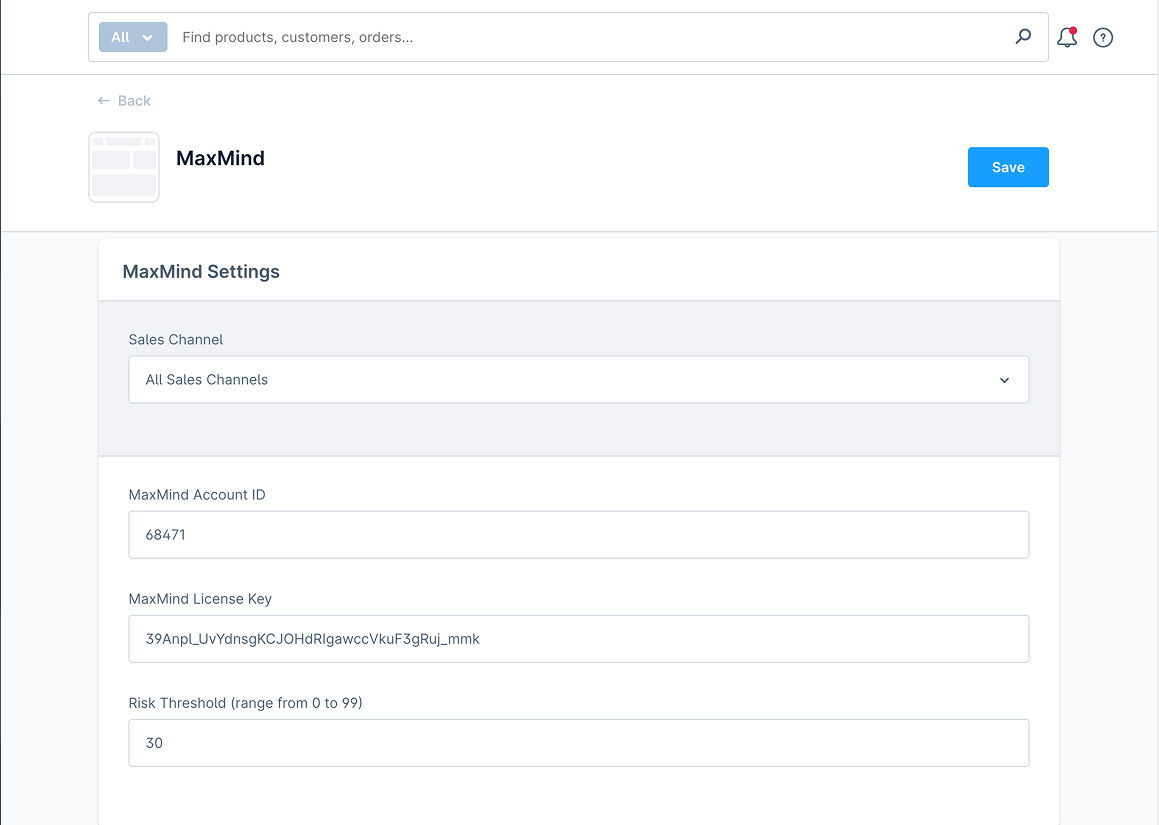
  • Click Save in the top-right corner to store your settings.

432285310 Bc5adf85 F999 4ea8 Bf1f 11bb32699b25

How It Works

1.Customer Places an Order

  • When the customer checks out, the plugin sends order data to MaxMind’s API for a fraud assessment.

2.Risk Score Calculation

  • MaxMind returns a Fraud Risk Score (0.01 to 99).

  • If the score is above your configured threshold, the plugin automatically sets the order status to Fraud Review.

  • If the score is below the threshold, the order is automatically marked as Fraud Pass.

  • The Open and Cancel statuses are no longer used in this workflow.

3.Order Status Update

  • The Order status field in Shopware will show “Fraud Review” if the risk score exceeds your threshold.

  • You can see this status in the Orders overview page.

Viewing and Managing Orders

1.Navigate to Orders

  • In the Shopware Admin, click Orders.

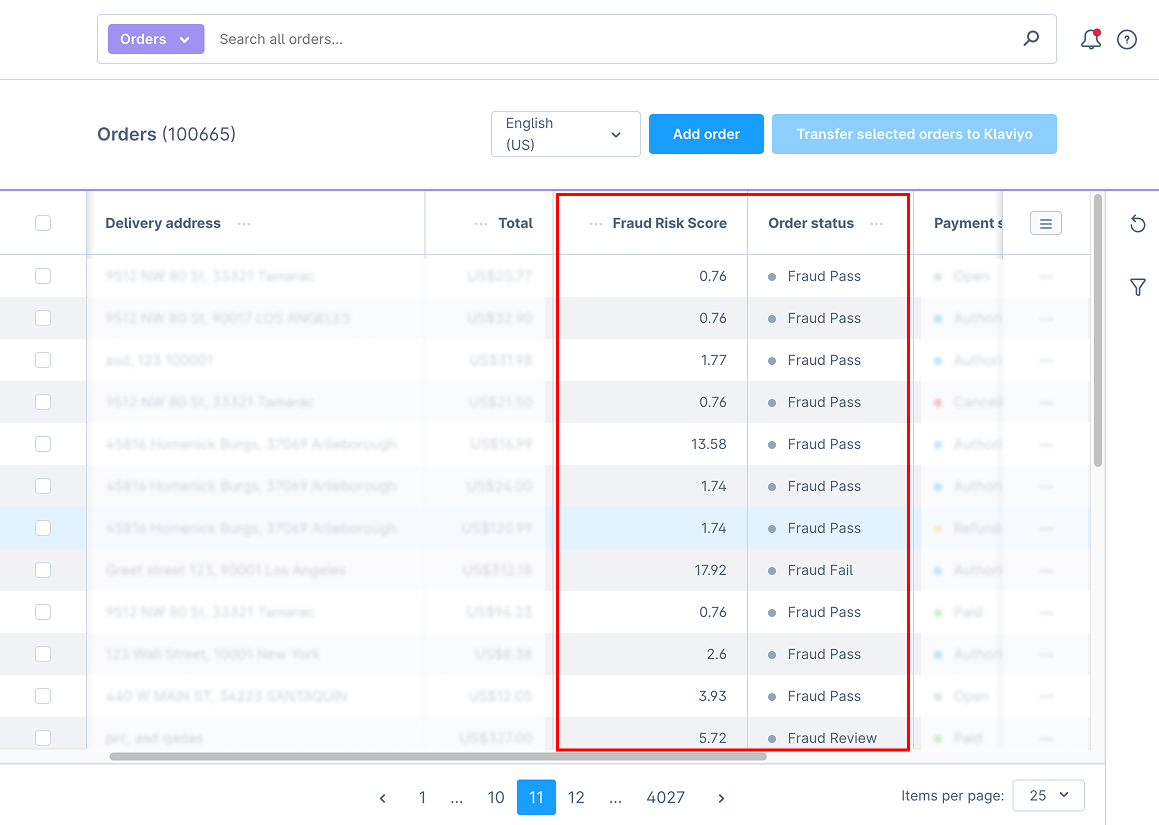
  • You will see a list of all orders with columns for Order status, Payment status, Delivery status, and Fraud Risk Score.

2.Review Fraud Risk Score

  • Look at the Fraud Risk Score (%) column.

  • Orders with a risk score higher than your threshold will appear as Fraud Review in the Order status column.

  • Orders with a risk score lower than your threshold will automatically be marked as Fraud Pass.

  • The Open and Cancel statuses are no longer used in this workflow.

3.Manually Changing Order Status

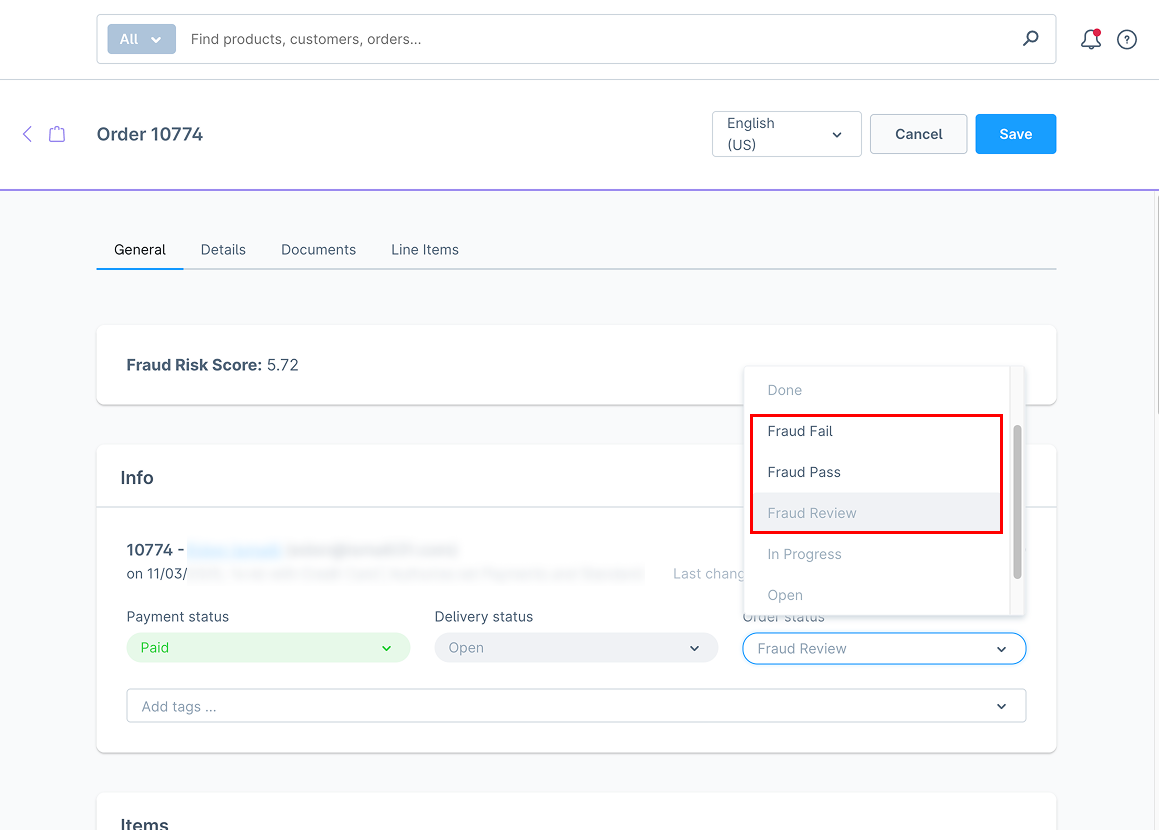
  • Click on an order to open its detail page.

  • In the General tab, you can change the Order status from Fraud Review to Fraud Pass or Fraud Fail after reviewing the order details.

4.Orders Overview with Fraud Review & Fraud Risk Score
432285389 B9e10a68 1737 48f7 Ac44 Df56c0ce080f

5.Order Detail Page with Status Options
432285476 Aff82a0e B262 492d 9b2a D3464da14454

Best Practices

Set a Reasonable Threshold
Too low (e.g., 0.1) may flag many legitimate orders.
Too high (e.g., 99) may miss fraudulent ones.
Monitor Flagged Orders
Always manually review orders marked as “Fraud Review.”
Look for suspicious details like mismatched addresses or unusual email domains.
Keep Credentials Up to Date
Ensure your MaxMind Account ID and License Key are valid.
An expired key will stop risk scores from being retrieved.
Stay Current with Plugin Updates
Keep the plugin updated to ensure compatibility with the latest Shopware and MaxMind API changes.

Troubleshooting

If you encounter issues with the MaxMind plugin, there are several common troubleshooting steps to follow. If no risk scores are appearing, first double-check your MaxMind credentials, including your Account ID and License Key, and ensure that the plugin is enabled for the correct Sales Channel. If orders are not changing status as expected, verify that your configured risk threshold is properly set and check for potential conflicts with other order management plugins. In cases where settings are not saving, try clearing Shopware’s cache after making changes and confirm that file permissions allow the changes to persist. Following these steps helps ensure that the plugin functions correctly and provides accurate fraud detection for all orders.

FAQ

1.Is a MaxMind account required?
Yes. You need an active MaxMind account and a valid license key for the plugin to function.
2.Can I limit the plugin to specific sales channels?
Yes. In the plugin settings, you can select which channels it should apply to.
3.What happens to orders flagged as ‘Fraud Review’?
You can investigate them and then manually change their status to Fraud Pass or Fraud Fail as needed.
4. Does the plugin handle refunds or chargebacks automatically?
No. It only provides a fraud risk score and sets the order status. Refunds/chargebacks must be managed separately.

Wiki Documentation

Read more about the plugin configuration on our Wiki

  • Email: info@solution25.com

    US: +1 929-264-76 02

    42nd St Suite 1201, New York, NY 10165

  • © 2026 solution25 - All rights Reserved.

    • Company
      • About Us
      • Events
      • Blog
      • Careers
    • Events
      • Shopware
      • Shopify
      • Integrations
      • Migration
    • Legal
      • Imprint & Legal Information
      • Privacy Policy
    • Social
      • Linkedin
      • Facebook
      • Instagram
    80+ Certificates
    Group
    Group 1
    Group 2