The Partial Delivery plugin for Shopware 6 provides merchants with a flexible and efficient way to manage and track partial shipments for individual order items. In many e-commerce scenarios, not all products in an order are available at the same time due to stock limitations, supplier delays, or different warehouse locations. This plugin makes it possible to process and ship available items immediately, without having to wait for the entire order to be fulfilled at once.
By allowing orders to be split into multiple deliveries, the plugin helps businesses maintain smooth logistics workflows and ensure faster fulfillment times. Customers benefit from receiving in-stock items as quickly as possible, while still being kept informed about the status of remaining products. This level of transparency and organization improves the overall shopping experience and reduces frustration caused by long waiting periods.
1.Track Partial Shipments
Enables tracking of multiple packages per order item.
Each package has its own quantity and tracking number.
2.Custom Admin Tab for Shipments
Adds a new “Shipment” tab in the Order Detail view.
View and manage all partial deliveries directly in the admin panel.
3.Multiple Entries per Line Item
Supports recording several shipments for the same item.
Useful for cases like backorders or separate warehouse fulfillment.
Prerequisites
Before installing and using the Partial Delivery plugin, it is important to be aware of a key system requirement. The plugin is designed to work exclusively with the Shopware Commercial edition and depends on features that are only available in this version of Shopware. As a result, Shopware Commercial must be properly installed and activated in your environment before the Partial Delivery plugin can function correctly. Ensuring that this requirement is met in advance will prevent compatibility issues and allow you to proceed smoothly with the installation and configuration process.
1.Download
git clone https://github.com/solution25com/partial-delivery-shopware-6-solution25.git
composer require solution25/partial-delivery
2.Install the Plugin in Shopware 6
3.Activate the Plugin
4.Verify Installation
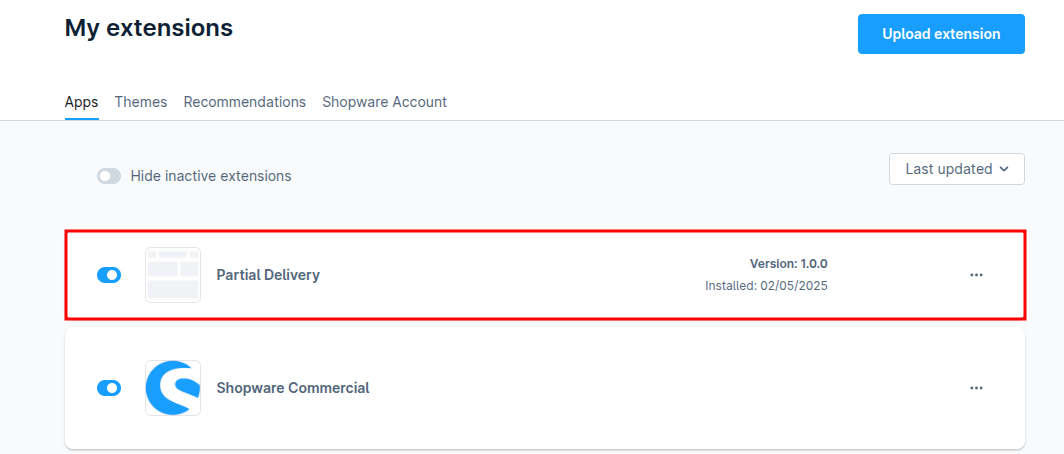
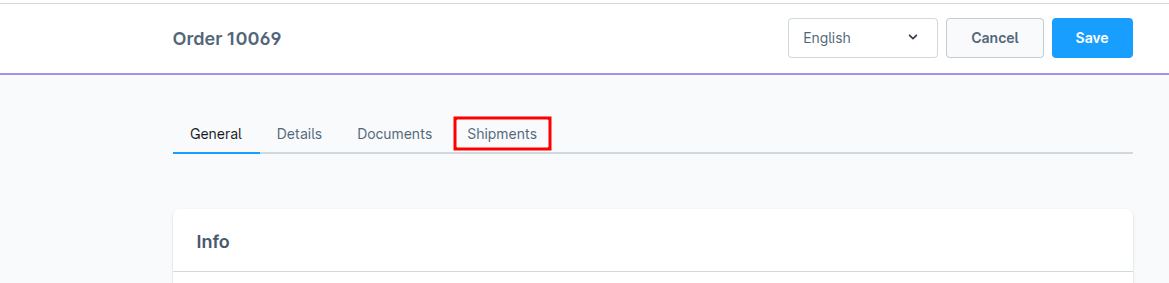
The Partial Delivery plugin does not require any specific configuration after installation. Once activated, it automatically adds a “Shipment” tab in the Order Detail view in the Shopware Admin panel.
1. Customer Places an Order
When a customer places an order, the full quantity of each product is recorded in the order under the Quantity column.
2. Admin Creates a Shipment
From the order’s Shipments tab, the admin can manually create a shipment by clicking the Create Shipment button.
3. Partial Shipment Entry
Instead of shipping the full quantity, the admin can enter a partial quantity to ship (e.g., only 5 out of 20 units).
Each partial shipment can include:
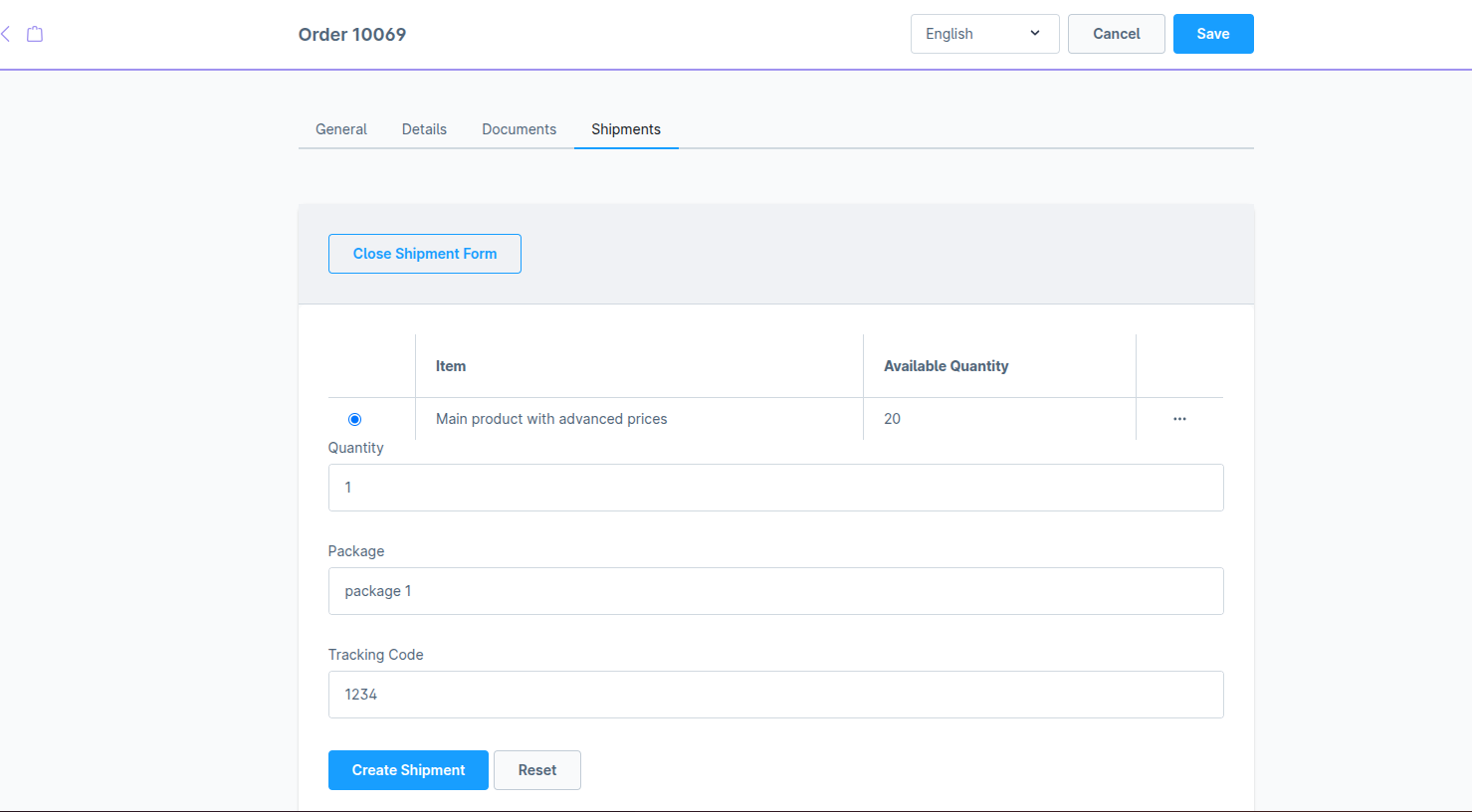
4. Shipment Details Are Tracked Each shipment is tracked under Shipment Details, showing:
This allows multiple packages to be associated with a single order.
5. Order Status and Fulfillment Management

This document describes the custom Admin API endpoints provided by the Partial Delivery Plugin for Shopware 6. These endpoints allow authorized users to create and retrieve partial shipment data associated with order line items.
Endpoint
POST /api/_action/partial-shipment-delivery
Description
Creates one or more partial delivery entries for specific
orderLineItemIds
.Each entry must include:
The system validates:
Authorization: Bearer Content-Type: application/json
{
  "partialDeliveries": [
    {
      "orderLineItemId": "0195a178f96b7345ad27051c34609e52",
      "quantity": 4,
      "package": "Package 6",
      "trackingCode": "DHL12sad31e279"
    },
    {
      "orderLineItemId": "0195a3aea0447296bc5377d49ab95c1e",
      "quantity": 1,
      "package": "Package 2",
      "trackingCode": "1234ABCD789"
    }
  ]
}
Successful Response
{
  "insertedIds": [
    "0195a178f96b7345ad27051c34609e52",
    "0195a3aea0447296bc5377d49ab95c1e"
  ],
  "skippedItems": []
}
Description Fetches all partial deliveries grouped by line item for a given order. Each result shows:
[
  {
    "lineItemId": "0195a3aea0447296bc5377d49ab95c1e",
    "quantityOrdered": 3,
    "shipments": [
      {
        "quantity": 1,
        "package": "Package 2",
        "trackingCode": "12334ASDAD9",
        "createdAt": "2025-05-22T14:36:12+00:00"
      }
    ]
  },
  {
    "lineItemId": "0195a178f96b7345ad27051c34609e52",
    "quantityOrdered": 4,
    "shipments": [
      {
        "quantity": 4,
        "package": "Package 6",
        "trackingCode": "DHL12sad31e279",
        "createdAt": "2025-05-22T14:36:12+00:00"
      }
    ]
  }
]
Shipment Tab Not Visible in Admin?
Make sure the Partial Delivery plugin is installed and activated.
Confirm that the Shopware Commercial extension is installed and active, as it is a required dependency.
Rebuild the admin interface using the following command:
bin/build-administration.sh
Plugin not visible in Extensions?
Clear the cache and refresh the plugin list:
bin/console cache:clear
bin/console plugin:refresh
Errors when submitting shipments?
Double-check that all required fields are filled in:
Quantity
Box name
Tracking number
1.Can I create multiple shipments for the same item?
Yes. Each shipment entry can have its own quantity and tracking data
2.Is there a limit to how many shipments I can add per order?
No hard limit is enforced by the plugin. You can add as many shipment entries as needed per item or order.
3.Do I need to install additional plugins to use the shipment features?
To use the full shipment functionality, ensure that the required dependencies, such as the Shopware Commercial extension, are installed and active.
Link to :WIKI
