


The MaxMind plugin is a powerful tool designed to help Shopware store owners detect, prevent, and manage fraudulent transactions effectively. By integrating directly with MaxMind’s fraud detection service, the plugin evaluates every order placed in the store, analyzing multiple risk factors to generate a detailed fraud risk score. This score helps merchants identify potentially suspicious transactions before they are processed.
When an order is assigned a high-risk score, the plugin automatically flags it for further review, allowing store owners to take precautionary measures such as verifying the customer’s information or contacting them directly.
By providing these insights directly in the Shopware admin panel, the plugin enables merchants to make informed decisions quickly and efficiently.
In addition to real-time risk scoring, the MaxMind plugin helps reduce chargebacks, financial losses, and operational disruptions by automating the fraud detection process. It also offers configurable settings to adapt to different business needs and transaction volumes, making it suitable for both small online shops and large-scale e-commerce platforms. With MaxMind, merchants gain a reliable partner in safeguarding their store and customers, improving overall security and customer trust.
The MaxMind plugin offers comprehensive fraud detection for Shopware stores by analyzing every order using MaxMind’s service and assigning a detailed risk score to evaluate potential threats. Orders that exceed a predefined risk threshold are automatically flagged for automatic order review as “Fraud Review,” helping store owners take precautionary measures before processing potentially suspicious transactions. With seamless admin panel integration, merchants can easily configure API keys, adjust risk thresholds, and manage other plugin settings directly within Shopware, ensuring full control over the fraud detection workflow.
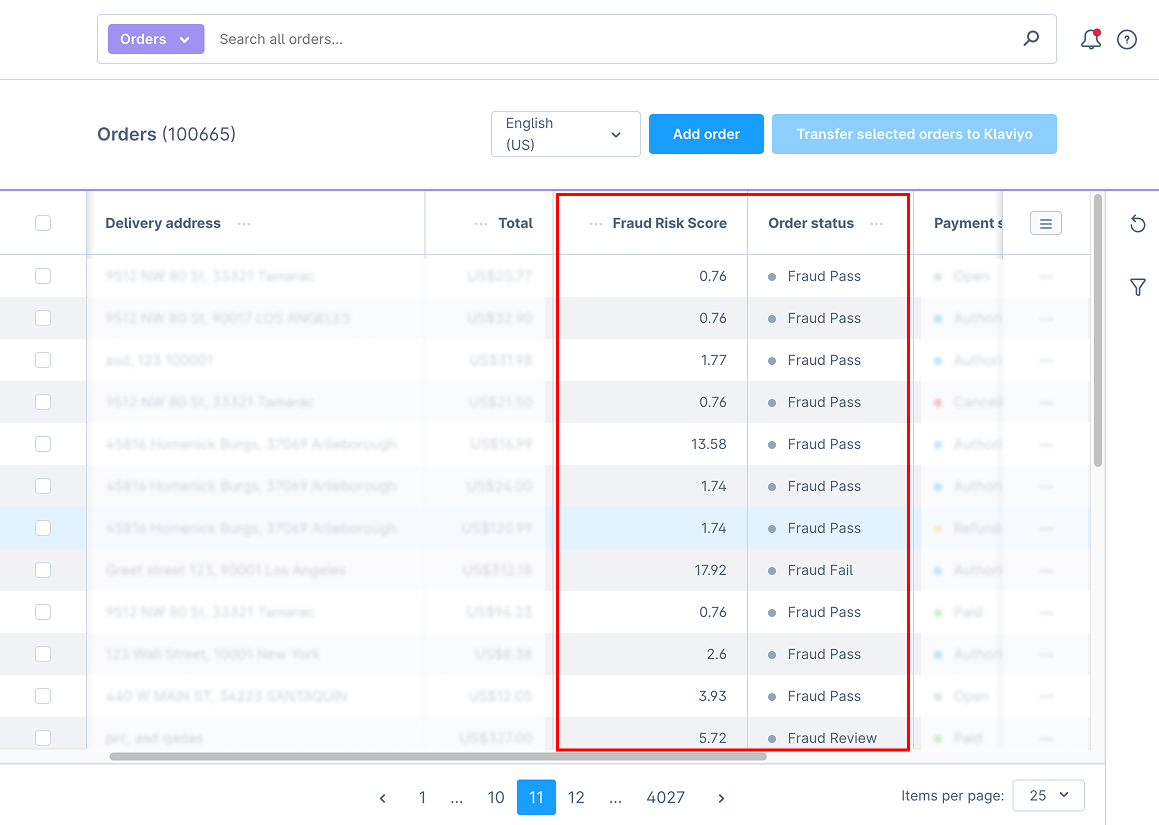
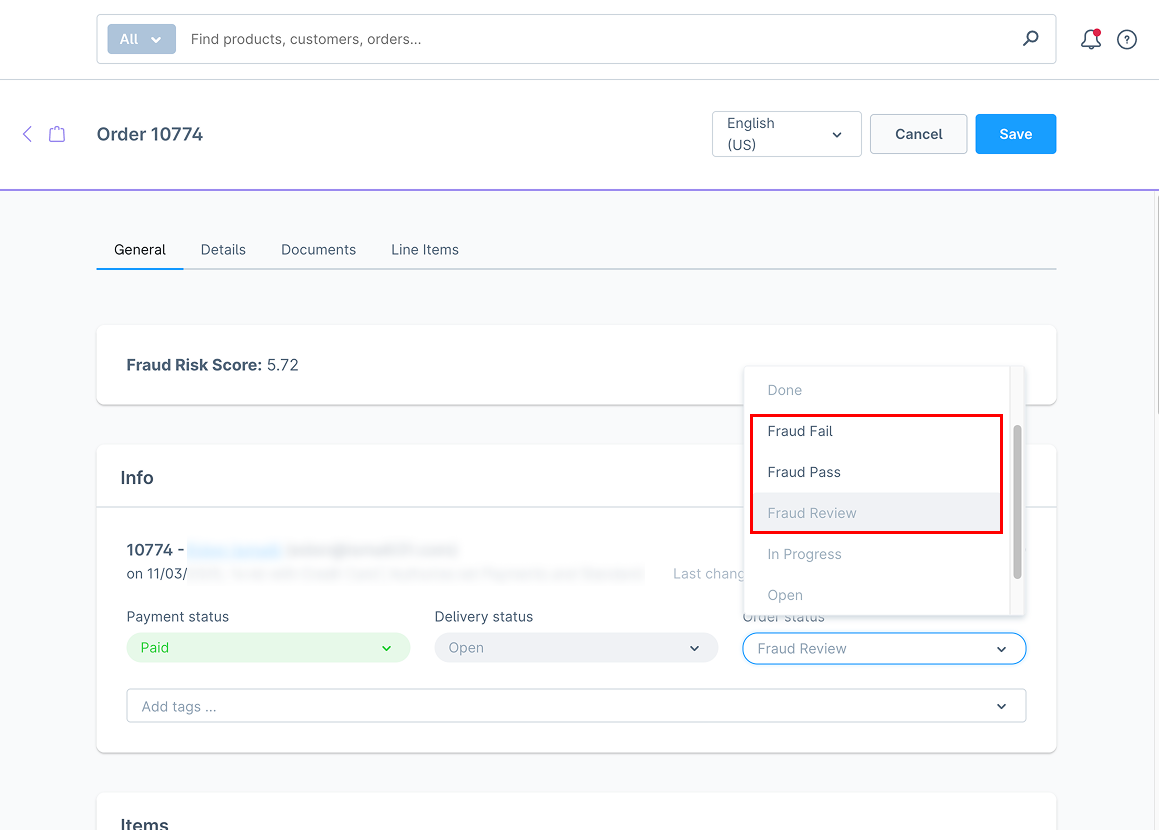
The plugin also incorporates device tracking by injecting MaxMind’s JavaScript into the storefront, allowing for accurate identification of unusual device behavior that may indicate fraudulent activity. For easy monitoring, all fraud scores are displayed clearly in the Orders grid and within the Order Detail view, giving merchants immediate visibility into order risk levels. The MaxMind plugin is fully Shopware compatible, supporting versions 6.4 through 6.6 and future updates, making it a reliable solution for both current and evolving Shopware environments.
1.Download
git clone https://github.com/solution25com/maxmind-fraud-prevention-shopware-6-solution25.git
composer require solution25/maxmind
2.Install the Plugin in Shopware 6
3.Activate the Plugin
4.Verify Installation
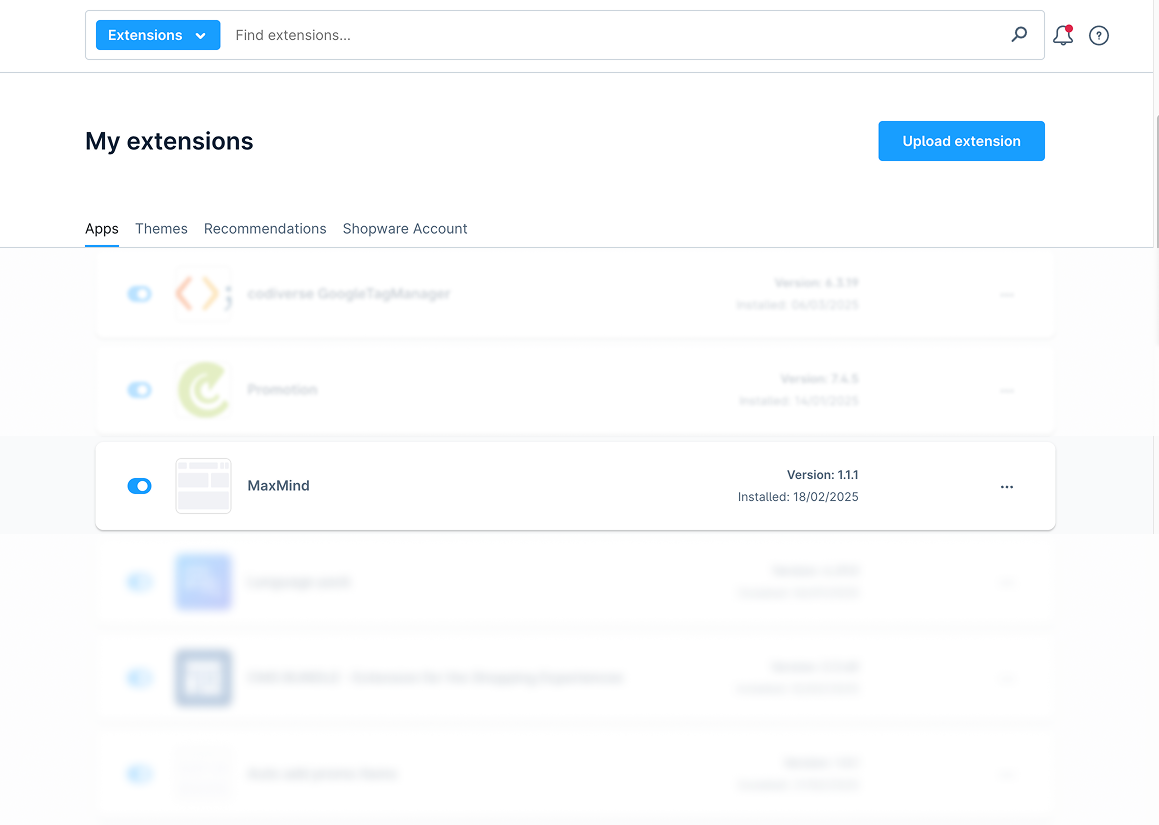
1.Access Plugin Settings
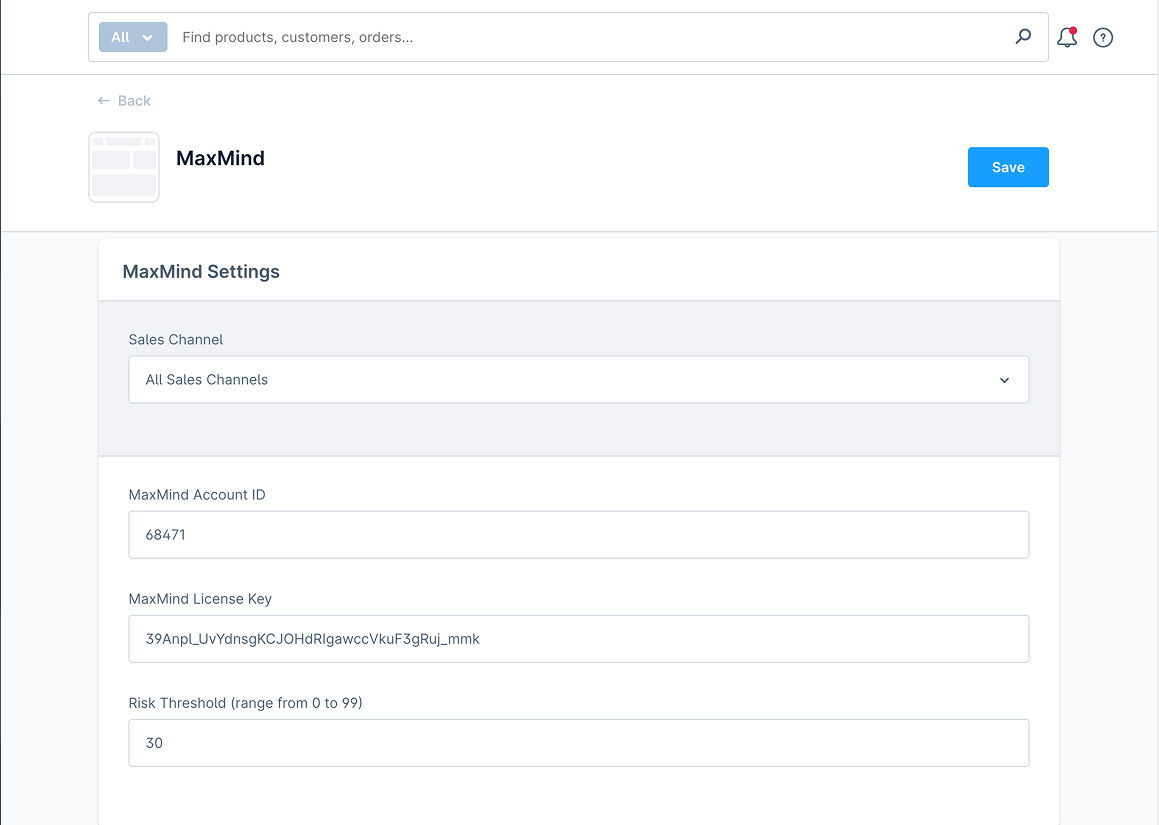
2.General Settings
Sales Channel
Select the sales channel(s) where you want MaxMind to be active. If you choose “All Sales Channels,” it will apply to every channel in your store.
MaxMind Account ID
Enter the Account ID provided by MaxMind.
MaxMind License Key
Enter the License Key from your MaxMind account.
Risk Threshold (0 to 99)
If an order’s risk score exceeds this threshold, the order status is set to Fraud Review.
3.Save Configuration
1.Customer Places an Order
2.Risk Score Calculation
3.Order Status Update
1.Navigate to Orders
2.Review Fraud Risk Score
3.Manually Changing Order Status
4.Orders Overview with Fraud Review & Fraud Risk Score
5.Order Detail Page with Status Options
Set a Reasonable Threshold
Too low (e.g., 0.1) may flag many legitimate orders.
Too high (e.g., 99) may miss fraudulent ones.
Monitor Flagged Orders
Always manually review orders marked as “Fraud Review.”
Look for suspicious details like mismatched addresses or unusual email domains.
Keep Credentials Up to Date
Ensure your MaxMind Account ID and License Key are valid.
An expired key will stop risk scores from being retrieved.
Stay Current with Plugin Updates
Keep the plugin updated to ensure compatibility with the latest Shopware and MaxMind API changes.
If you encounter issues with the MaxMind plugin, there are several common troubleshooting steps to follow. If no risk scores are appearing, first double-check your MaxMind credentials, including your Account ID and License Key, and ensure that the plugin is enabled for the correct Sales Channel. If orders are not changing status as expected, verify that your configured risk threshold is properly set and check for potential conflicts with other order management plugins. In cases where settings are not saving, try clearing Shopware’s cache after making changes and confirm that file permissions allow the changes to persist. Following these steps helps ensure that the plugin functions correctly and provides accurate fraud detection for all orders.
1.Is a MaxMind account required?
Yes. You need an active MaxMind account and a valid license key for the plugin to function.
2.Can I limit the plugin to specific sales channels?
Yes. In the plugin settings, you can select which channels it should apply to.
3.What happens to orders flagged as ‘Fraud Review’?
You can investigate them and then manually change their status to Fraud Pass or Fraud Fail as needed.
4. Does the plugin handle refunds or chargebacks automatically?
No. It only provides a fraud risk score and sets the order status. Refunds/chargebacks must be managed separately.
Read more about the plugin configuration on our Wiki