

The Store Credit Plugin for Shopware 6 provides a flexible and convenient solution for managing customer returns and refunds. Instead of processing traditional refunds, store administrators can allocate store credit directly to a customer’s account. This credit can then be used for future purchases, allowing customers to continue shopping while maintaining their funds within the store ecosystem.
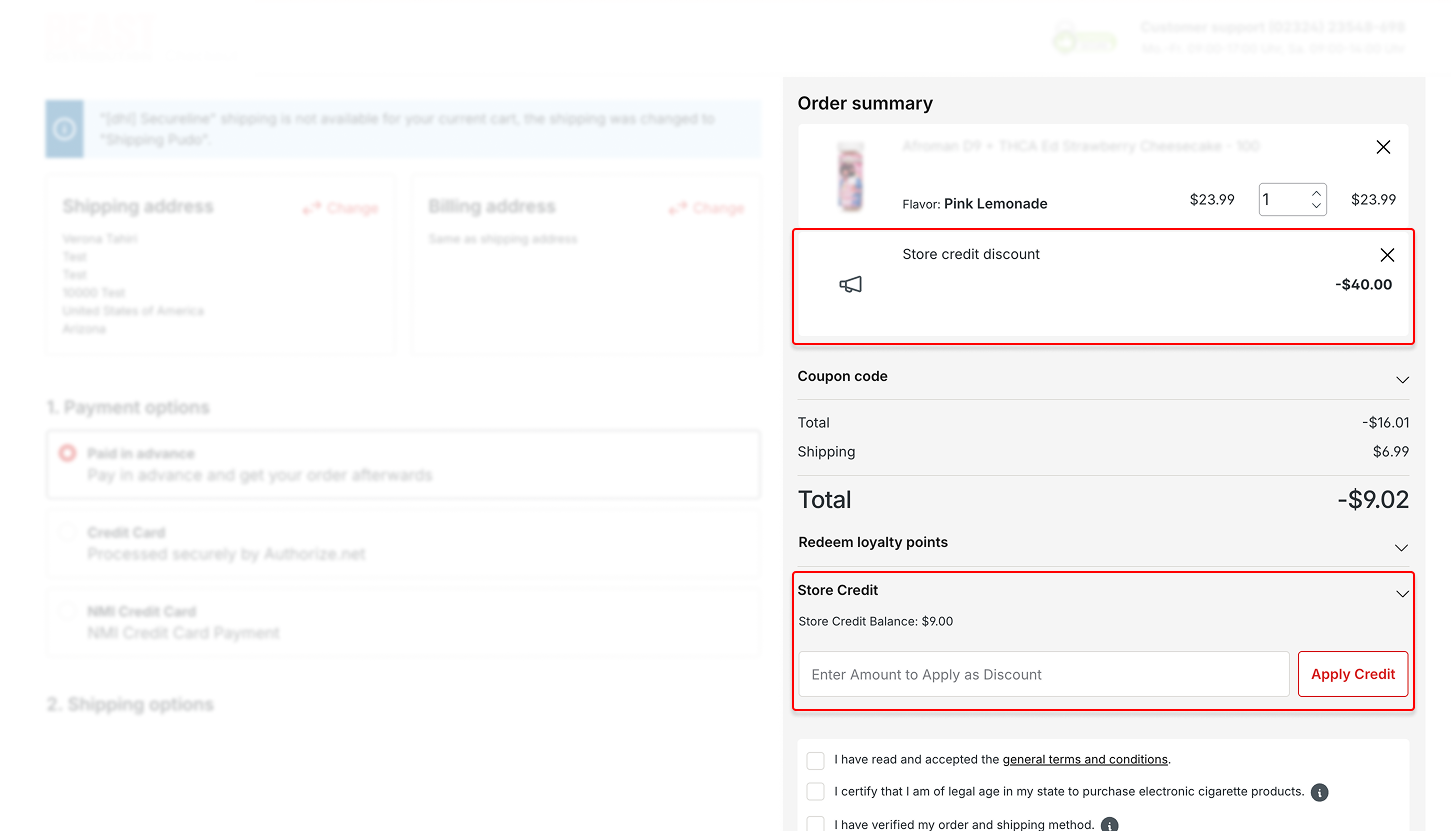
The plugin ensures that store credits can be applied across multiple orders until the allocated amount is fully used, giving customers maximum flexibility in how and when they redeem their credits.
Administrators have full control over issuing, tracking, and managing credits, making it easy to maintain accurate records and provide a seamless customer experience. By offering store credit instead of refunds, merchants can improve customer retention, reduce transaction fees, and encourage repeat purchases, all while streamlining the returns process. The Store Credit Plugin integrates smoothly into the Shopware environment, allowing credits to be easily applied at checkout and tracked in the admin panel for complete oversight.
Key Features
Get Started
1.Download
git clone https://github.com/solution25com/store-credit-shopware-6-solution25.git
2.Install the Plugin in Shopware 6
3.Activate the Plugin
4.Verify Installation
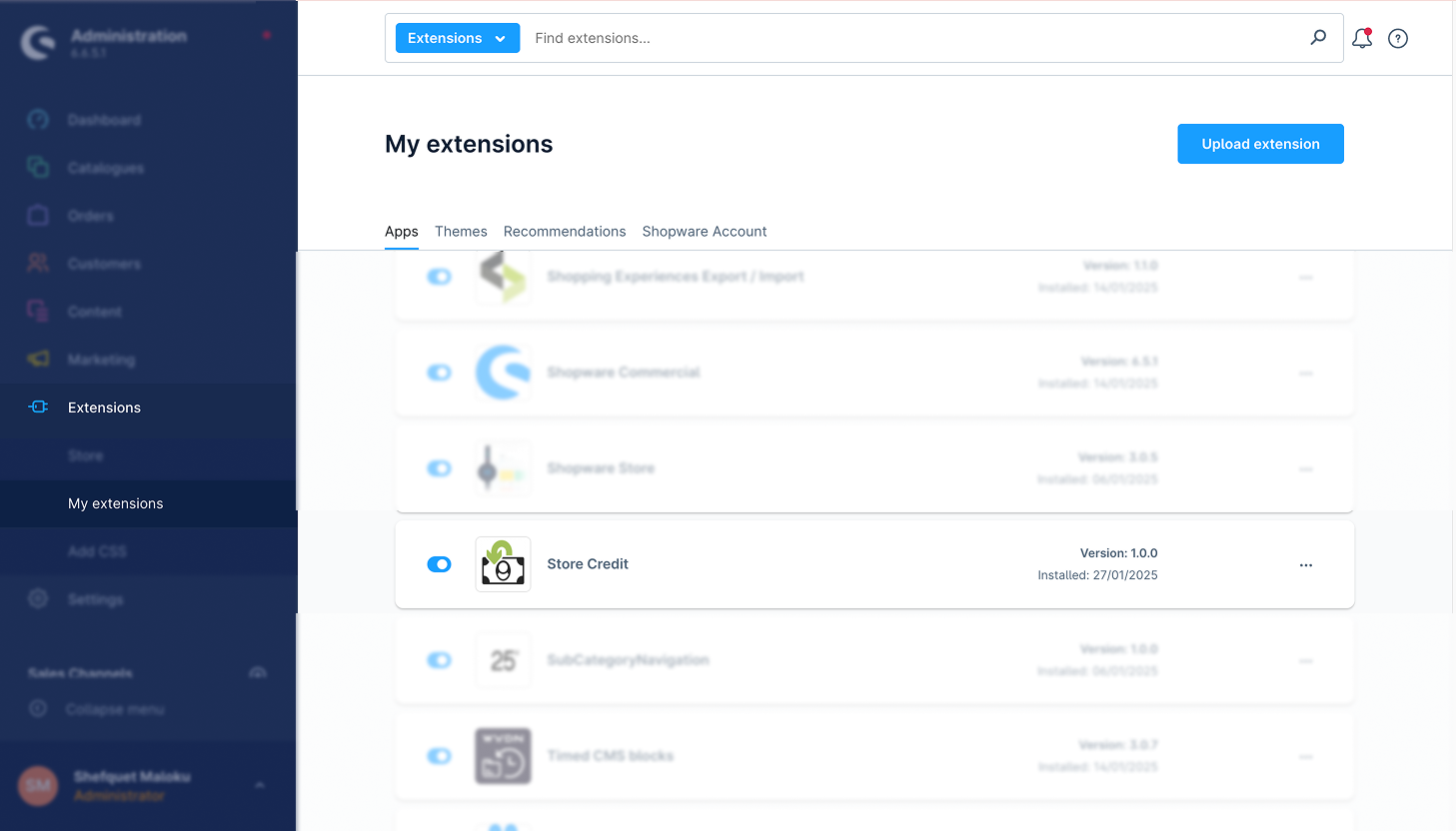
1.Access Plugin Settings
2.General Settings
1. Minimal Configuration: After installing the Store Credit Plugin, you need to enable the Store Credit Refund Type in the configuration. Since this plugin is related to Swag Commercial, the toggle should be enabled for the Store Credit Refund Type option to activate store credit refunds.
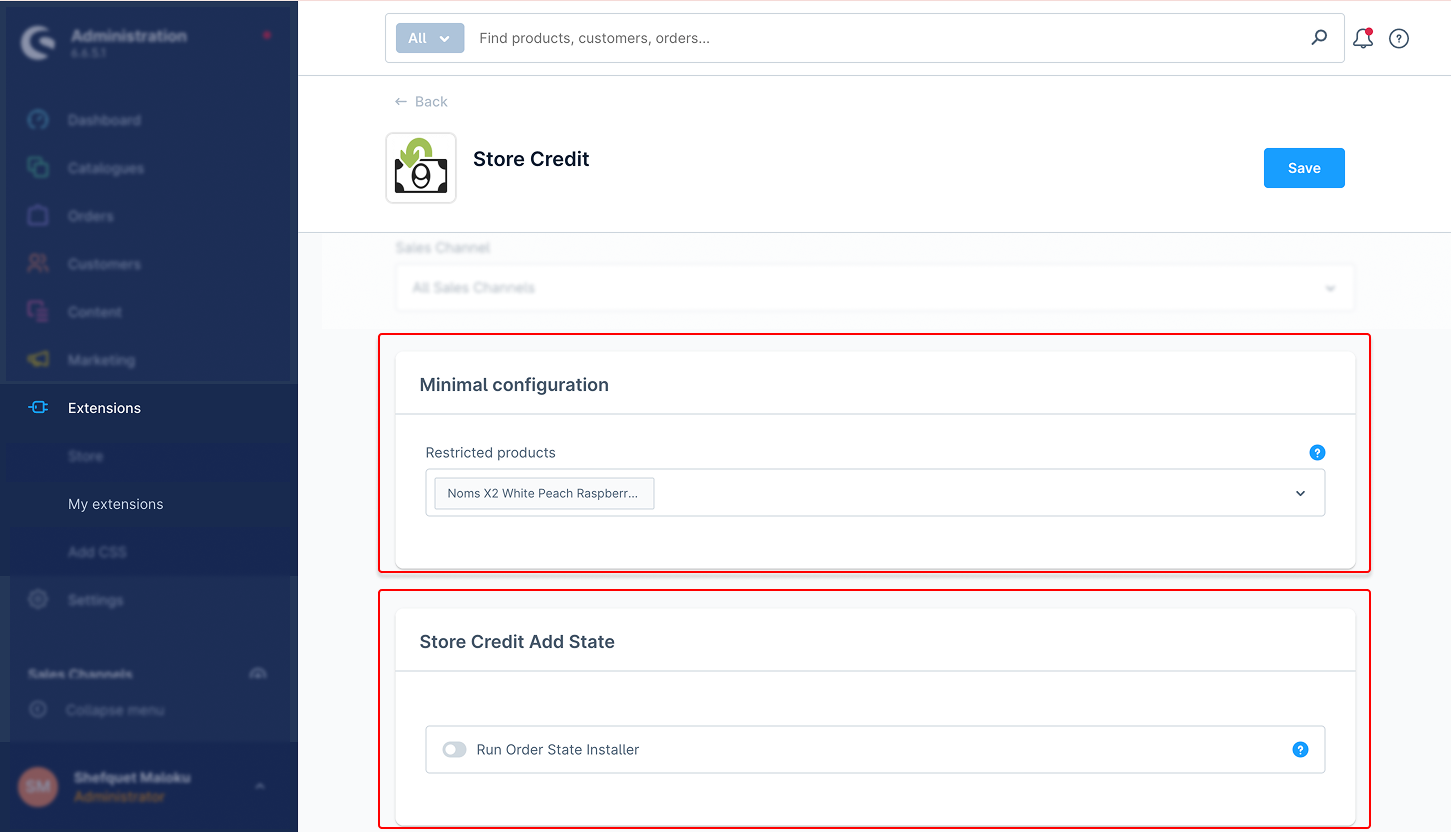
2. Store Credit Add State: Toggle to enable or disable the feature.
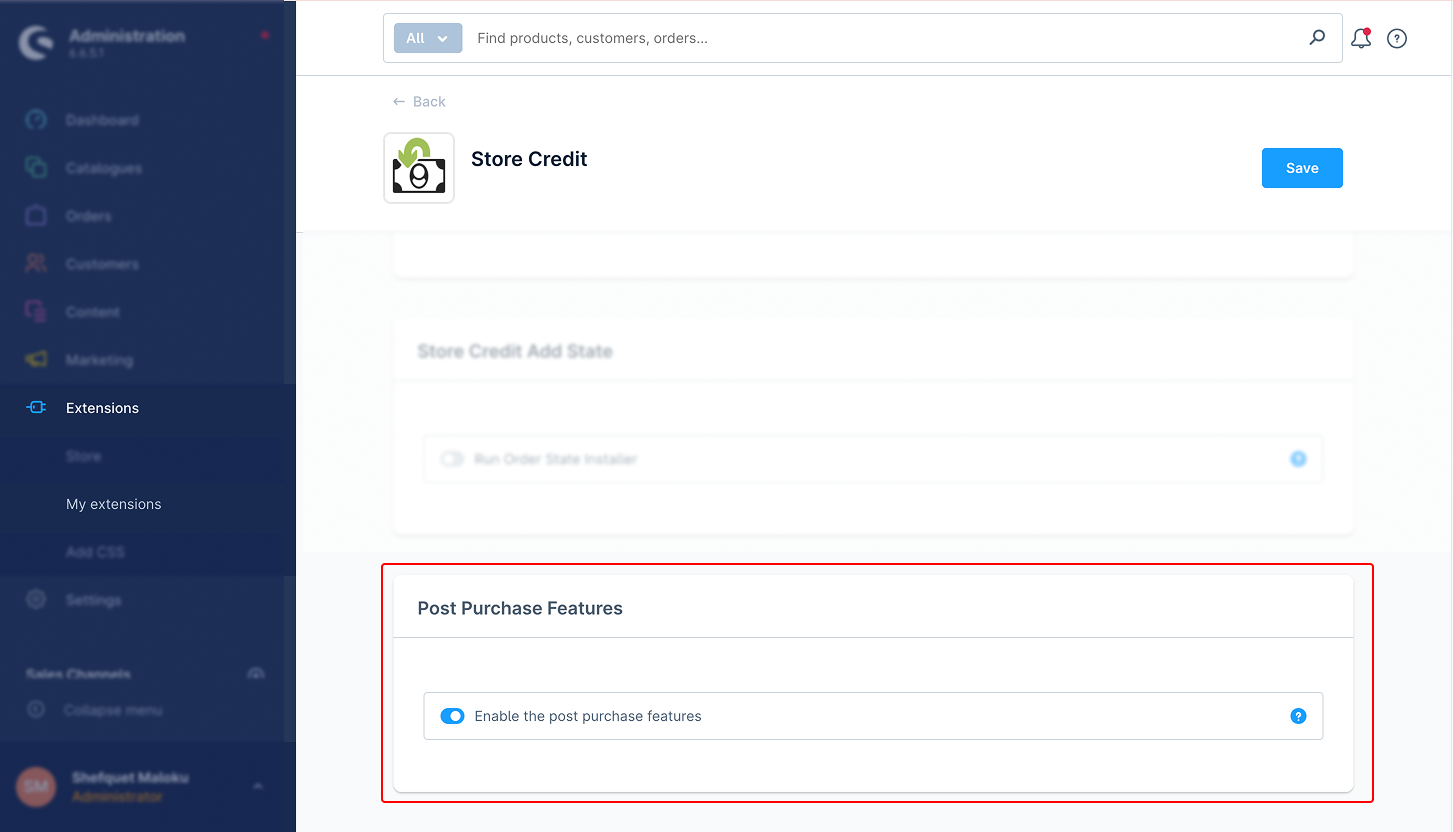
3. Post Purchase Features: Restrict store credit usage to specific products.
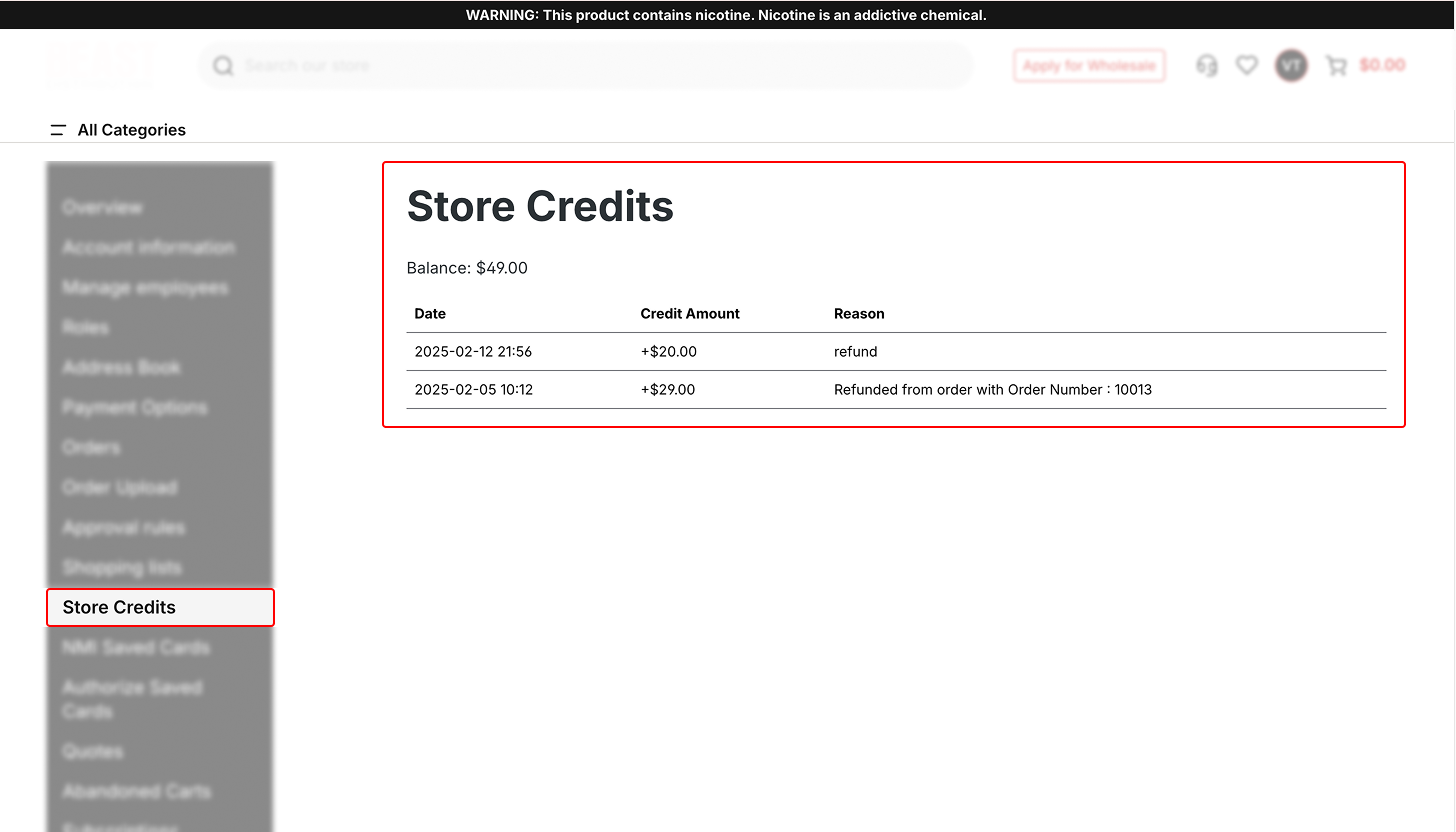
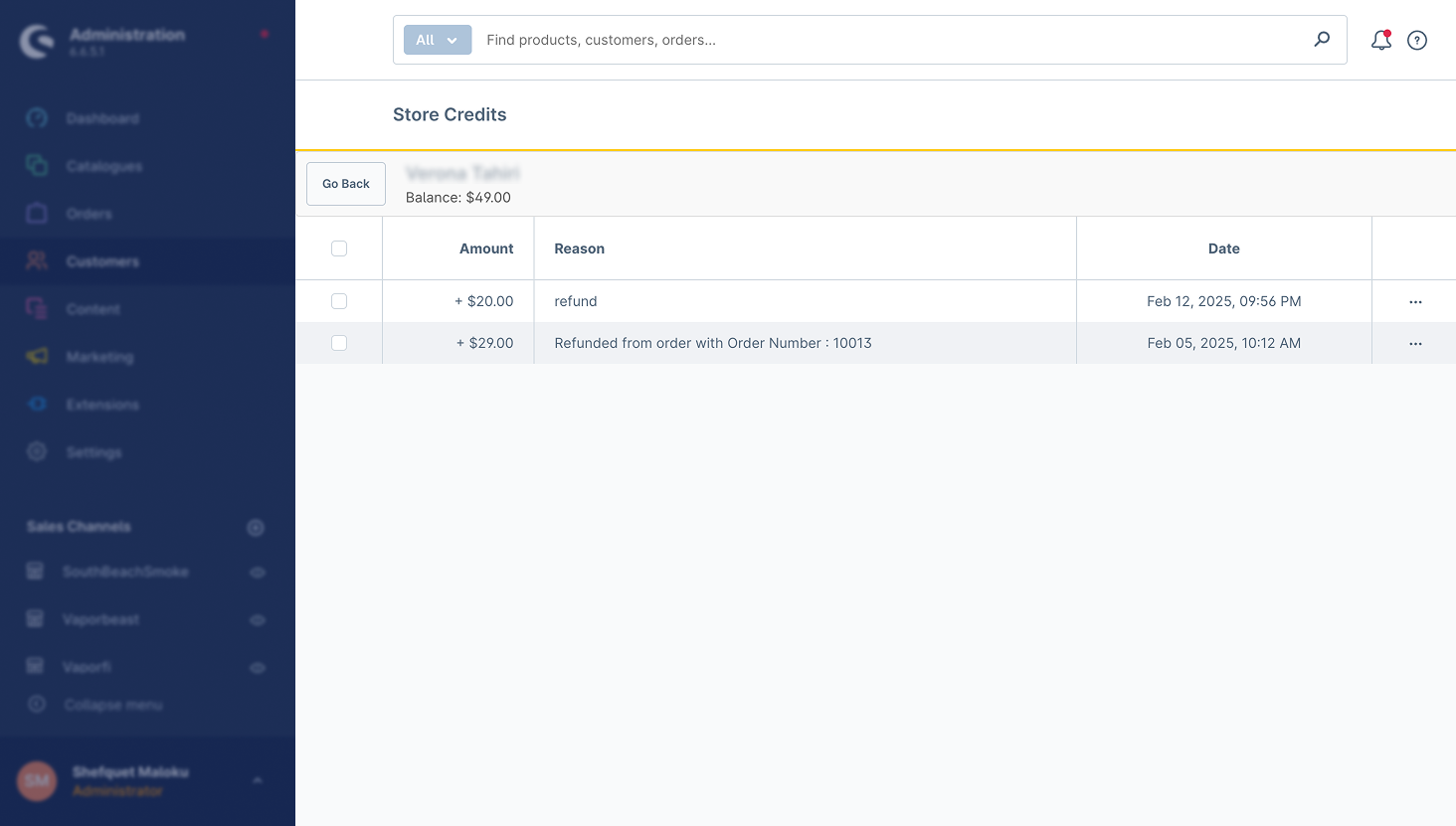
After installing and enabling the plugin in the admin panel, customers can view their available balance and transaction history in their profile account settings on the storefront.
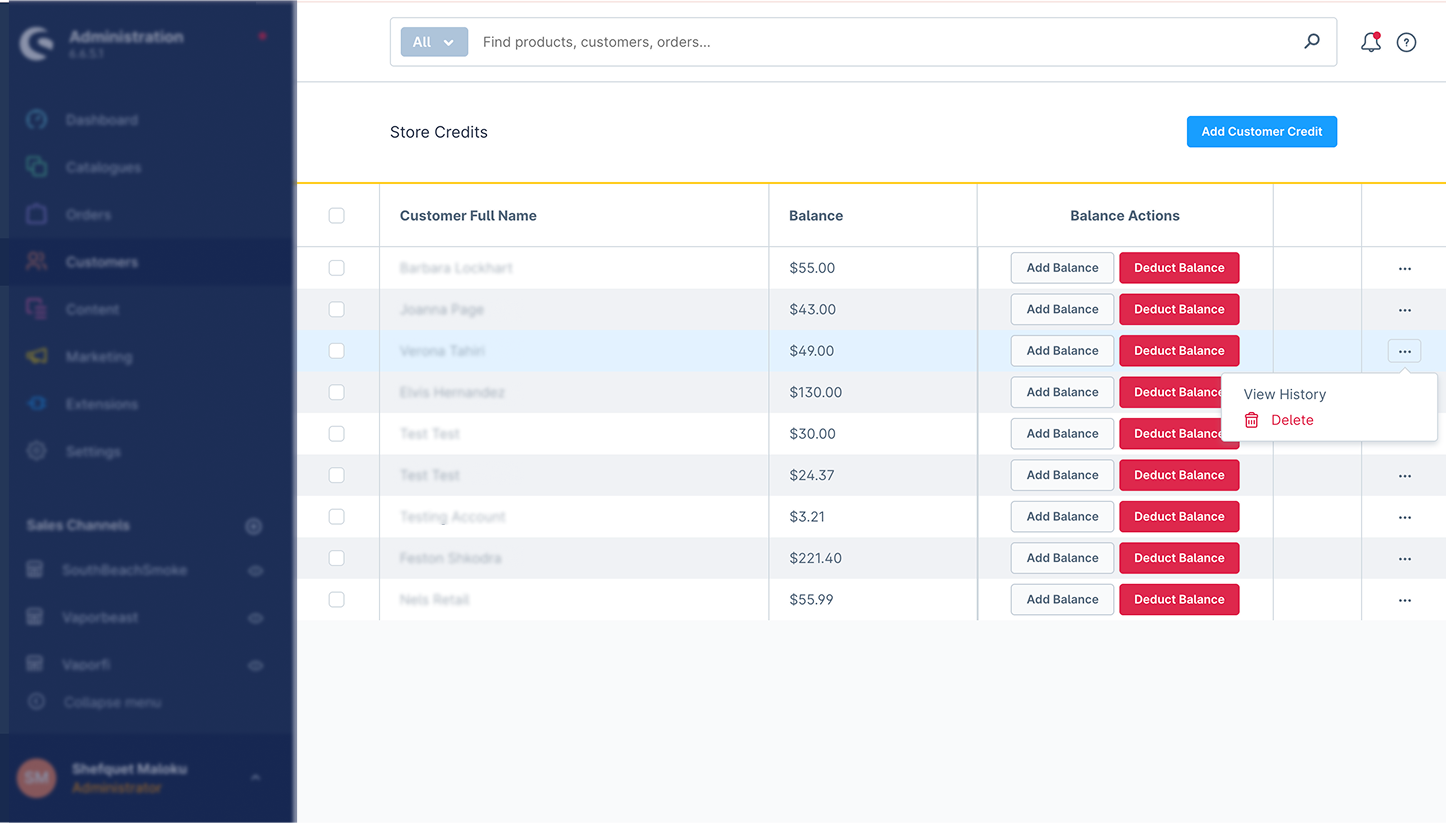
Admins can manually add or deduct store credit from a customer’s account.
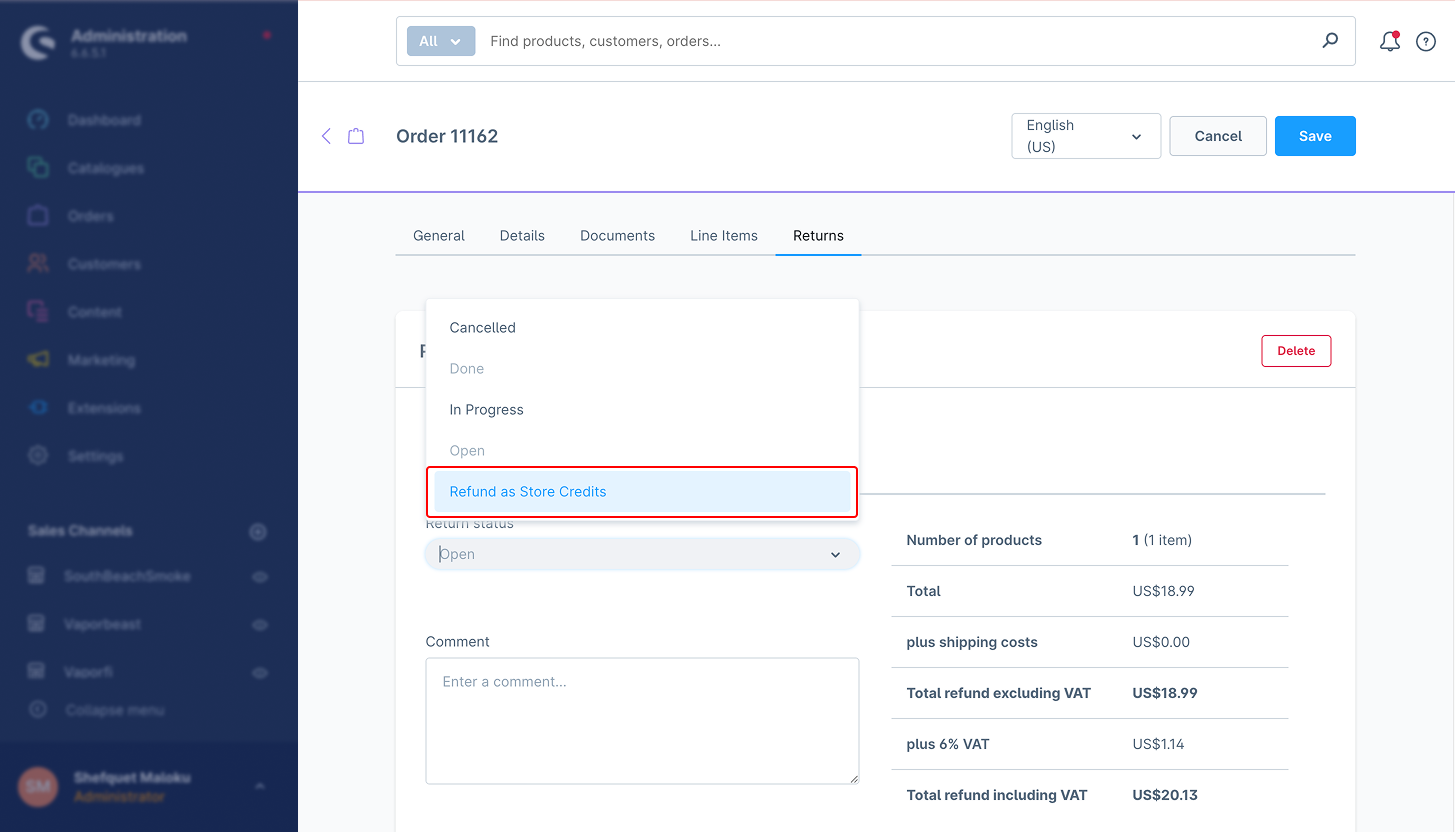
Partial & Full Refunds:
Storefront – Key Files/Folders
Core – Key Files/Folders:
Resources – Key Files/Folders:
Admin Panel – Key Features:
Get Store Credit Balance
– Path: /store-api/store-credit/balance/{customer_id}
– Method: GET
– Purpose: Fetches the current store credit balance of a customer.
– Response: Returns the available credit balance.
Add Store Credit
– Path: /store-api/store-credit/add
– Method: POST
– Request Body:
– customer_id (string, required)
– amount (float, required)
– reason (string, optional) Response: Returns updated store credit details.
Deduct Store Credit
– Path: /store-api/store-credit/deduct
– Method: POST
– Request Body:
– customer_id (string, required)
– amount (decimal, required)
– order_id (string, optional) Response: Returns updated store credit details.
– Refund to Store Credit
– Path: /store-api/store-credit/add
– Method: POST
– Request Body:
– order_id (string, required)
– amount (decimal, required) Response: Refund processed and logged in credit history.
– reason (string, optional).
This document describes the API endpoints provided by the Store Credit Plugin for Shopware 6. These endpoints allow authorized users to manage store credits for customers and apply store credits during checkout.
Endpoint
POST /api/store-credit/add
Adds a store credit amount to a specific customer’s balance. This can optionally be linked to an order and currency.
Authorization: Bearer
Content-Type: application/json
{
  "customerId": "3c2a178f96b7345ad27051c34609e52",
  "amount": 50.0,
  "reason": "Manual admin adjustment"
}
{
  "success": true,
  "historyId": "f84b5a7a4fce4a1db9d693c8be304a1e"
}
{
  "success": false,
  "message": "Customer ID is missing."
}
Endpoint
POST /api/store-credit/deduct
Deducts a store credit amount from a customer’s balance. The deduction can include a reason for logging purposes.
Authorization: Bearer
Content-Type: application/json
{
  "customerId": "3c2a178f96b7345ad27051c34609e52",
  "amount": 20.0,
  "reason": "Refund adjustment"
}
{
  "success": true,
  "historyId": "a9d2554b0ce847cd82f3ac9bd1c0aa2f"
}
{
  "success": false,
  "message": "Amount exceeds the maximum allowed credit for order."
}
Endpoint
Retrieves the current store credit balance for a customer.
Authorization: Bearer
GET /api/store-credit/balance?customerId=3c2a178f96b7345ad27051c309e52
{
  "success": true,
  "balance": 80.0,
  "currencyId": "b7d2554b0ce847cd82f3ac9bd1c0dfca"
}
{
  "success": false,
  "message": "Customer not found."
}
These endpoints are protected and require a Bearer token obtained through the Shopware Admin API.
1. Enable Store Credit Refunds
Ensure the Store Credit Refund Type option is activated in Settings > System > Plugins.
Allows refunds to be issued as store credit instead of cash.
2.Set Per-Order Credit Limits
Define a maximum limit for store credit usage per order (e.g., 50 euros).
Helps control how much credit can be used during checkout.
3. Monitor Store Credit Transactions
Regularly check the store credit transaction logs to track customer usage.
This helps to avoid errors and discrepancies.
4.Inform Customers About Their Credit
Make sure customers can see their available store credit balance in their account.
Send notifications when store credit is added or used.
5. Test Before Going Live
Test different scenarios, such as refunds, partial payments, and store credit applications during checkout.
Ensure everything functions properly before launching.
6.Use API to Customize for Your Needs
Use API endpoints to customize store credit rules and integrate with other store functions.
This allows for flexibility in how store credit is applied.
7. Restrict Store Credit for Certain Products
If necessary, restrict store credit usage for specific products or sales channels.
This ensures store credit is used where appropriate.
1.Store credit is not appearing at checkout
Ensure the Store Credit Refund Type is activated in the plugin settings.
Check if the customer has enough store credit in their account.
2.Refunds not issued as store credit
Verify that the refund method is set to Store Credit when processing returns.
Check for conflicts with other refund-related plugins.
3.Customer’s store credit balance is not updating
Ensure scheduled tasks are running with the following commands:
bin/console scheduled-task:register
bin/console scheduled-task:run
bin/console messenger:consume
Verify the store credit history is being logged in the database.
4.Admins cannot modify store credit
Ensure the admin has the necessary permissions to edit customer store credit.
Double-check that API calls for store credit adjustments are functioning.
5.Orders not using store credit during checkout
Ensure there is no restriction on store credit for the selected products.
Verify that the credit amount is within the allowed per-order limit.
1.Can I restrict store credit usage to specific products?
Yes, you can restrict store credit usage for specific products or categories through the Post Purchase Features.
2.How do I add store credit to a customer’s account?
Admins can add store credit manually through the Customer Details section in the admin panel.
3.Can store credit expire?
Currently, the plugin does not support automatic expiration of store credit, but this feature can be customized.
4.Can customers see their store credit balance?
Yes, customers can view their available balance and transaction history in their account settings
Read more about the plugin configuration on our Wiki