

The NMI Plugin for Shopware 6 provides store owners with a secure, reliable, and flexible solution to process payments through the NMI payment gateway. Designed to handle a variety of transaction types, the plugin supports both credit card and ACH payments, offering businesses the ability to cater to diverse customer preferences. Beyond simple payment processing, the NMI plugin enables full order authorization, allowing store owners to verify and capture payments with confidence. It also supports refunds, partial or full, giving merchants the tools to manage post-purchase transactions efficiently.
Additionally, the plugin allows customers to securely save their payment methods for faster and more convenient checkout experiences, reducing friction and improving conversion rates. With seamless integration into Shopware’s administration panel, store owners can manage transactions, monitor payment statuses, and maintain detailed records without leaving the platform. By combining security, flexibility, and ease of use, the NMI Plugin ensures that both merchants and customers benefit from a smooth, trustworthy, and efficient payment experience.
The plugin includes advanced configuration options, such as API key management for live and sandbox environments, webhook signing, and 3D Secure verification for added payment security.
Installation & Activation
1.Download
Git
git clone https://github.com/solution25com/nmi-payment-shopware-6-solution25.git
composer require solution25/nmi-payment
2.Install the Plugin in Shopware 6
3.Activate the Plugin
4.Verify Installation
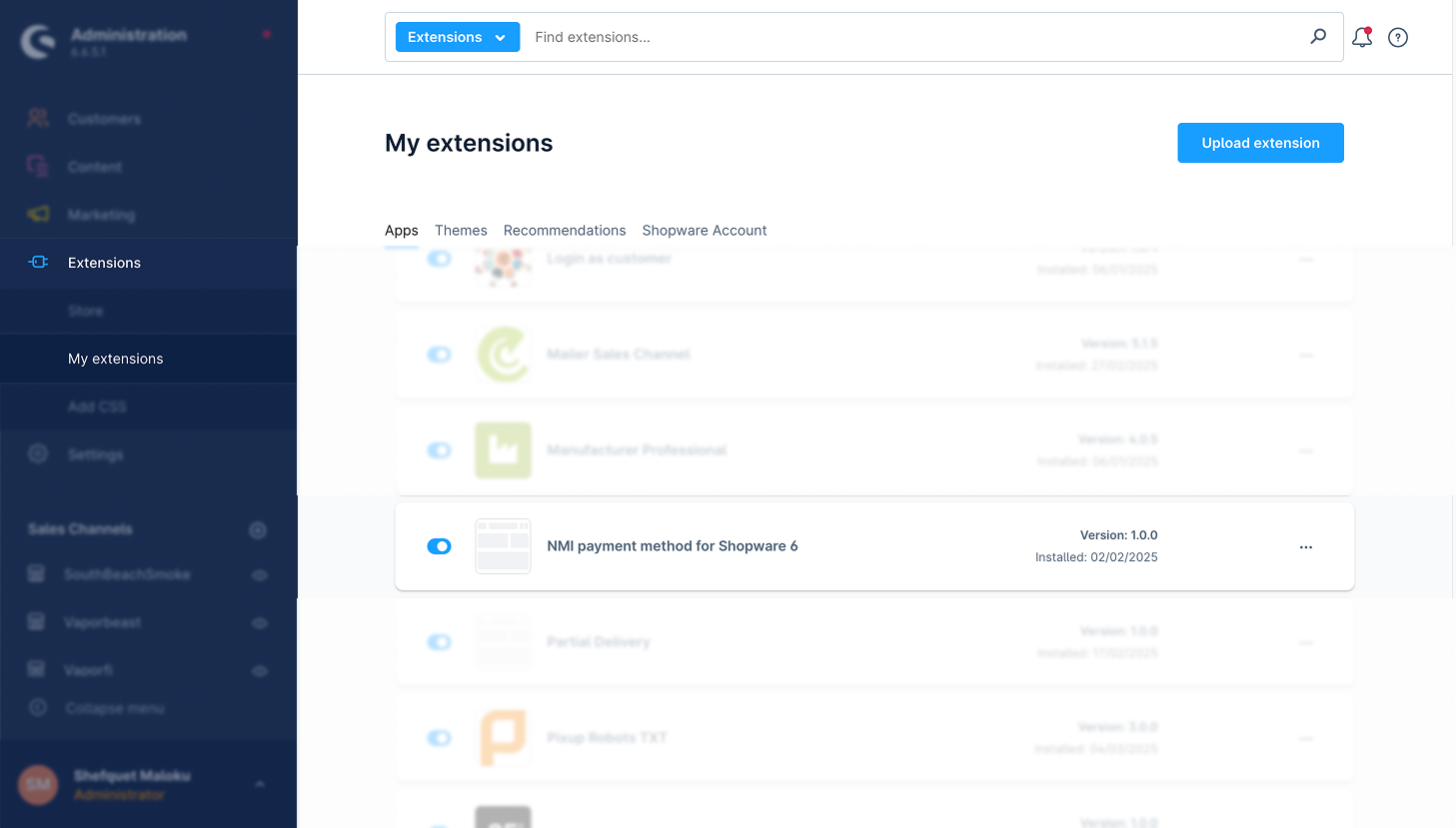
1.Access Plugin Settings
2.General Settings
Configure the following settings:
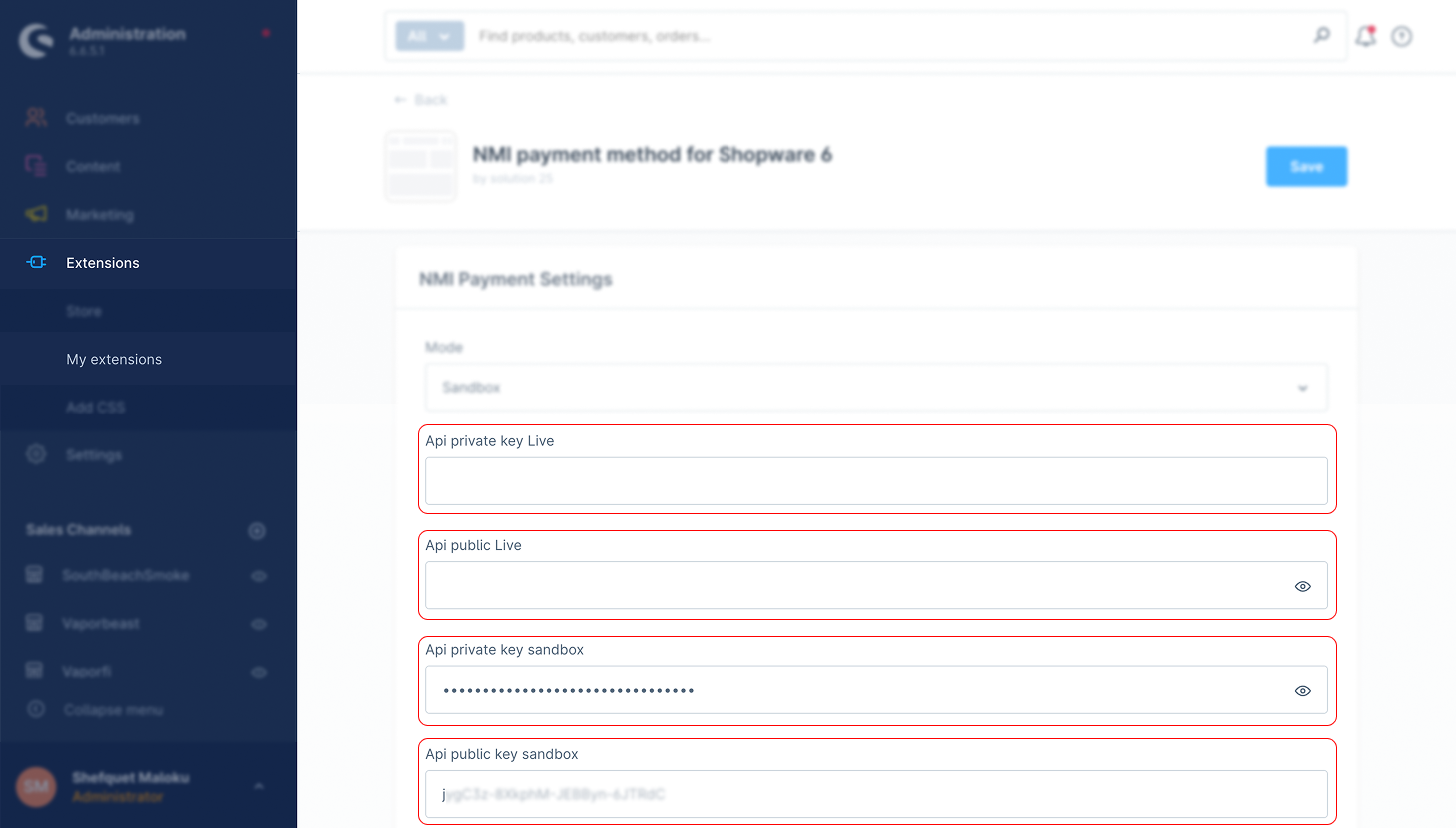
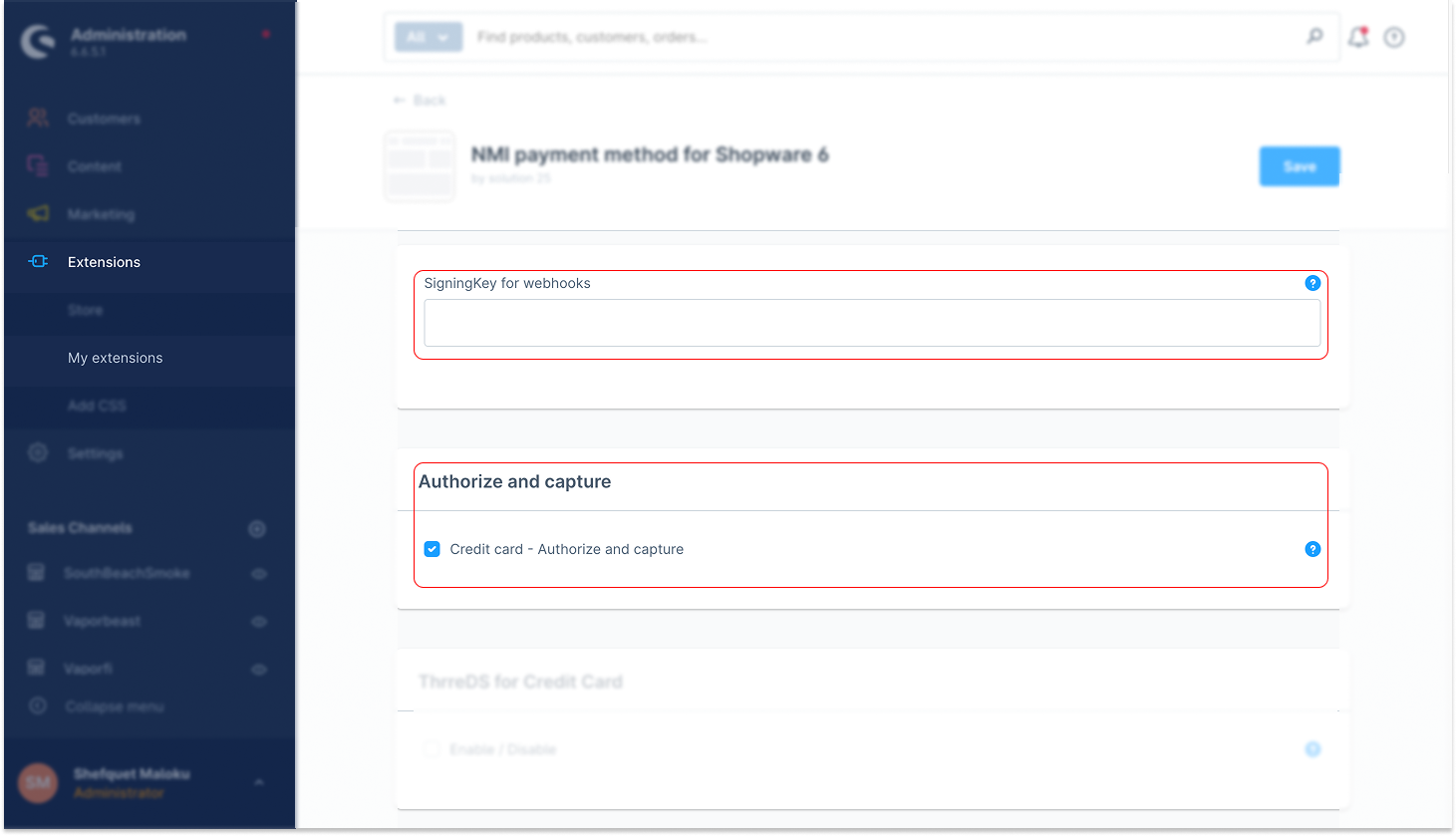
Once the plugin is installed and configured, NMI payments options will be available in the storefront.
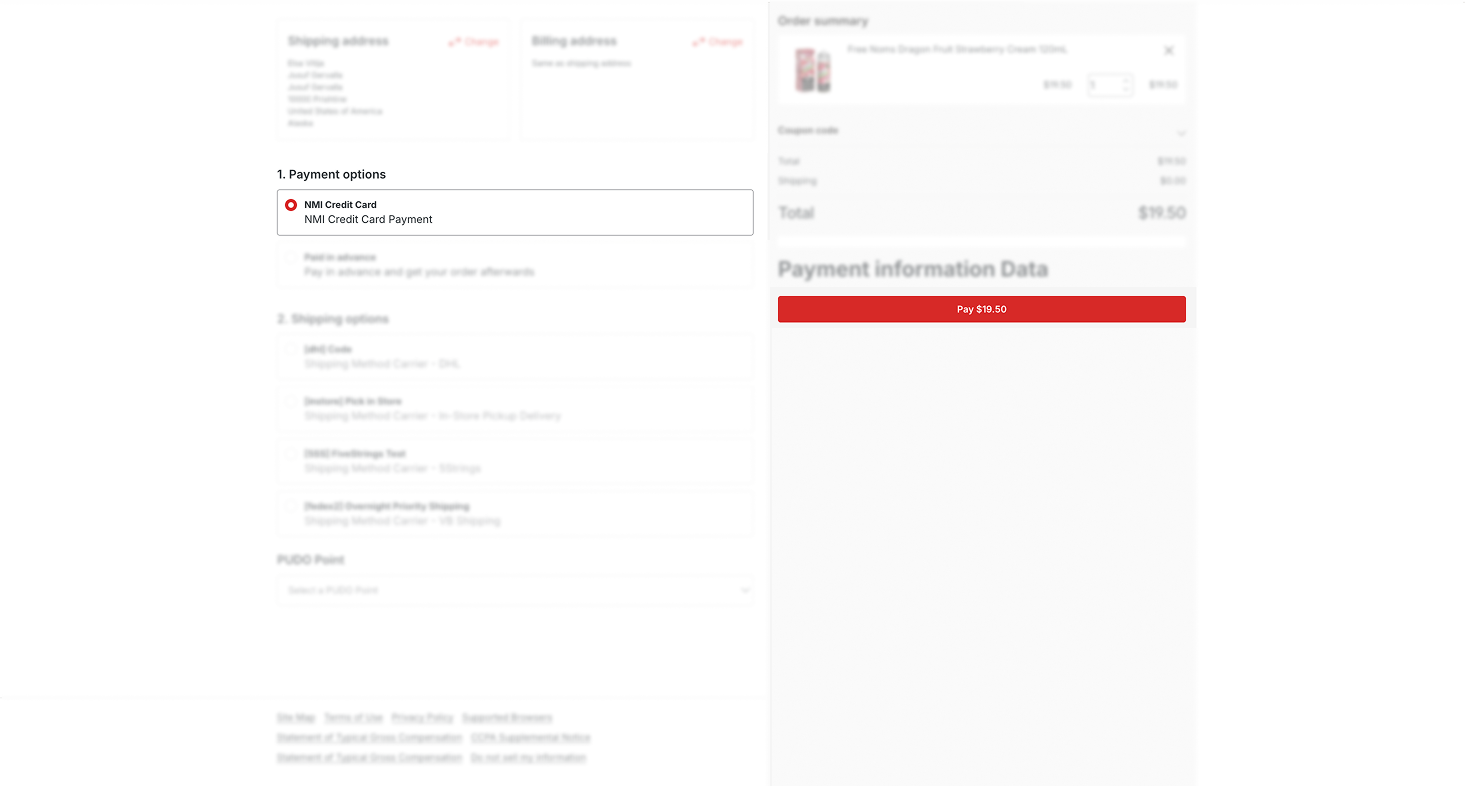
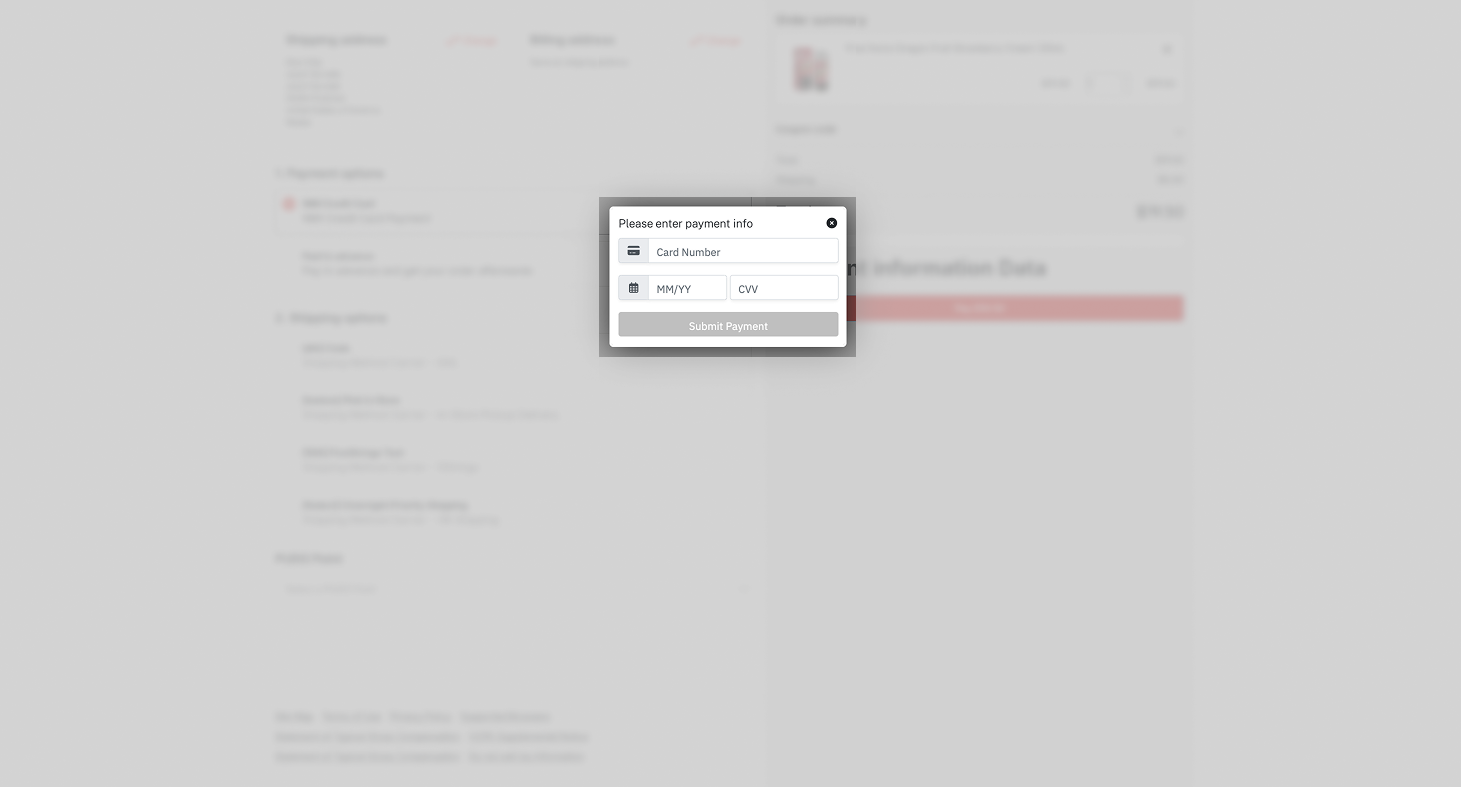
1. Credit Card Capture
This feature allows customers to complete transactions via NMI’s payment gateway using a credit card. Ensure that the API configuration for live transactions is set up correctly before using this feature.
How It Works:
Steps:
2. ACH Capture
ACH Capture (eCheck) enables customers to make payments using their bank account details, offering an alternative to credit card transactions.
How It Works:
ACH transactions transfer funds from the customer’s bank account directly.
Steps:
Select “NMI ACH (eCheck)” as the payment method.
Click “Pay.”
Enter the required bank account information.
Submit payment.
3. Authorize and Capture for Credit Card
This feature allows payment authorization and capture in two stages. The payment is initially authorized, freezing the funds in the customer’s bank account. The admin can then approve or decline the charge, completing or canceling the transaction.
How It Works:
Payment status remains “Authorize” until manually approved.
Admin can either Capture (charge the customer) or Cancel the transaction.
Steps:
Enable the “Authorize and Capture” feature in plugin settings.
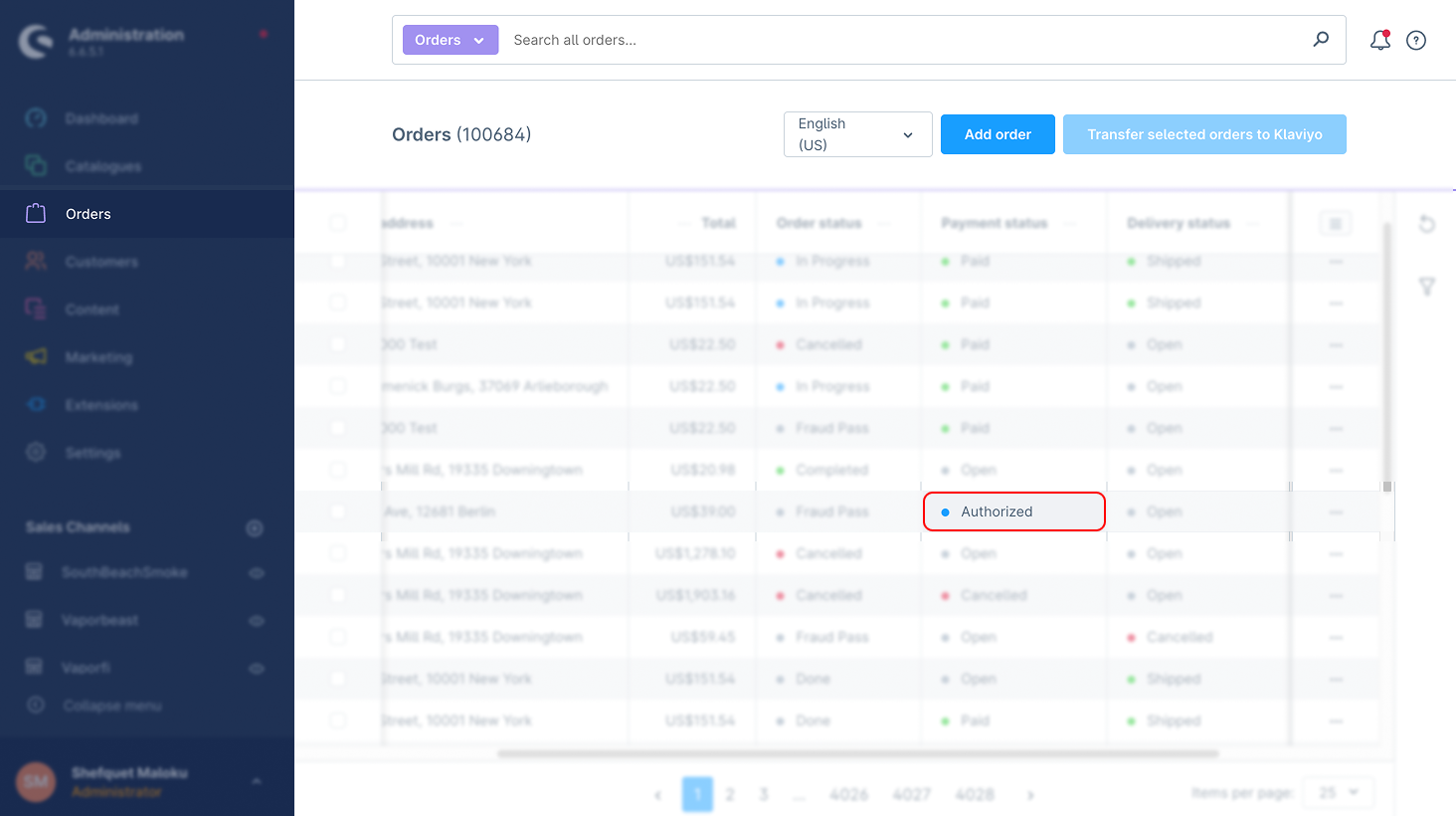
New orders will show as “Authorized.”
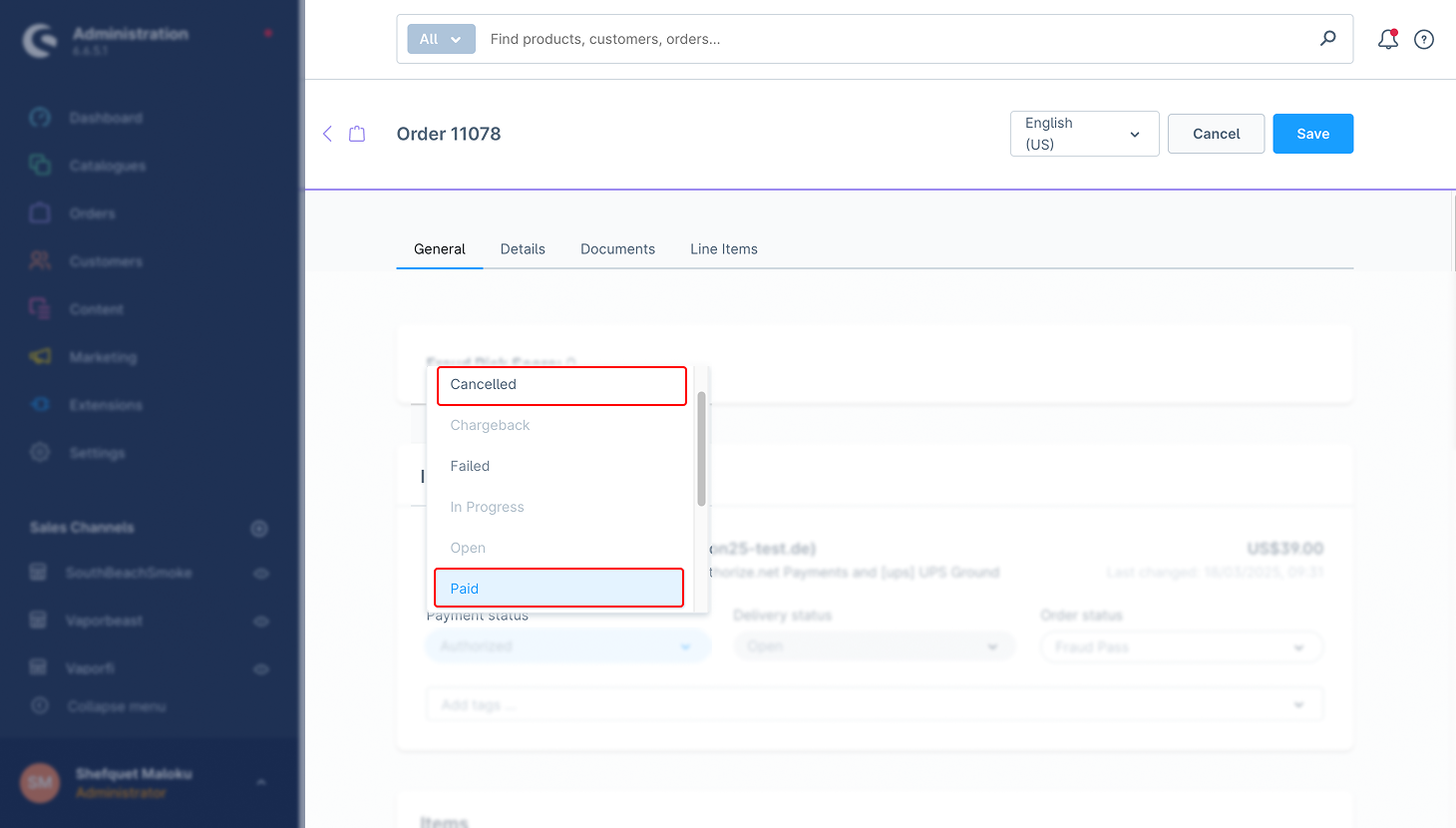
Navigate to Admin Panel → Orders, and change the payment status to “Paid” or “Cancelled.”
4. COLI (Cancel Order by Line Item)
COLI allows admins to cancel specific items in an order without affecting the entire transaction, providing more flexibility in managing returns. It allows the cancellation of specific line items from an order without canceling the entire order.
How It Works:
Customers can choose which products to cancel.
The remaining items can still be paid for.
Steps:
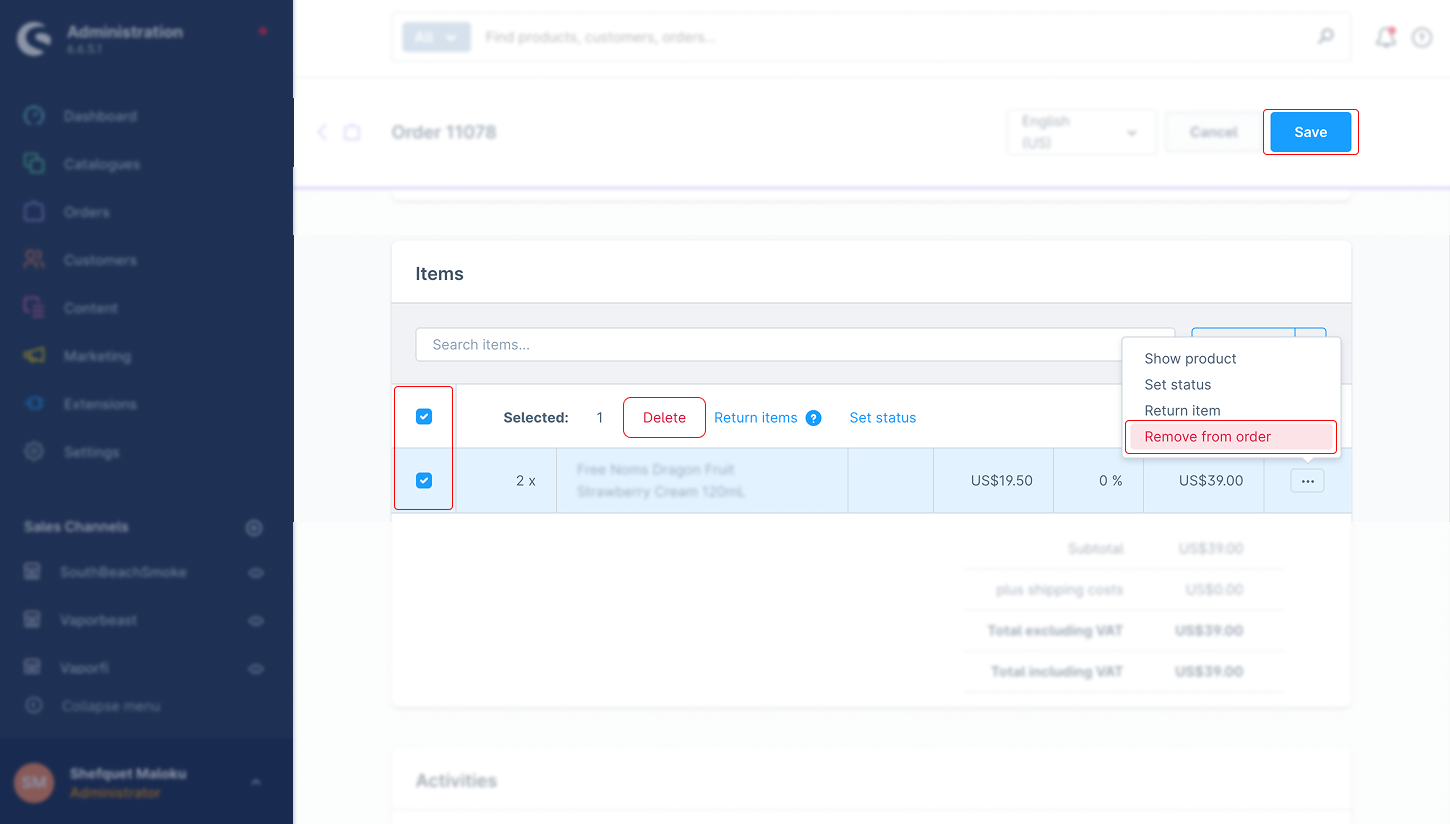
Select the product(s) you want to cancel.
Click “Delete” to remove the item(s).
Save the updated order.
Change the payment status from “Authorized” to “Paid.”
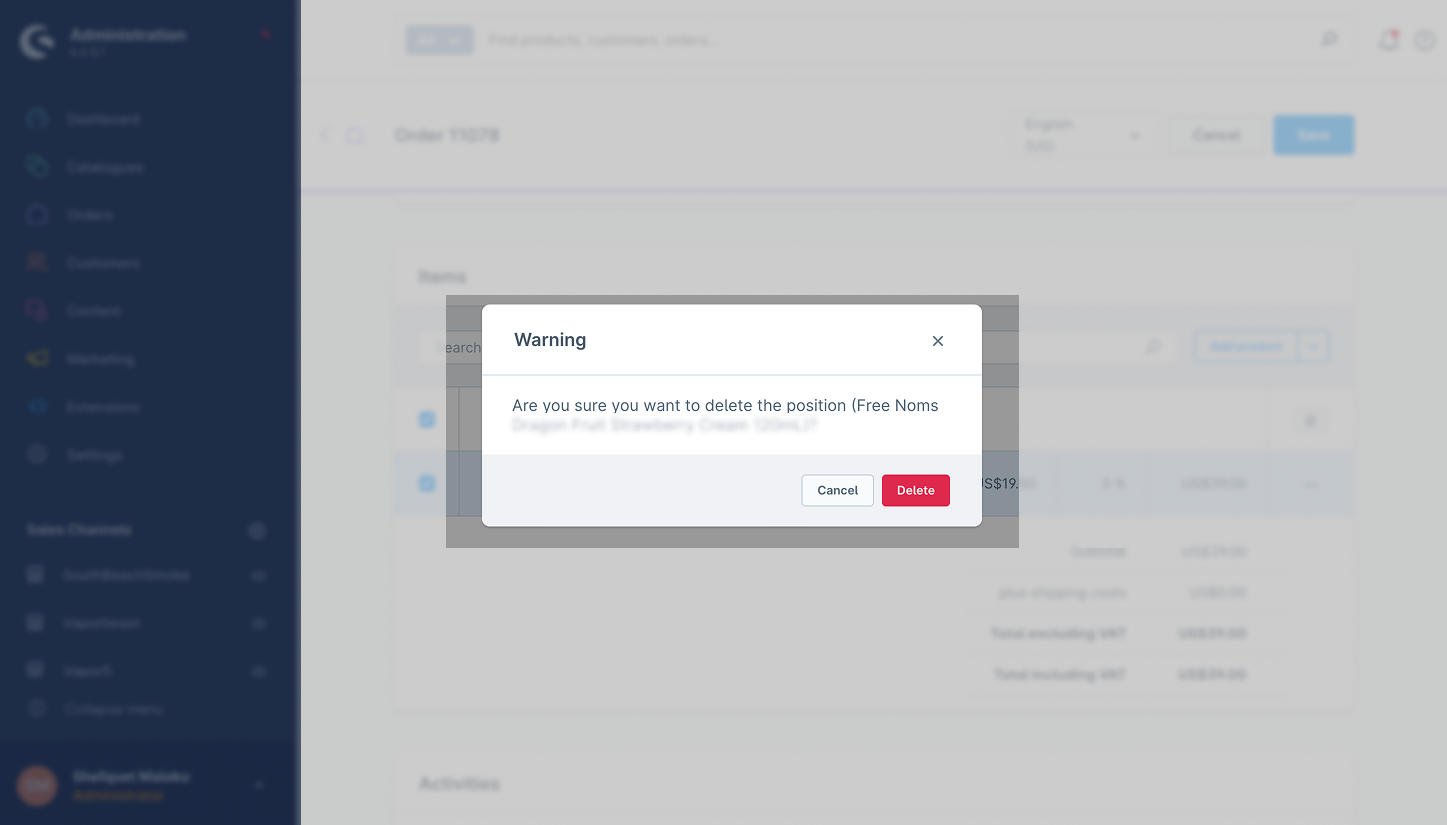
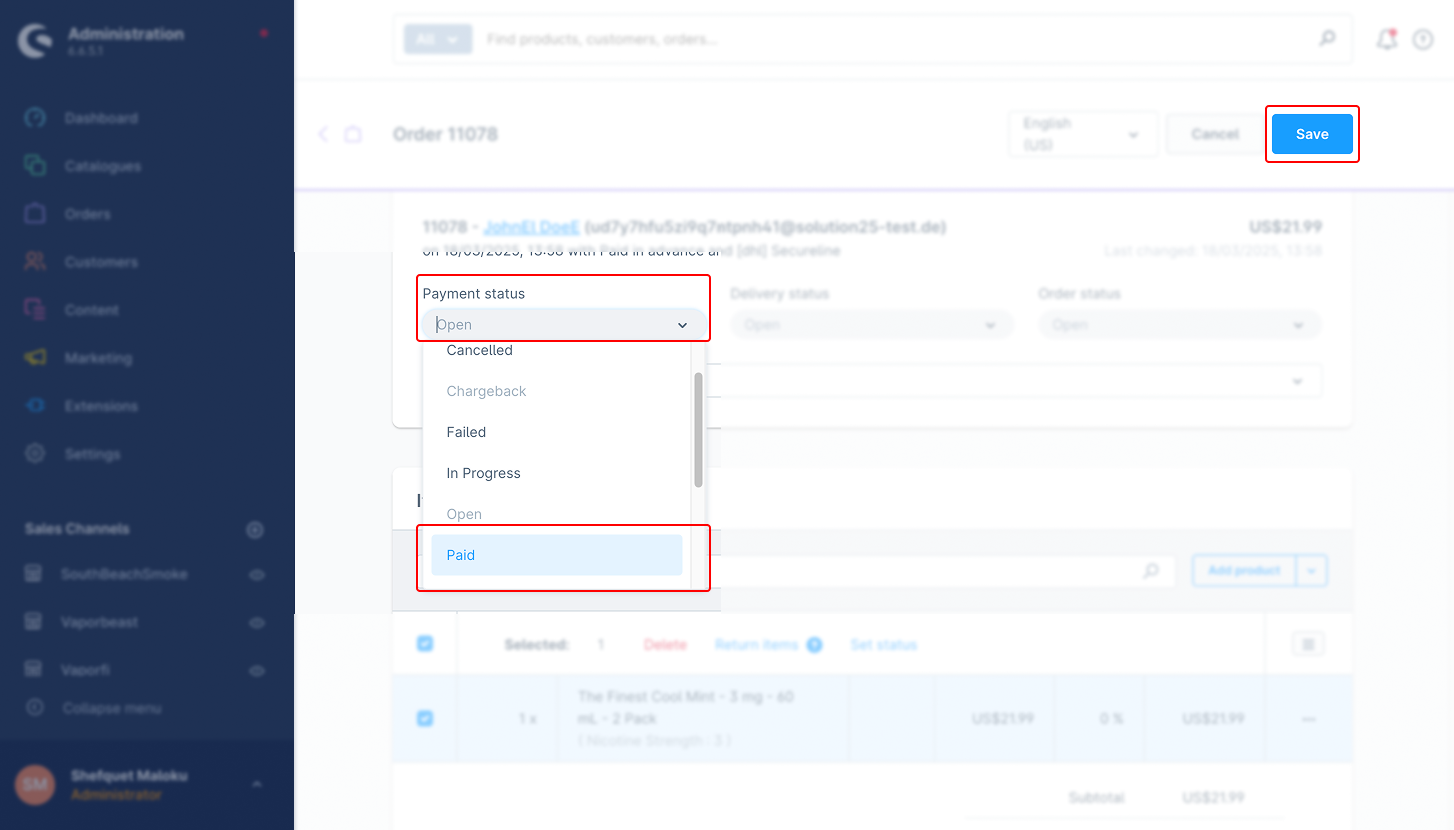
The Coli feature is designed to work exclusively with iPaaS (Integration Platform as a Service) solutions and similar platforms.
4. Refunds (Full & Partial)
Supports full and partial refunds through NMI.
How It Works:
Full refunds return the entire payment.
Partial refunds return only a portion of the total amount.
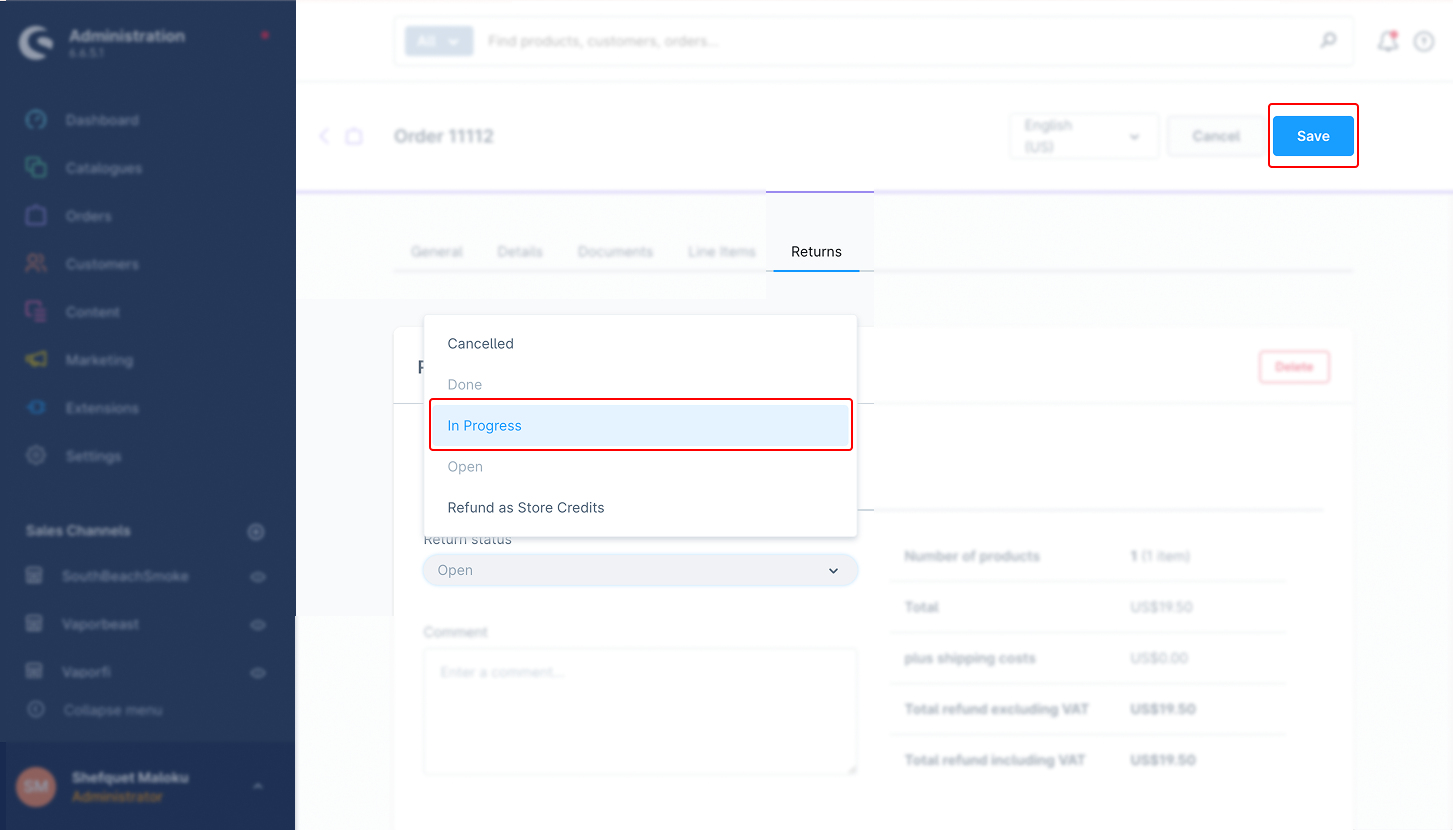
How to Use (Full Refund):
1.Navigate to Orders → Item Section.
2.Select the product(s) to be refunded.
3.Click Return Items.
4.Save the order.
5.Click Create Refund.
6.Change status to “In Progress”.
How to Use (Partial Refund):
1.Navigate to Orders → Item Section.
2.Select the product(s) to be refunded.
3.Adjust the refund amount (full or partial).
4.Click Return Items.
5.Save the order.
6.Click Create Refund.
7.Change status to “In Progress”.
Full Refund:
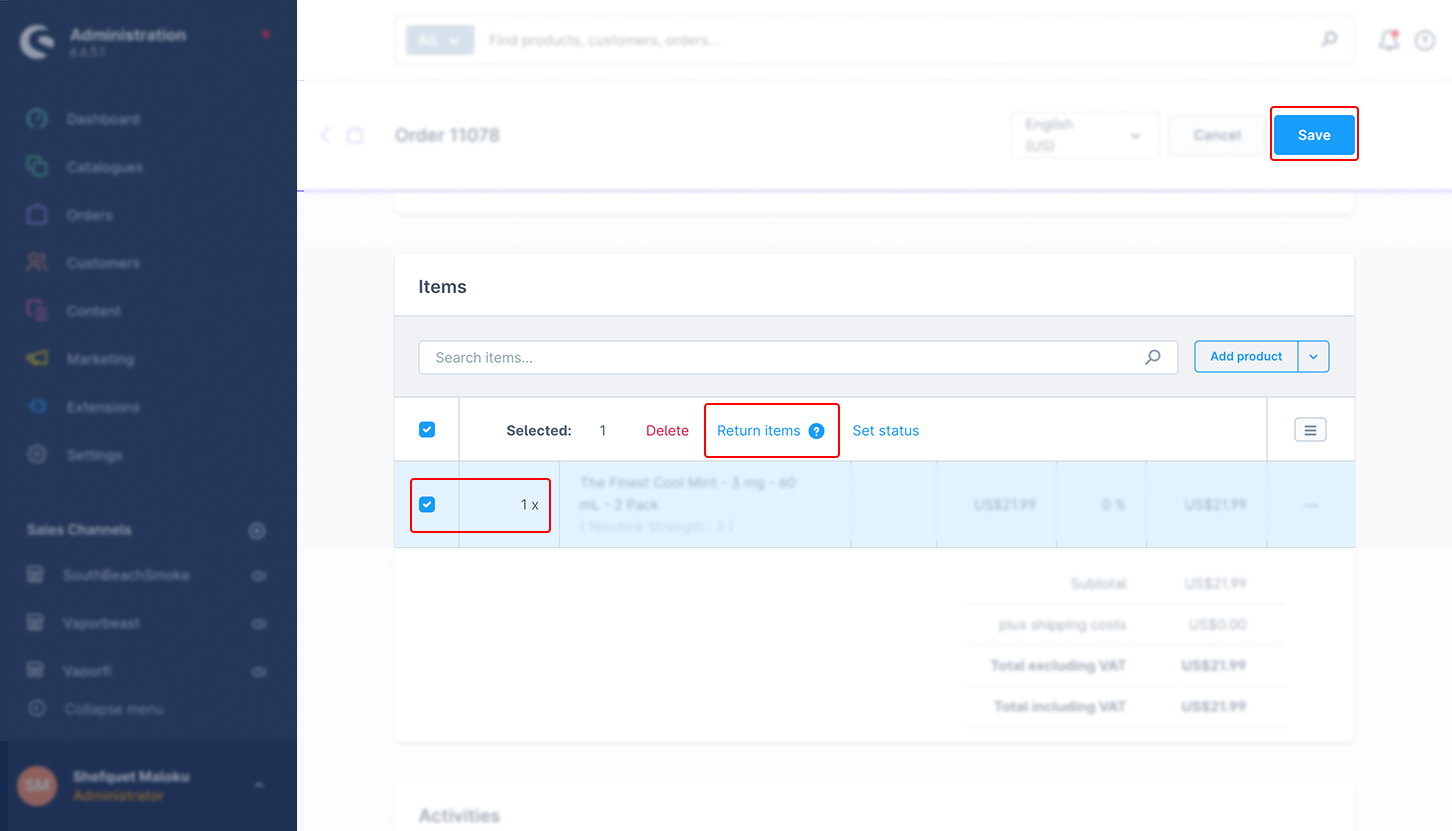
Partial Refund:
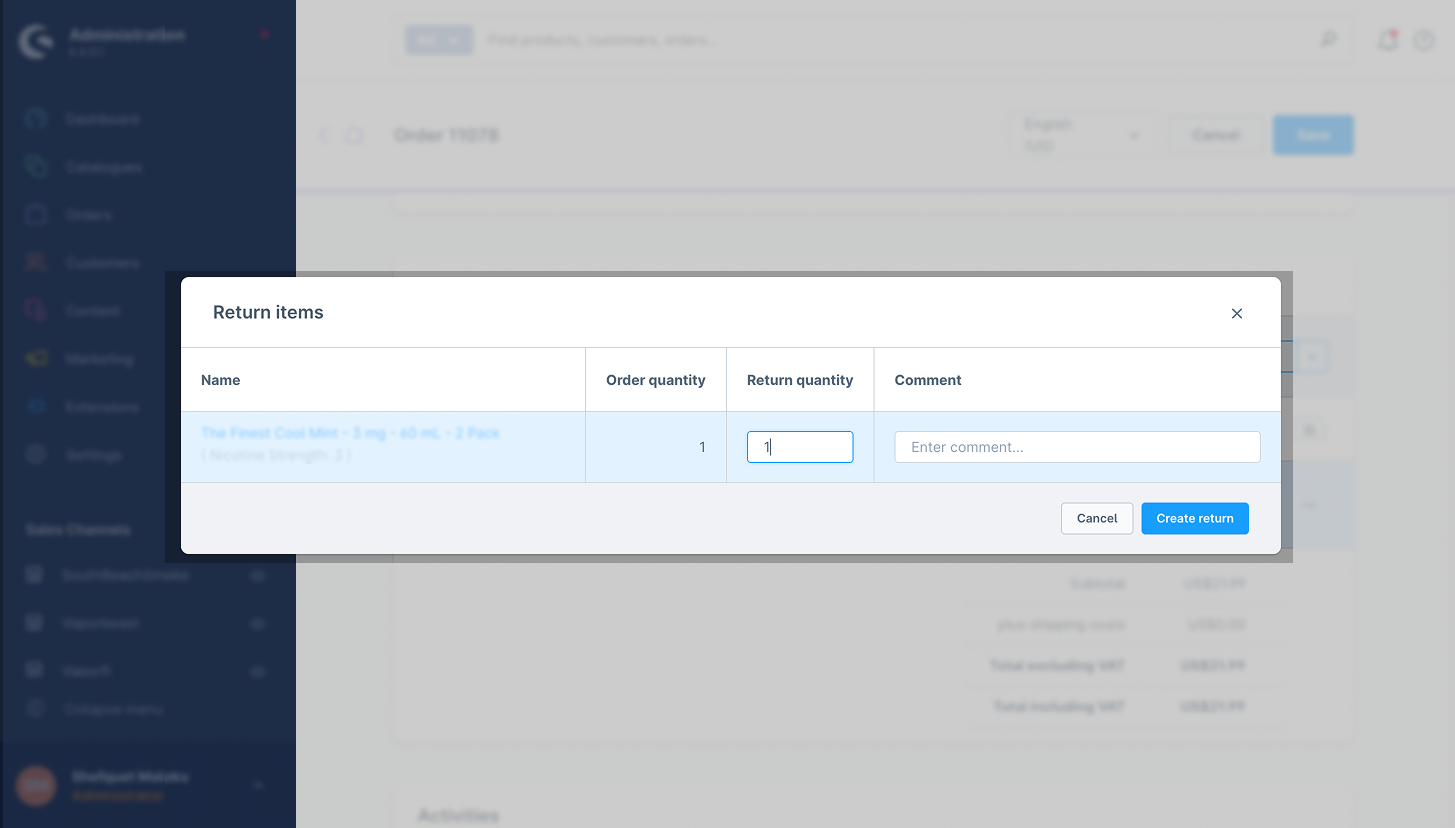
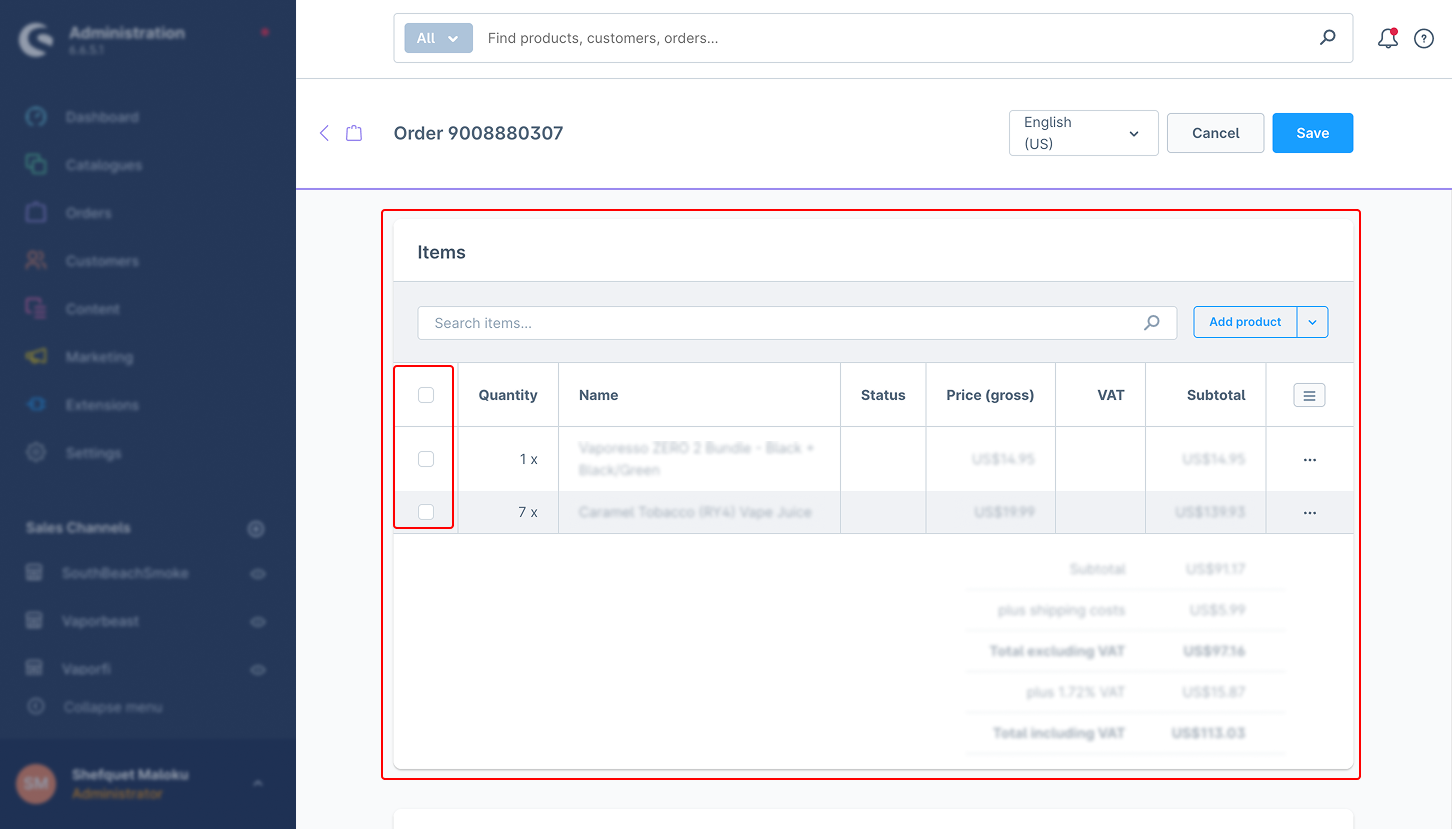
1.Navigate to the order and select the product for return.
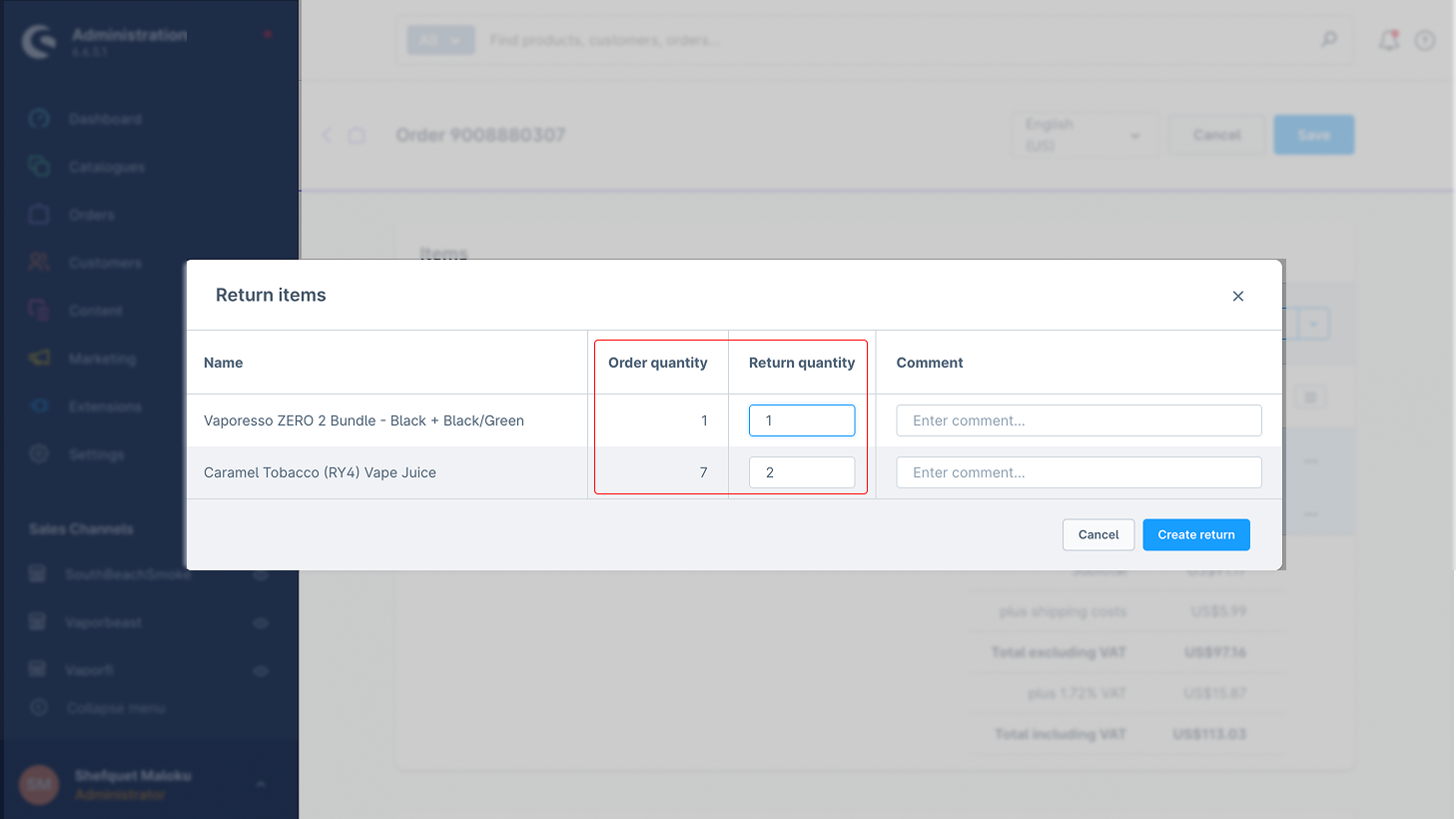
2.Specify the quantity of items to be refunded.
3.Return the item(s).
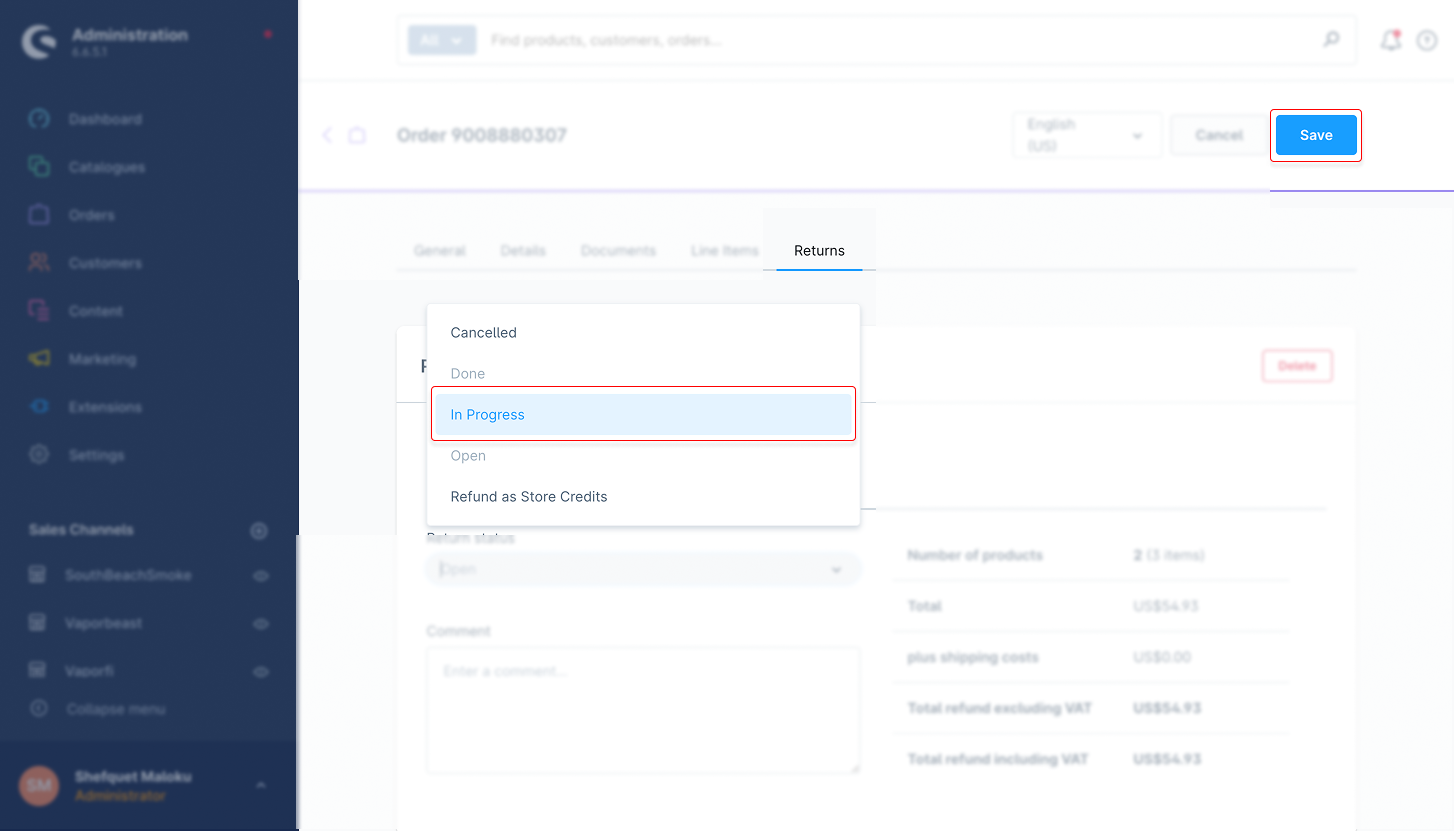
4.Save the order.
5.Create a partial refund.
6.Update the order status to “In Progress”.
5. Mixed Card
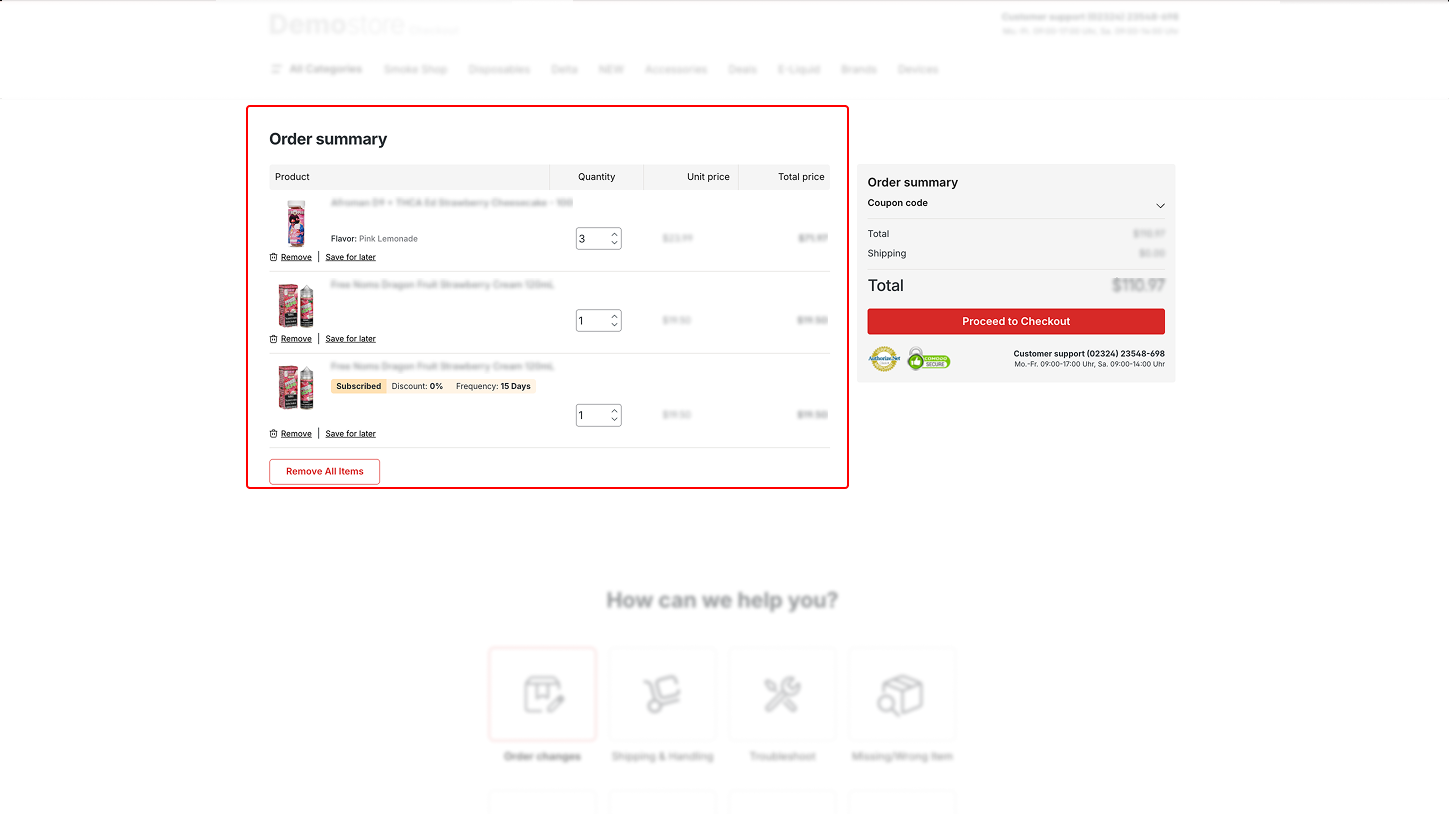
The Mixed Card feature enables customers to purchase both regular products and subscription-based products using a single cart. This functionality integrates standard purchases and subscriptions into the same transaction.
How It Works:
The system differentiates between one-time purchases and subscription-based payments.
The same credit card can be used for both types of transactions.
How to Use:
1. Add regular and subscription products to the cart.
2.Proceed to checkout.
3.Pay with a single credit card.
6. Save Card Feature
Allows customers to securely save their card details for future transactions.
How It Works:
A Vaulted ID is created to store the customer’s payment details.
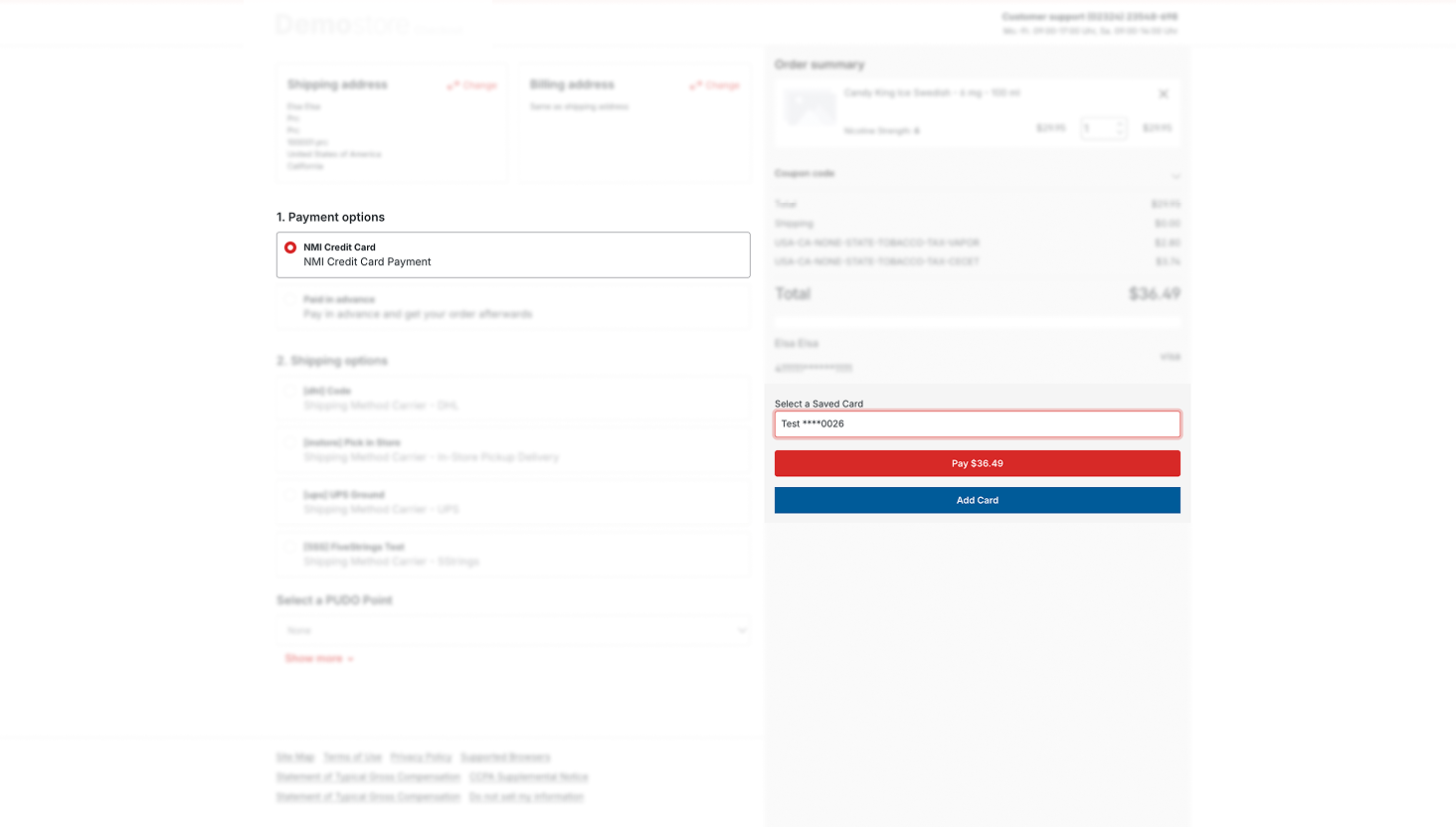
Customers can choose one-click payments for future transactions.
How to Use:
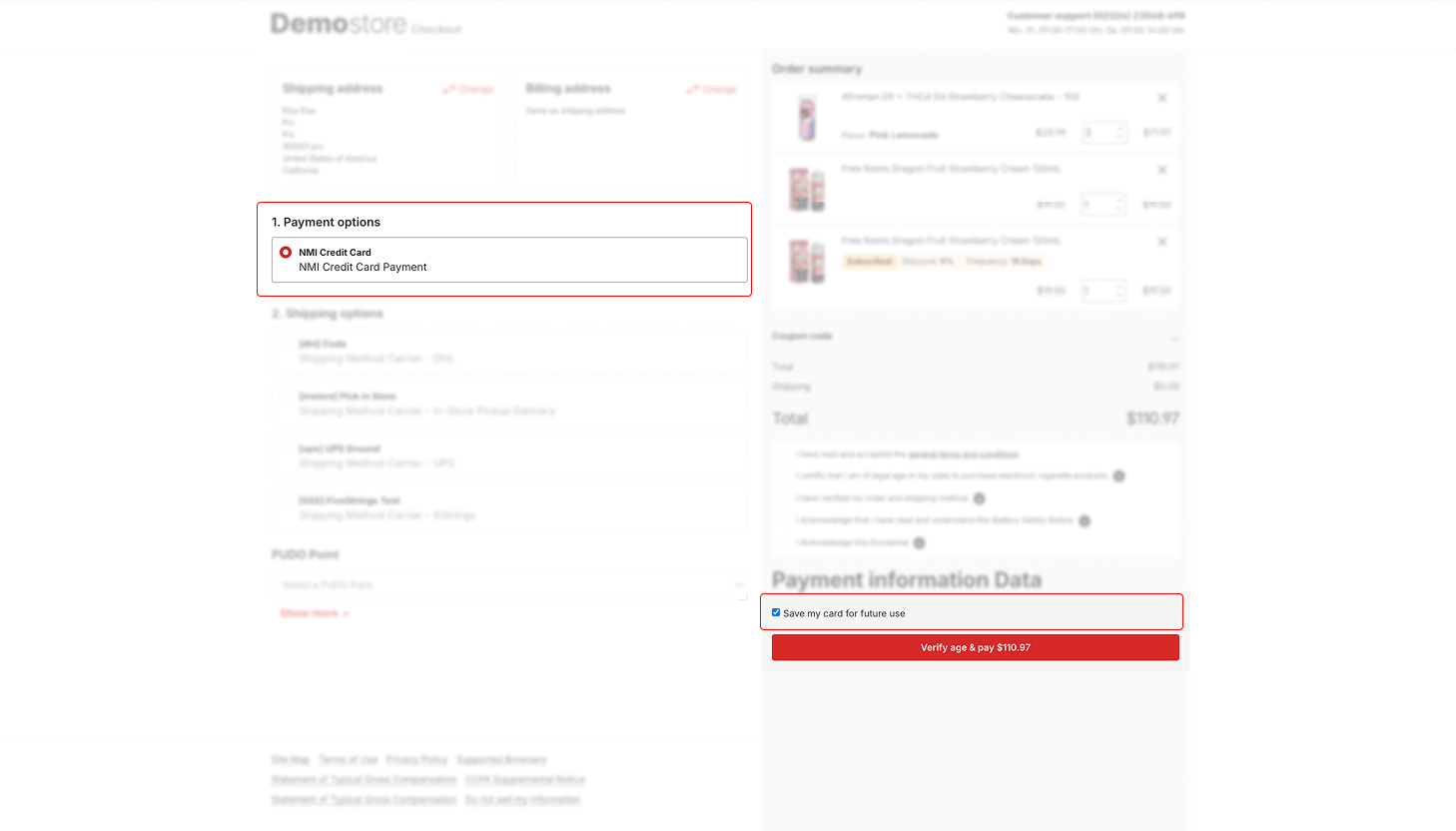
1. Select products and proceed to checkout.
2.Fill in payment details.
3.Check the box “Save my card for future use”.
4.The saved card will appear as a payment option in future checkouts.
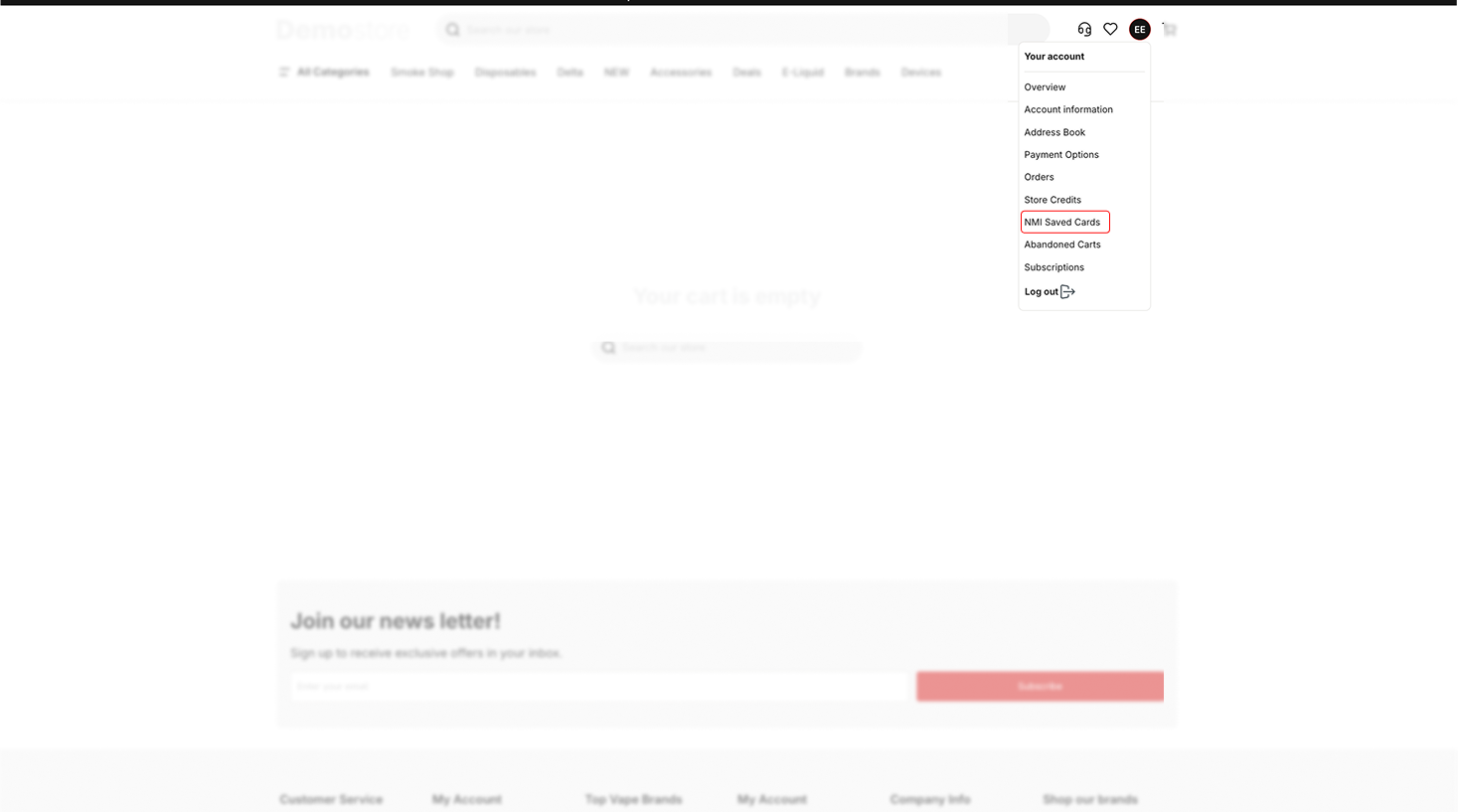
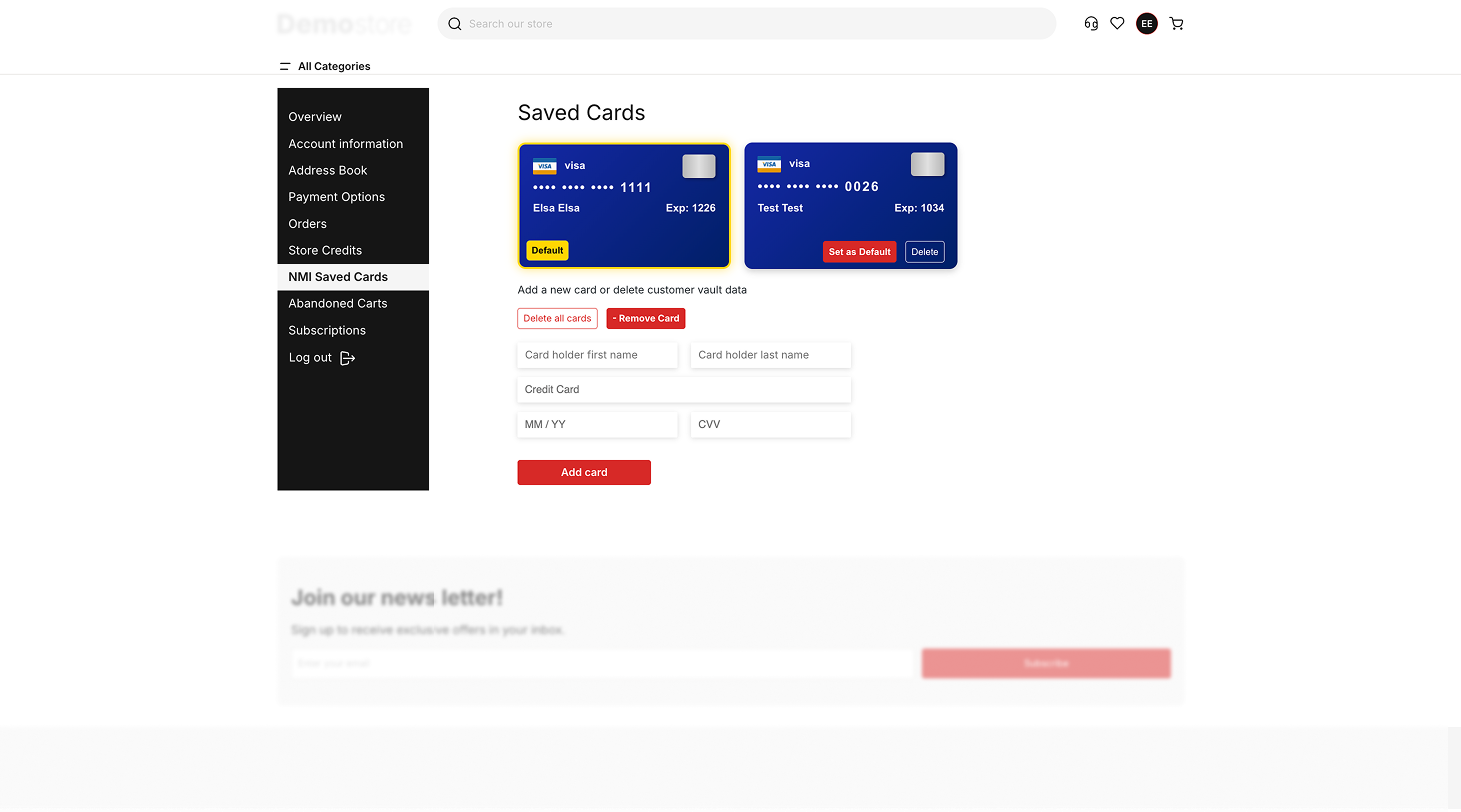
Managing Saved Cards:
Delete Card: Removes saved card details from NMI.
Add Card: Allows adding a new card for future transactions.
This document provides detailed information about the API endpoints available in the NMI Plugin for Shopware 6. These endpoints allow authorized users to initiate transactions and retrieve transaction details using query-based parameters.
POST /api/transact.php
Initiates a transaction using query parameters sent via a POST request. This is the typical gateway interaction endpoint for processing payments through NMI.
Accept: application/json
security_key=6457Thfj624V5r7WUwc5v6a68Zsd6YEm
type=sale
ccnumber=4111111111111111
ccexp=1025
cvv=123
amount=1
response=1
responsetext=SUCCESS
authcode=123456
transactionid=10778056102
response_code=100
type=sale
cvvresponse=N
response=3
responsetext=Payment Token does not exist REFID:333061802
response_code=300
POST /api/query.php
Sends a query request to the NMI gateway to retrieve transaction details. Useful for post-transaction operations such as verifying payment status, fetching historical data, or reconciling records.
Accept: application/json
Content-Type: application/json
{
  "security_key": "6457Thfj624V5r7WUwc5v6a68Zsd6YEm",
  "report_type": "transaction",
  "transactionid": "10778056102"
}
{
  "nm_response": {
    "transaction": {
      "transaction_id": "10778056102",
      "transaction_type": "cc",
      "condition": "complete",
      "order_id": "1234567890",
      "first_name": "John",
      "last_name": "Smith",
      "cc_number": "4xxxxxxxxxxx1111",
      "cc_exp": "1025",
      "amount": "1.00",
      "response_text": "SUCCESS",
      "response_code": "100"
    }
  }
}
{
  "nm_response": {
    "error_response": "Invalid security key provided. REFID:987654321"
  }
}
1. Configure API Keys Correctly
Set up Live and Sandbox API keys before processing transactions.
Ensure Signing Key and Public Keys are correct for secure communication.
2. Monitor Transactions
Regularly check Admin Panel → Orders for proper payment processing.
Use Authorize and Capture to control payment approval before capturing funds.
3. Handle Refunds Carefully
Verify the correct product for full/partial refunds.
Update order status to “In Progress” after processing refunds.
4. Utilize Mixed Card Feature
Allow customers to use one credit card for both regular and subscription products.
5. Save Cards Securely
Enable Save Card for faster future transactions.
Regularly manage and update saved cards.
6. Clear Cache After Changes
Always clear the Shopware cache after saving settings to ensure updates are applied.
7. Test in Sandbox Mode
Use Sandbox API Keys to test all payment methods before going live.
8. Stay Updated
Keep the plugin updated to ensure compatibility and security.
No Credit Card Payment Option Appearing
ACH Payments Not Processing
Authorize and Capture Not Working
Refunds Not Processing
Save Card Feature Not Saving
Mixed Card Transactions Not Working
1. How do I configure the API keys?
Go to the plugin settings in the Shopware Admin Panel and enter the Live and Sandbox API keys, along with the Signing Key and Public Keys for secure transactions.
2. Can I use ACH for payments?
Yes, you can enable NMI ACH (eCheck) as a payment method for customers to pay using bank account details.
3. How does the Authorize and Capture feature work?
The payment is first authorized and held. Admins can approve or decline the charge before capturing the funds.
4. Can I cancel specific items in an order?
Yes, you can cancel individual line items without affecting the entire order using the COLI (Cancel Order by Line Item) feature.
5. Can I save customers’ credit card details?
Yes, you can enable the Save Card feature to securely store customers’ payment details for future transactions.
6. How do I handle refunds?
Full or partial refunds can be processed through the Orders section in the Admin Panel. Update the status to “In Progress” after processing.
7. Can customers purchase both regular and subscription products with one card?
Yes, the Mixed Card feature allows customers to purchase regular products and subscription-based items using a single credit card.
8. Is it safe to store card information?
Yes, customer card information is stored securely with a Vaulted ID, ensuring PCI compliance and enabling future one-click payments.
9. How do I troubleshoot payment issues?
Check your API credentials, ensure the plugin is active, and verify payment statuses in the Admin Panel. Clear the cache if settings don’t save.
Read more about the plugin configuration on our WIKI