


The Listrak plugin integrates your Shopware 6 store with Listrak’s marketing platform bringing advanced features like abandoned cart recovery, customer data sync, and storefront tracking to help you grow your business.
1.Customer Data Sync
Automatically send customer registrations and newsletter signups to Listrak.
2.Order Data Sync
Push order information to Listrak for personalized post-purchase campaigns.
3.Product Data Sync
Push product information to Listrak for personalized post-purchase campaigns.
4.Admin Panel Integration
Manage API credentials and feature toggles directly from the Shopware admin panel.
5.Abandoned Cart Recovery
Capture cart data and sync it with Listrak for automated follow-up campaigns.
6.Transactional Mails
Send Transactional Mails via Listrak.
Get Started
Installation & Activation
1.Download
git clone https://github.com/solution25com/listrak-shopware-6-solution25.git
composer require solution25/listrak
2.Install the Plugin in Shopware 6
3.Activate the Plugin
4.Verify Installation
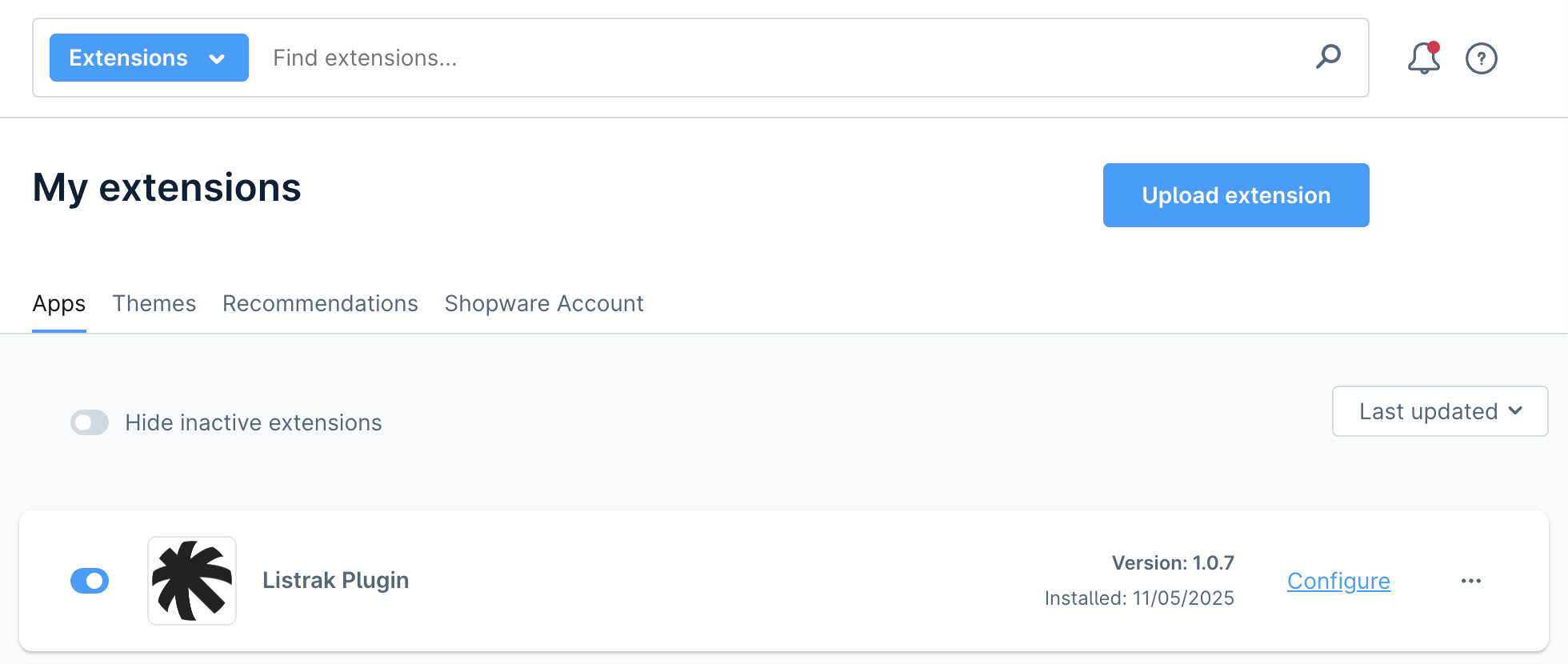
1.Access Plugin Settings
2.Data Integration Settings
Listrak Merchant ID
Enter the Merchant ID provided by Listrak.
Listrak Data Client ID
Enter the Client ID from your Listrak Data Integration.
Listrak Data Client Secret
Enter the Client Secret from your Listrak Data Integration.
Test API connection
Test Data API connection.
3.FTP Integration Settings
FTP Username
Enter the FTP Username from your Listrak FTP Integration.
FTP Password
Enter the FTP Password from your Listrak FTP Integration.
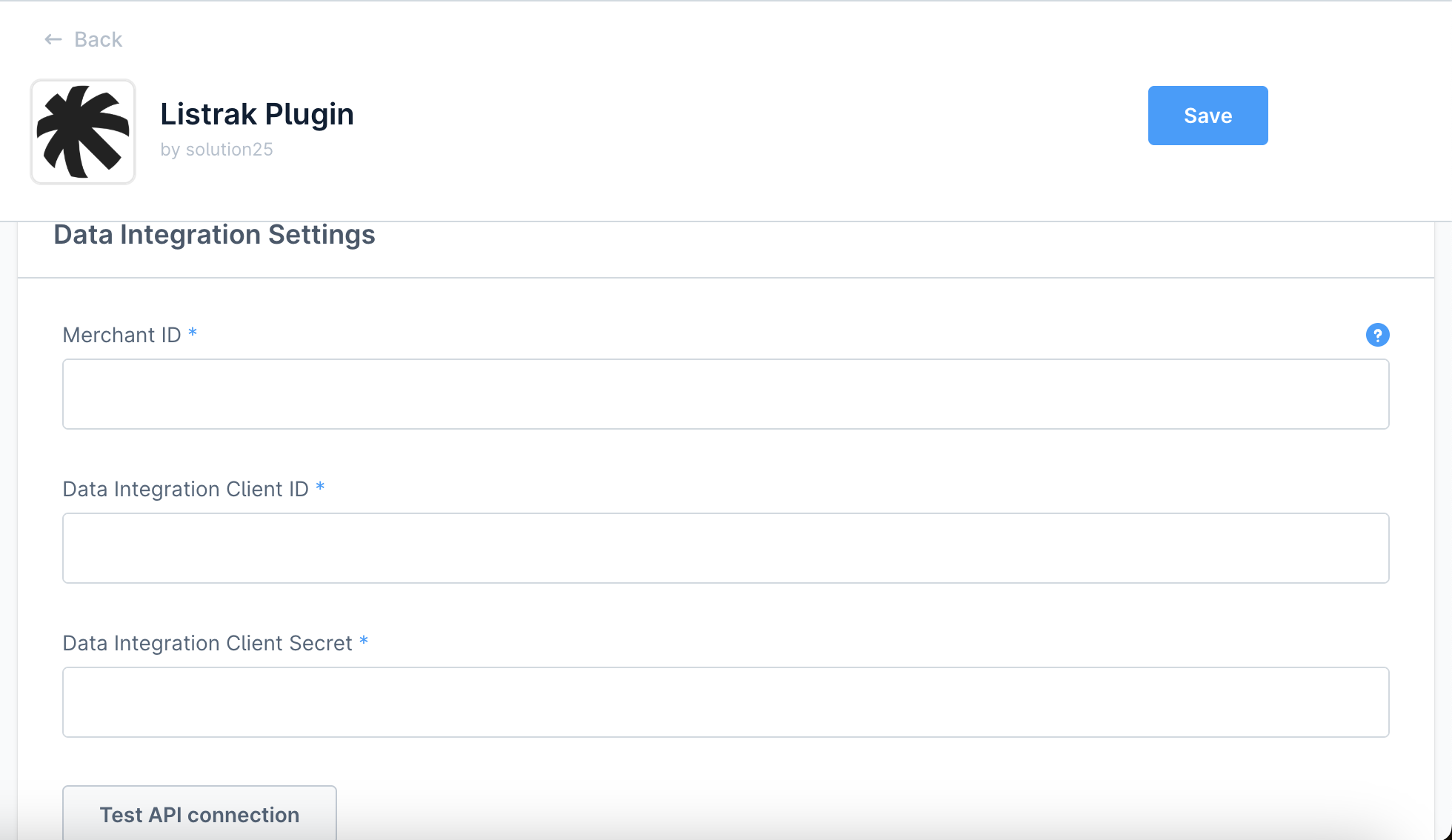
4.Email Integration Settings
Marketing List ID
Enter the List ID which you can find at Help & Support > API ID Information in the Listrak Admin.
Transactional List ID
Enter the List ID which you can find at Help & Support > API ID Information in the Listrak Admin.
Listrak Email Client ID
Enter the Client ID from your Listrak Email Integration.
Listrak Email Client Secret
Enter the Client Secret from your Listrak Email Integration.
Salutation Field Id
Optionally enter the Salutation field id from your Listrak Email Profile field, if it exists.
First Name Field Id
Optionally enter the first name field id from your Listrak Email Profile field, if it exists.
Last Name Field Id
Optionally enter the last name field id from your Listrak Email Profile field, if it exists.
Test API connection
Test Email API connection.
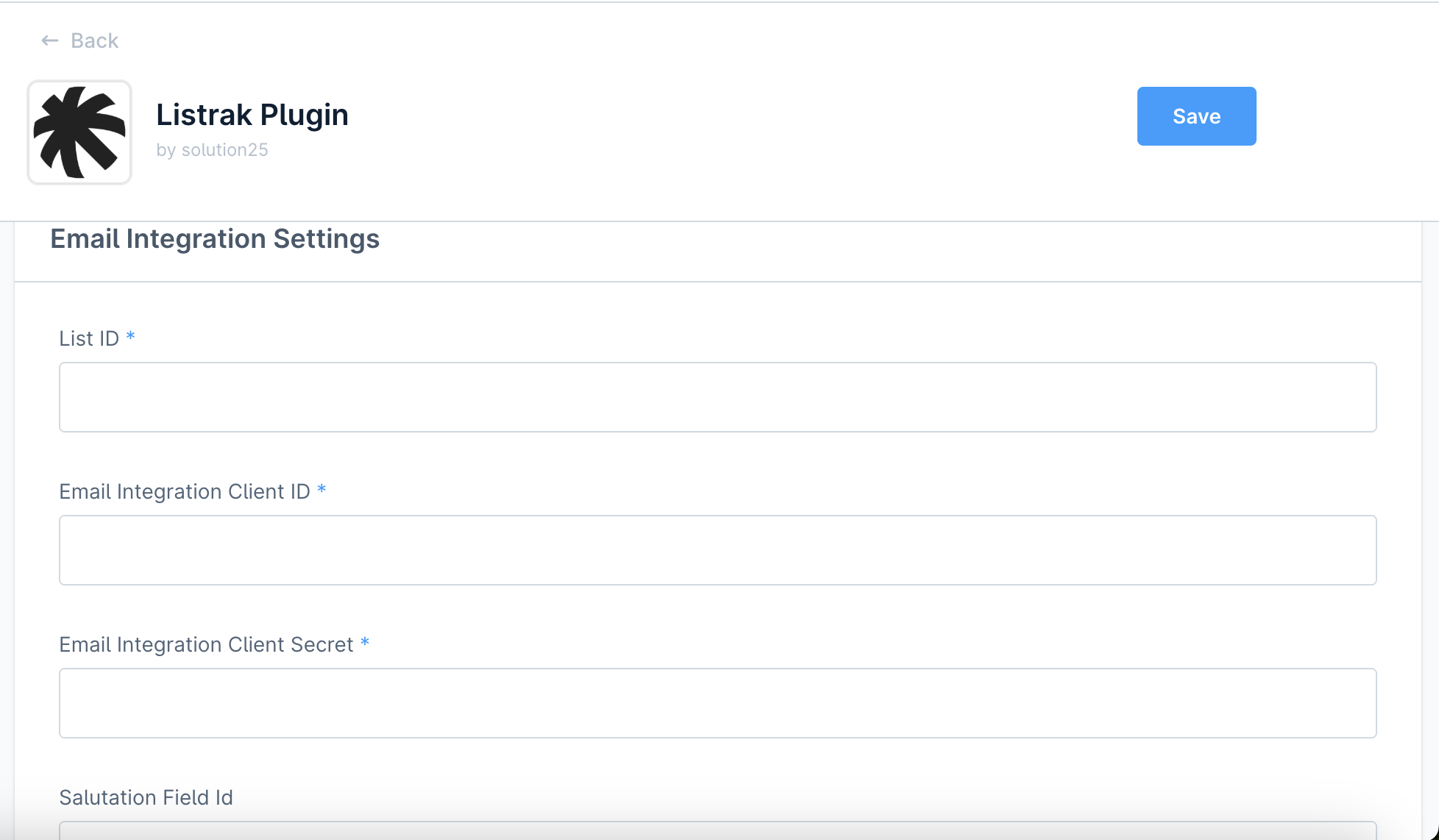
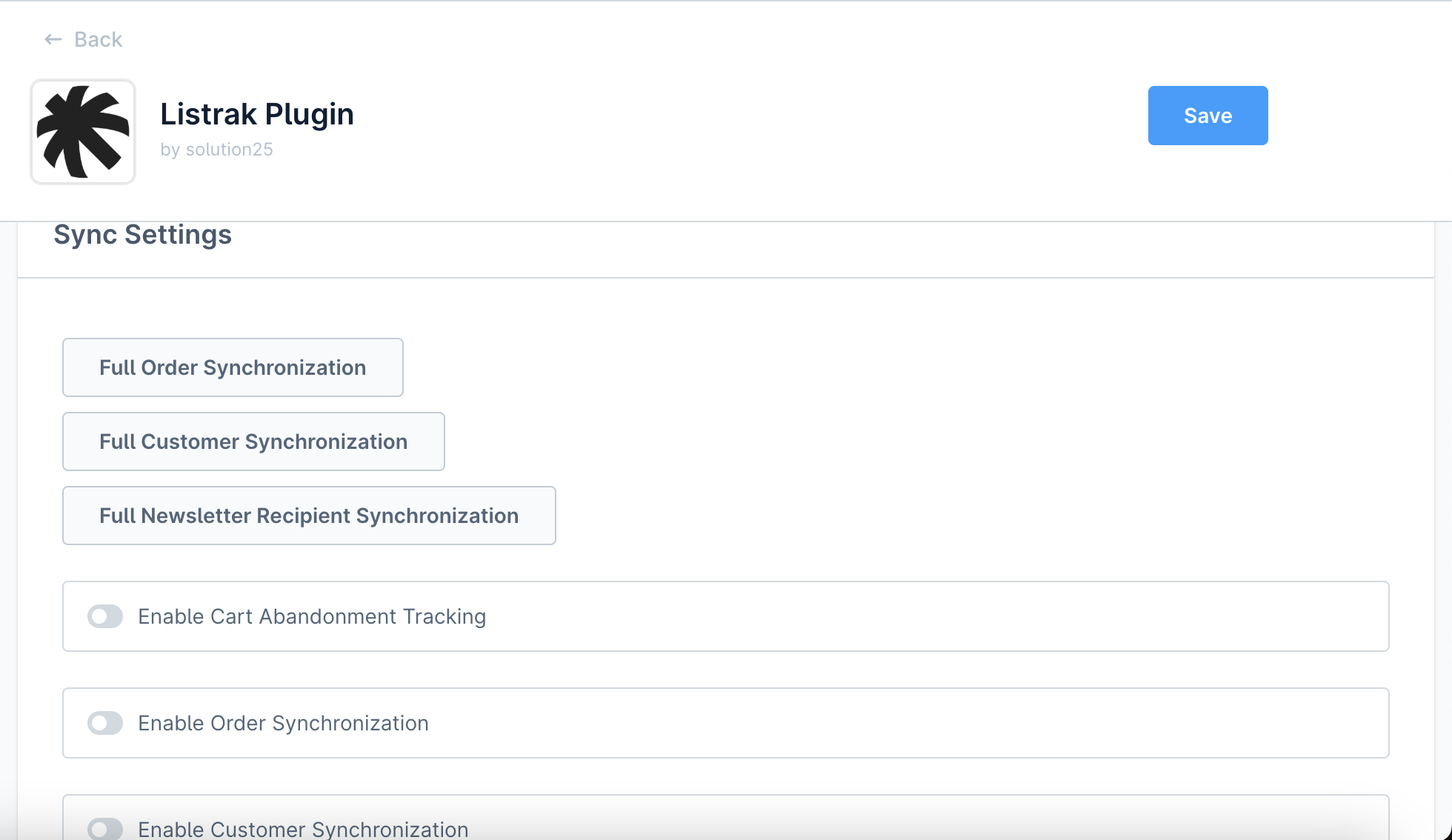
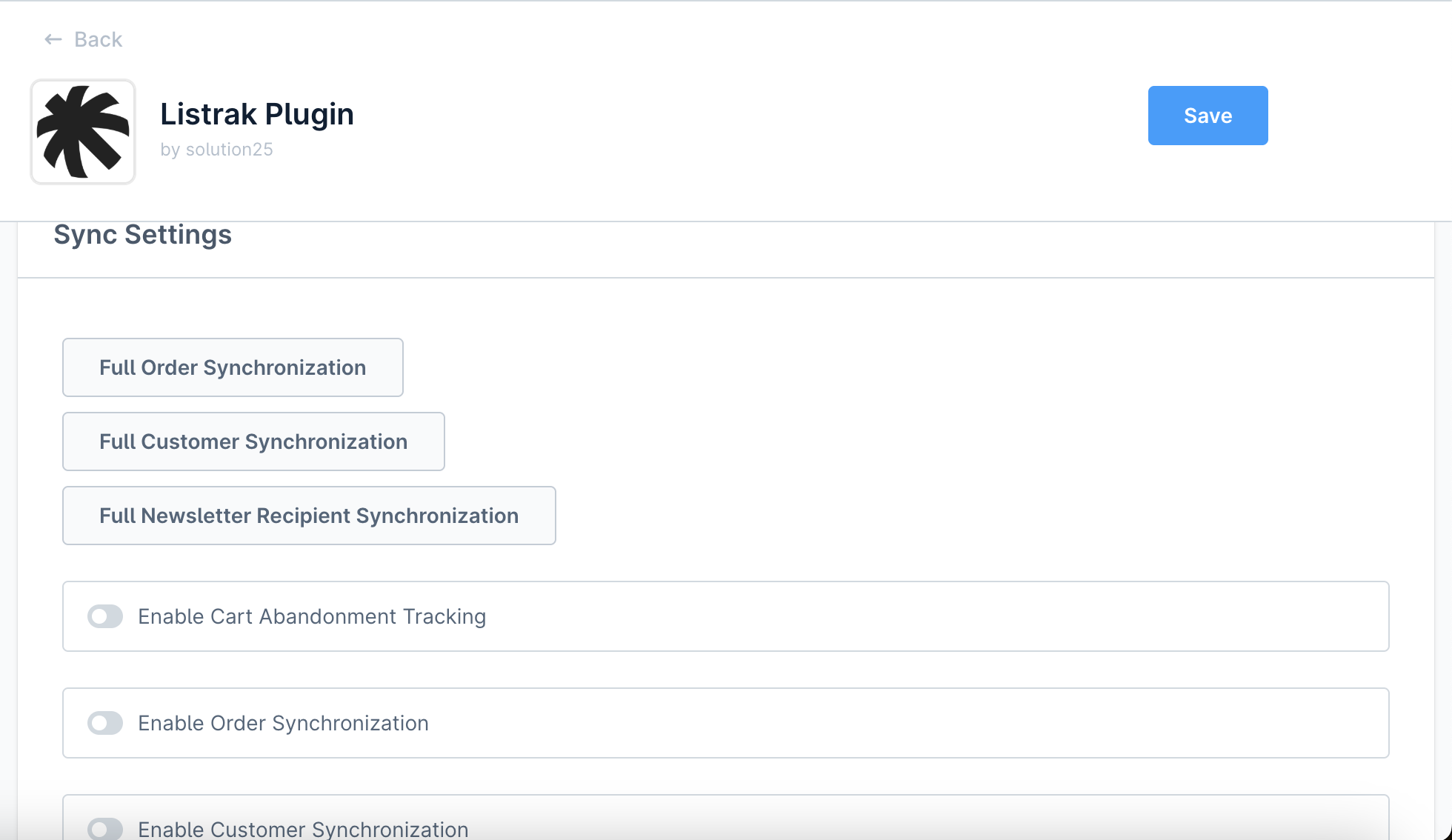
3.Sync Settings
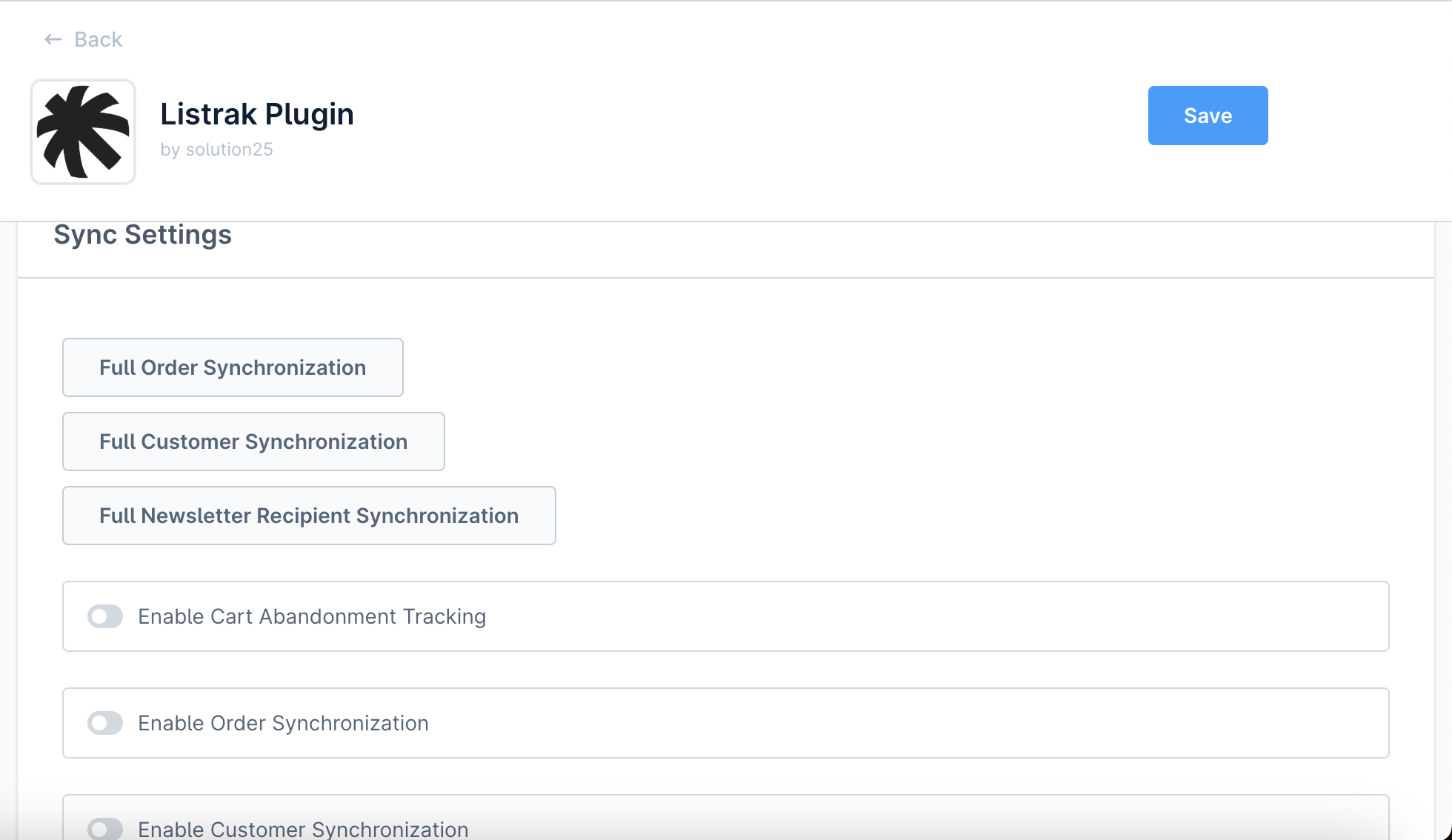
3.Save Configuration
This document describes the custom Admin API endpoints provided by the Listrak Plugin for Shopware 6. These endpoints allow authorized users to trigger full data synchronization tasks between Shopware and the Listrak system.
Endpoint:
POST /api/_action/listrak/data-api/test
Description
Tests the Listrak Data API connection using provided dataClientId and dataClientSecret. Returns a valid access token on success.
Request Headers
Authorization: Bearer
Content-Type: application/json
Example Request Body
Successful Response
"eyJhbGciOiJIUzI1NiIsInR5cCI6IkpXVCJ9..."
Example Error Response
{
"errors": [
{
"status": "400",
"detail": "Missing client ID and/or client Secret"
}
]
}
Endpoint
POST /api/_action/listrak/email-api/test
Description
Tests the Listrak Email API connection using provided emailClientId and emailClientSecret. Returns a valid access token on success.
Request Headers
Authorization: Bearer
Content-Type: application/json
Example Request Body
{
"Listrak.config.emailClientId": "your-email-client-id",
"Listrak.config.emailClientSecret": "your-email-client-secret"
}
Successful Response
"eyJhbGciOiJIUzI1NiIsInR5cCI6IkpXVCJ9..."
Example Error Response
{
"errors": [
{
"status": "401",
"detail": "The provided API credentials are invalid."
}
]
}
Shopware Events
The plugin listens to key Shopware events like cart updates, customer registrations, and order placements.
Data sent to Listrak
Data is sent to Listrak automatically via secure API calls, including retries and error logging.
Transactional Mails
Add the Transactional List ID in the plugin configuration settings.
Navigate to the Flow Builder in the Settings section in Shopware admin.
Add a new flow.
Select an event for the trigger.
After selecting the event, select the ‘Send email with Listrak’ action.
vi. In the modal that has opened up, define the Recipient, Transactional Message ID, and any Listrak profile fields needed for the transactional mail.
vii.After making sure that you’ve specified the correct data and Shopware template variables for the transactional mail, click Add Action. You can use Twig syntax in the Field Value cell.
vii.Activate the flow and then save it.
listrak:sync-products
`
Sync products to Listrak for the specified sales channel.
Arguments:
| Name | Description | ||||||
|---|---|---|---|---|---|---|---|
| Sales channel ID to filter products. (
) |
Options:
listrak:sync-orders
Sync orders to Listrak for the specified sales channel.
Arguments:
| Name | Description |
|---|---|
| Sales channel ID to filter products. (required) |
Options:
| Option | Description |
|---|---|
| Maximum number of orders to export. |
| Starting offset for export (for batching). |
listrak:sync-newsletter-recipients
Sync newsletter-recipients to Listrak for the specified sales channel.
Arguments:
| Name | Description |
|---|---|
| Sales channel ID to filter products. (required) |
Options:
| Option | Description |
|---|---|
| Maximum number of newsletter recipients to export. |
| Starting offset for export (for batching). |
listrak:sync-customers
Sync customers to Listrak for the specified sales channel.
| Name | Description |
|---|---|
| Sales channel ID to filter products. (required) |
Options:
| Option | Description |
|---|---|
| Maximum number of customers to export. |
| Starting offset for export (for batching). |
Is a Listrak account required?
Yes. You need an active Listrak account, a Data Integration and an Email Integration for syncing data.
What variables can I use in the Transactional Mails flow?
Depending on the type of event, you have access to different variables but some of the most commmon variables include:
order
{{ order.orderNumber }}
{{ order.orderDate|date(‘Y-m-d H:i’) }} (Date needs formatting)
{{ order.currency.isoCode }}
{{ order.lineItems }}
{{ order.deliveries }}
{{ order.transactions }}
{{ order.defaultBillingAddress.firstName }}
{{ order.defaultBillingAddress.lastName}}
{{ order.defaultBillingAddress.street}}
{{ order.defaultBillingAddress.zipcode}}
{{ order.defaultBillingAddress.city}}
{{ order.defaultBillingAddress.phoneNumber}}
etc.
salesChannel
{{ salesChannel.name }}
customer
{{ customer.firstName }}
{{ customer.lastName }}
{{ customer.email }}
etc.
Note: Data such as order line items or order transactions needs to be iterated over via Twig syntax.
Read more about the plugin configuration on our WIKI.