This plugin adds the ability to create and manage product bundles in Shopware 6. It allows you to assign products as bundles, configure discounts, and display them in the storefront.
You can install the plugin in two ways:
1️⃣ Via Composer
composer require solution25/bundle-configurator
2️⃣ Clone from Git
git clone https://github.com/solution25/bundle-configurator.git
After installation, activate the plugin in the Shopware 6 administration panel.
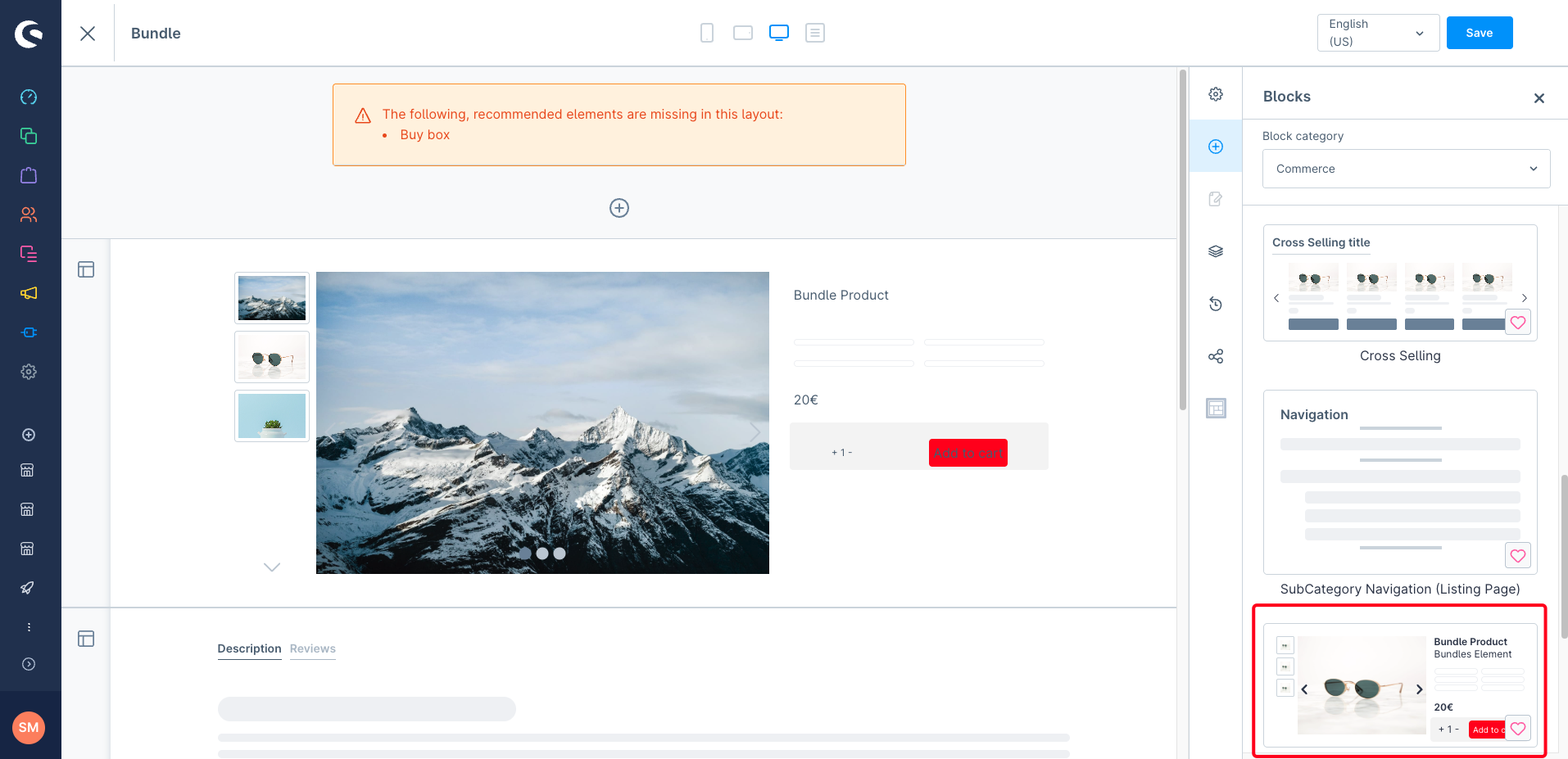
1️⃣ Create a New Layout for Bundle Products
2️⃣ Assign Layout to a Product
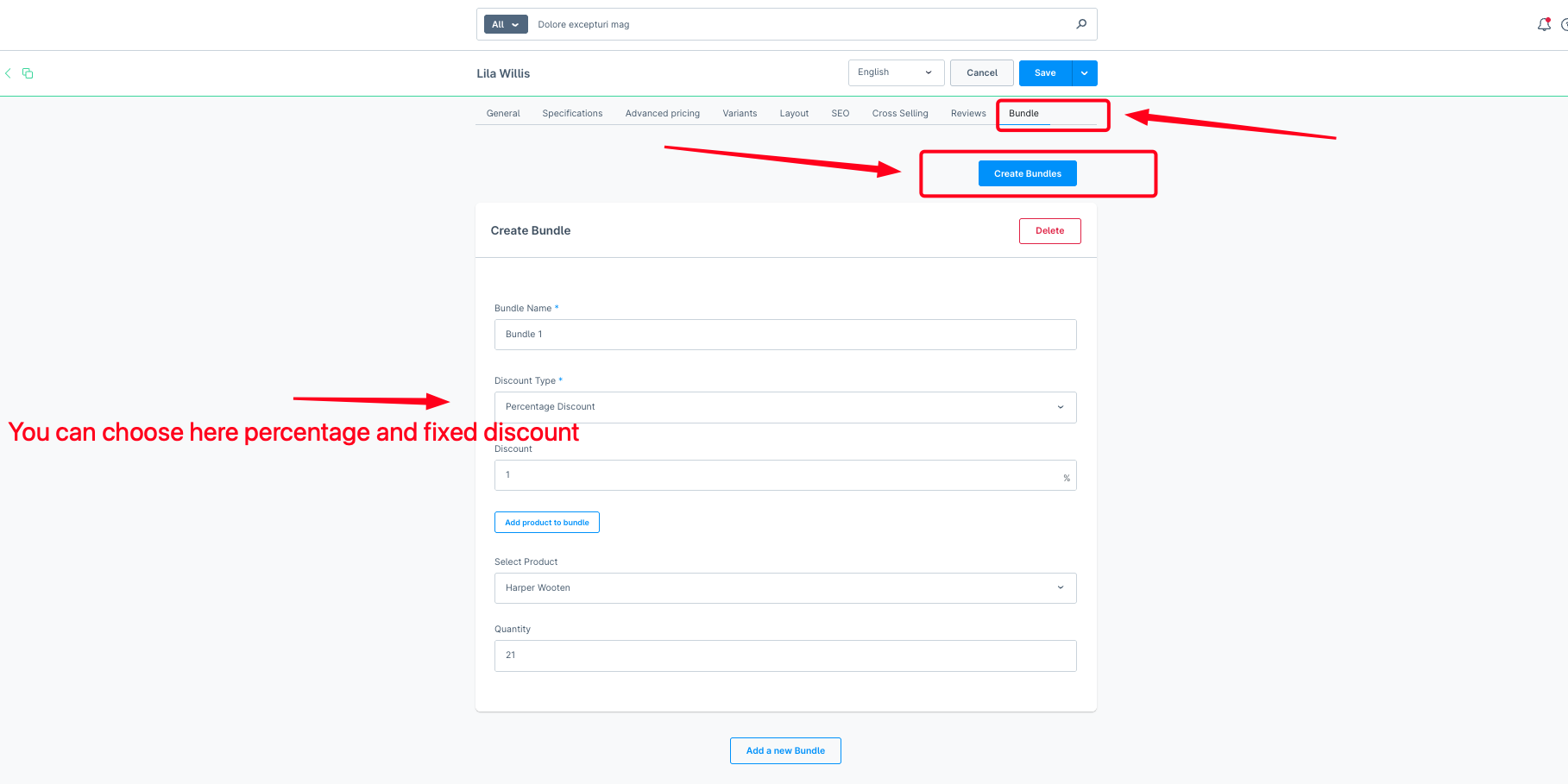
3️⃣ Configure Bundles
Click Add bundle to create a new bundle.
Set the bundle name.
Choose the discount type (percentage or fixed) and enter the discount value.
Add products to the bundle and adjust the quantities as needed.
Save the bundle.
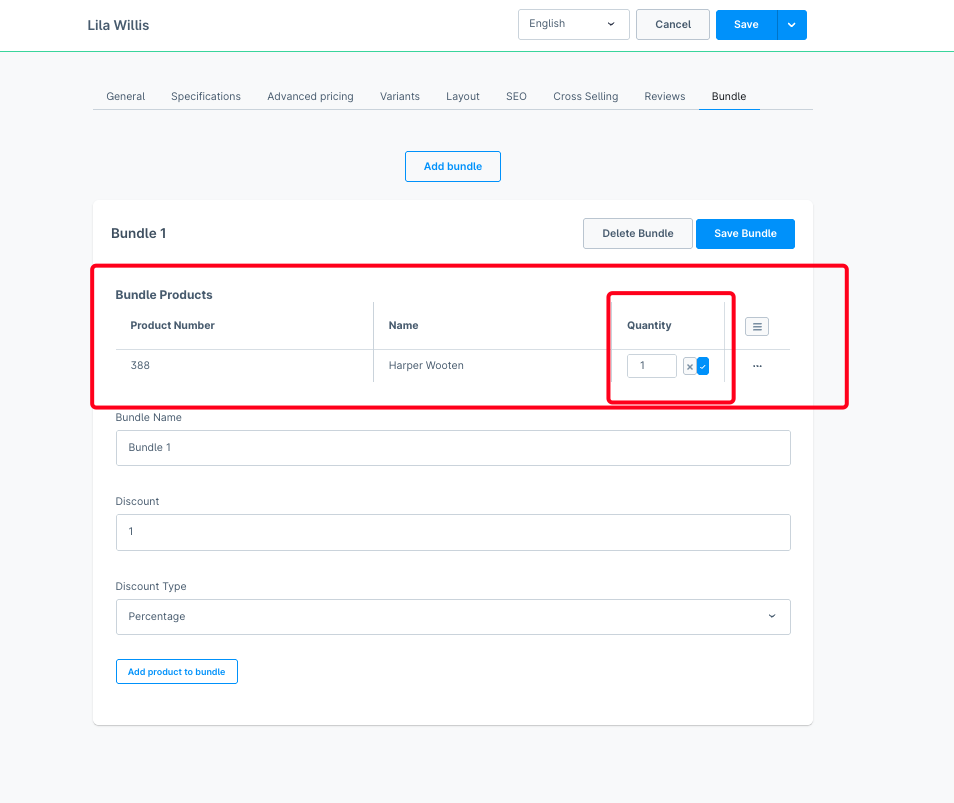
4️⃣ Adjust Quantity in Bundles
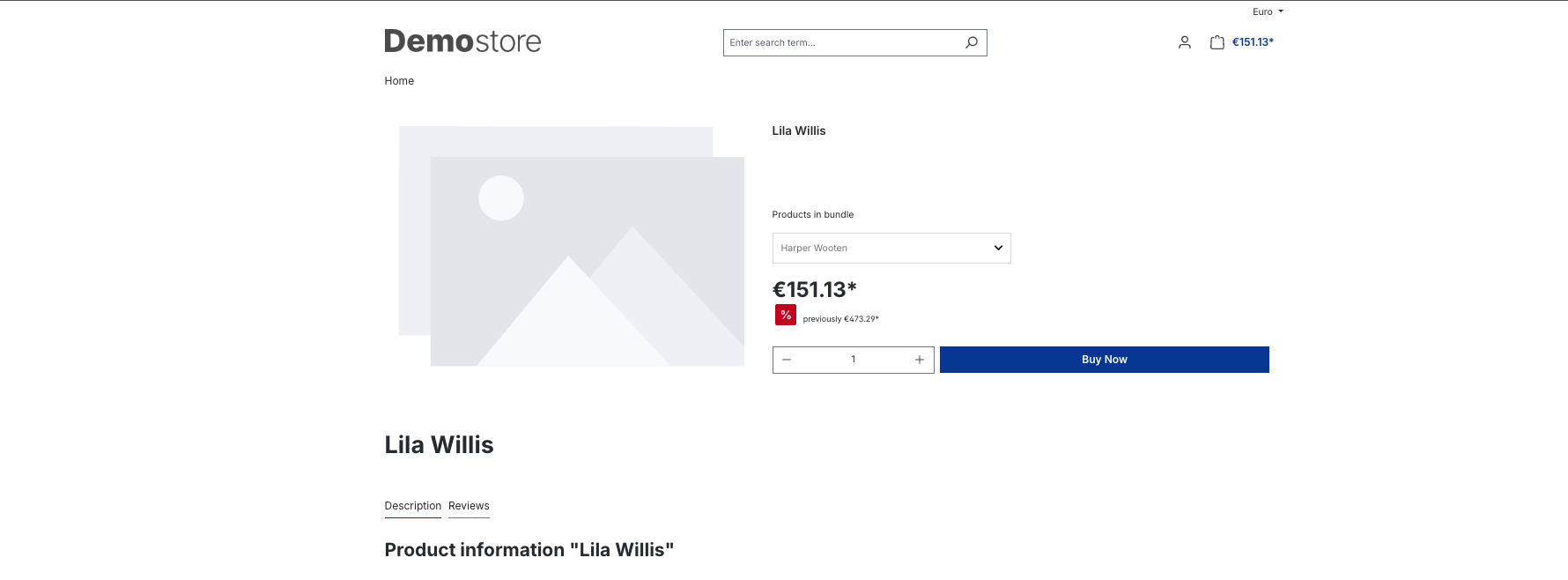
5️⃣ Storefront Display
1.Create a layout called Bundle Product in the CMS.
2.Assign it to a product in the Layout tab.
3.In the Bundle tab, create a bundle set:
Set name and discount (percentage or fixed).
Add products and adjust their quantities.
4.Save the product.
5.Visit the storefront and see the bundle displayed with calculated prices.
This document describes the API endpoints provided by the Bundle Plugin for Shopware 6. These endpoints allow authorized users to create, update, delete, and fetch bundle data associated with products.
Endpoint
POST /api/bundle/upsertDescription
Creates or updates a product bundle for a specified main product (identified by productNumber).
If an empty products array is provided, the existing bundle will be deleted.
Validation
The system validates:
Authorization: Bearer

Content-Type: application/json
Note: The access token must be obtained from the Shopware Admin API using a valid integration or user login.
{

  "id": "b2f47e1c6d1247cf9f3f1b4d4c43f784",

  "productNumber": "SW10123",

  "name": "Summer Bundle",

  "discount": 15,

  "discountType": "percentage",

  "products": [

    {

      "productNumber": "SW20100",

      "quantity": 2

    },

    {

      "productNumber": "SW20200",

      "quantity": 1

    }

  ]

}
{

  "status": "success",

  "data": "Bundle b2f47e1c6d1247cf9f3f1b4d4c43f784 successfully updated"

}
{

  "error": "Product not found"

}
Endpoint
GET /bundle/cart-by-customer
Description
Returns the current cart items for the logged-in customer.
Accept: application/json
{

  "success": true,

  "customerId": "e45fe67c39424bc8aab0a7b99a91545b",

  "lineItems": [

    {

      "id": "lineItem1",

      "referencedId": "productId1",

      "quantity": 2

    },

    {

      "id": "lineItem2",

      "referencedId": "productId2",

      "quantity": 1

    }

  ]

}
{

  "success": false,

  "message": "Access denied. You can only access your own cart."

}
Problem: Buy box missing in the layout
✅ Solution: Ensure the Buy box block is added to your layout in the CMS.
Problem: Discounts not reflected in storefront
✅ Solution: Check that the bundle discount is set correctly in the Bundle tab and the layout is assigned to the product.
Problem: Bundles not showing in the storefront
✅ Solution:
Problem: Quantity updates not saved
✅ Solution: Ensure you click Save bundle after updating product quantities in the bundle.
Q1: Can I use this plugin with any theme?
A1: Yes, the plugin works with any theme that supports Shopware’s CMS system. Just ensure your layout includes the Buy box element.
Q2: Does the plugin support variable product discounts?
A2: Currently, you can only set percentage or fixed discounts on the whole bundle, not per product.
Q3: What happens if I remove a product from a bundle?
A3: The product will no longer be part of that bundle in the storefront, and the price will update automatically.
Q4: Is the plugin compatible with the latest Shopware 6 version?
A4: Yes, it is tested with Shopware 6.6 and above.
Q5: Can I translate bundle names and descriptions?
A5: Yes, use Shopware’s built-in translation feature to localize your bundles.
