


The Bluesnap Shopware 6 Plugin is a reliable payment solution that connects Bluesnap’s gateway with your Shopware store. It supports a variety of payment methods such as credit cards, Apple Pay, Google Pay, hosted checkout, and pay-by-link. Merchants can manage full or partial refunds, enable 3D Secure for added safety, and offer customers the option to save, update, or delete their card details. With a clear setup process and secure transactions, the plugin helps businesses offer a smooth and flexible payment experience.
Key Features
Get Started
Installation & Activation
1.Download
git clone https://github.com/solution25com/bluesnap-payment-shopware-6-solution25.git
2.Install the Plugin in Shopware 6
3.Activate the Plugin
4.Verify Installation
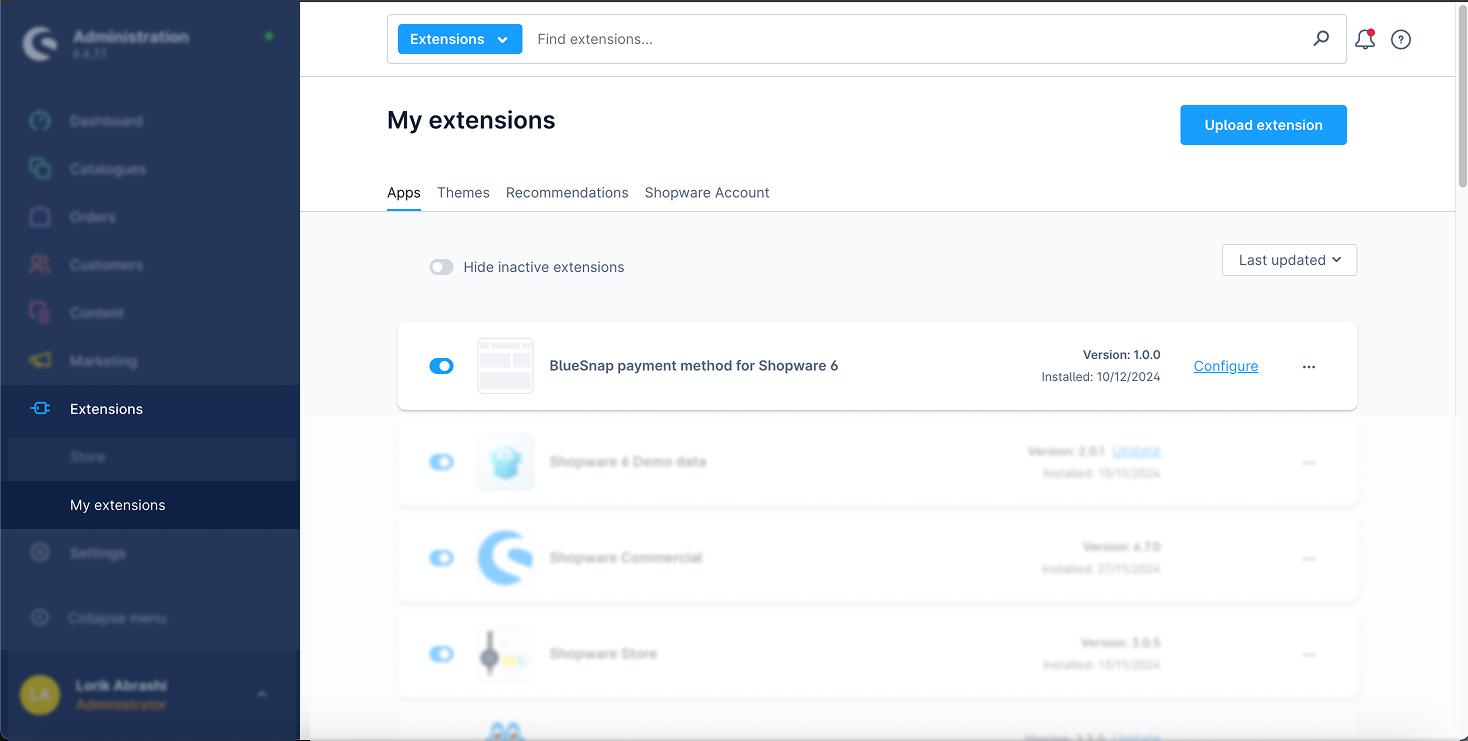
1.Access Plugin Settings
2.General Settings
Before using the plugin, configure the API keys and payment settings:
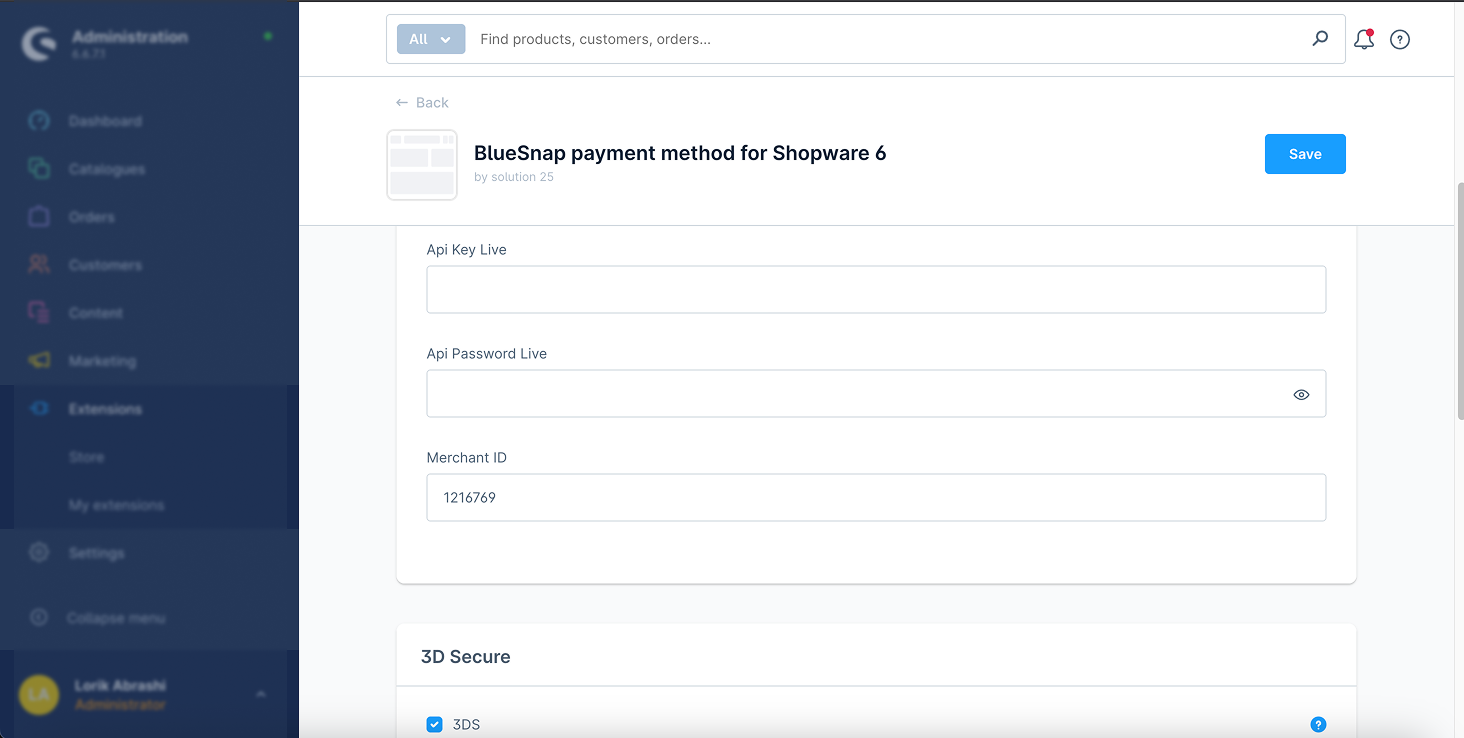
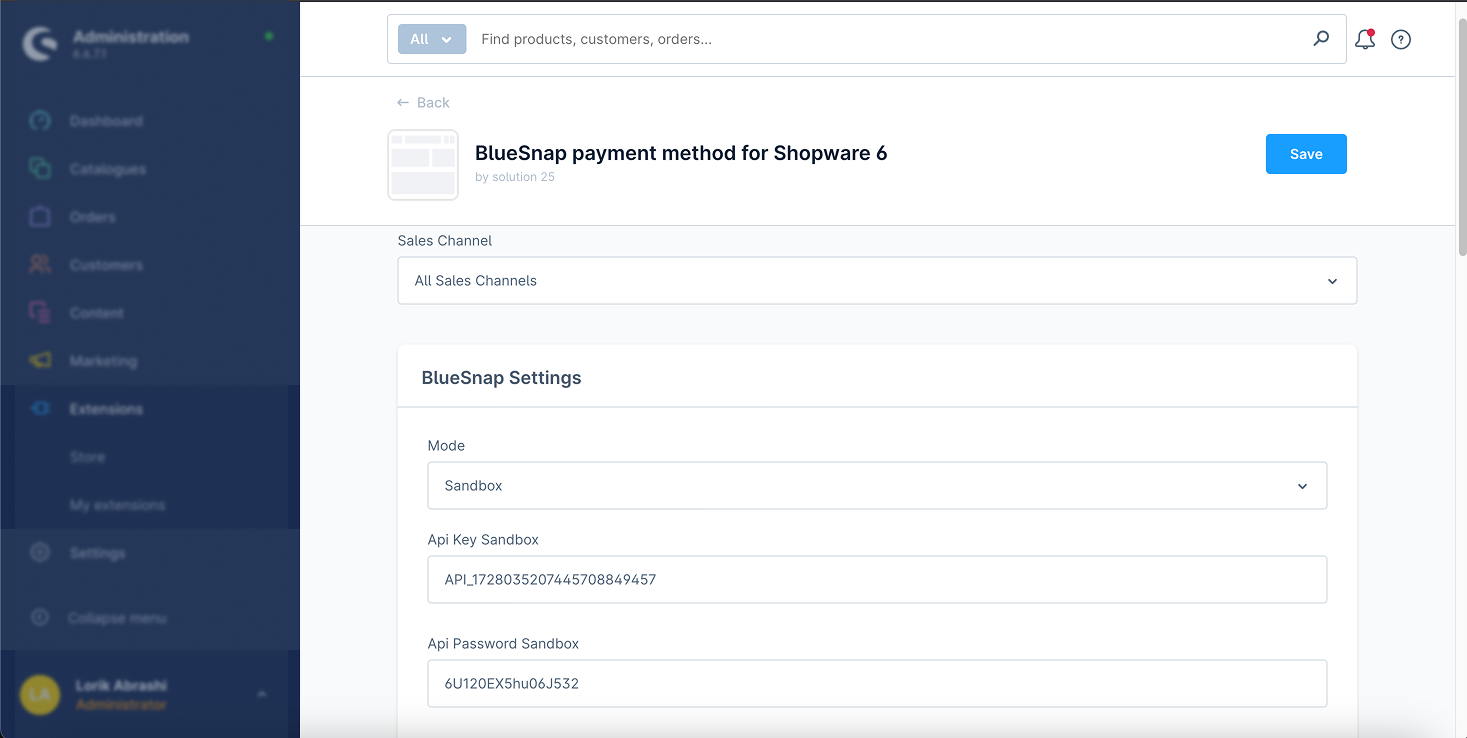
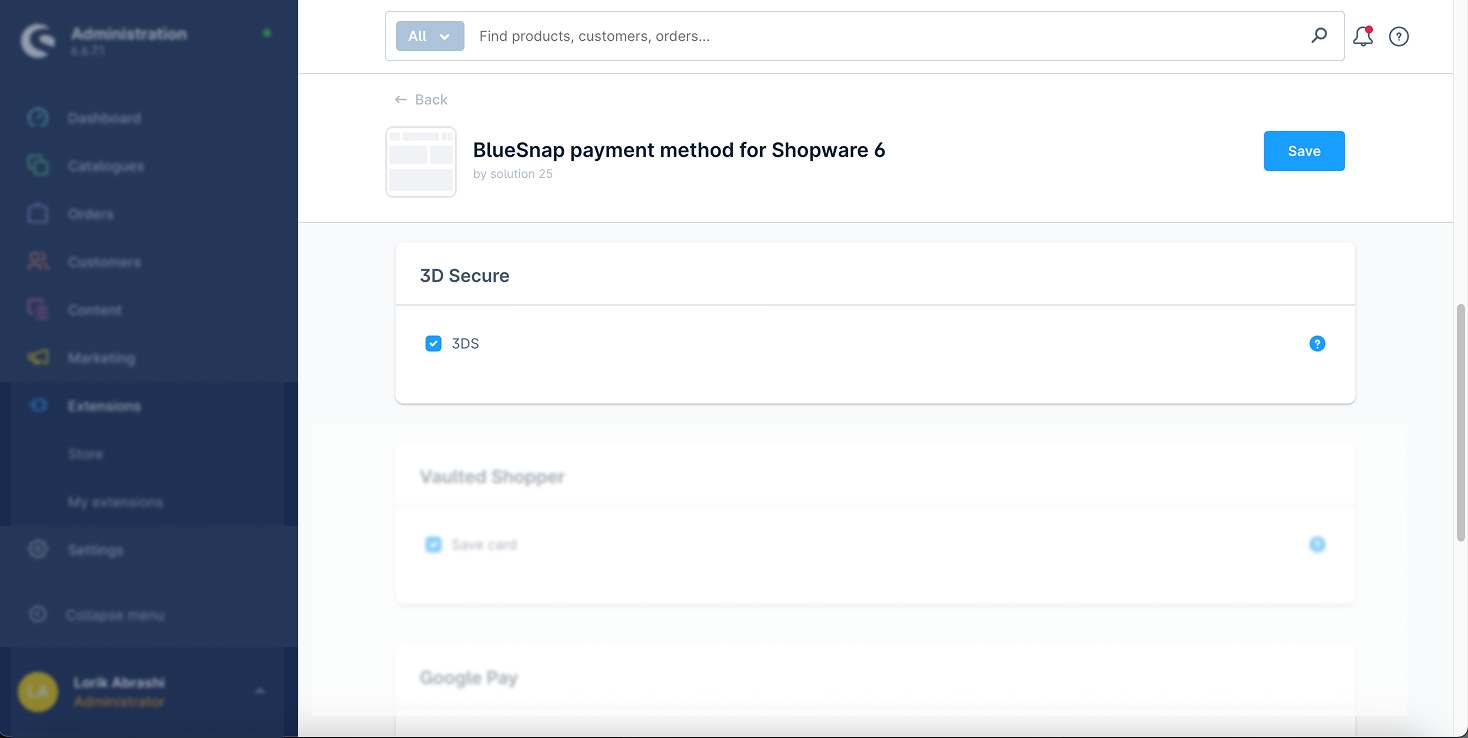
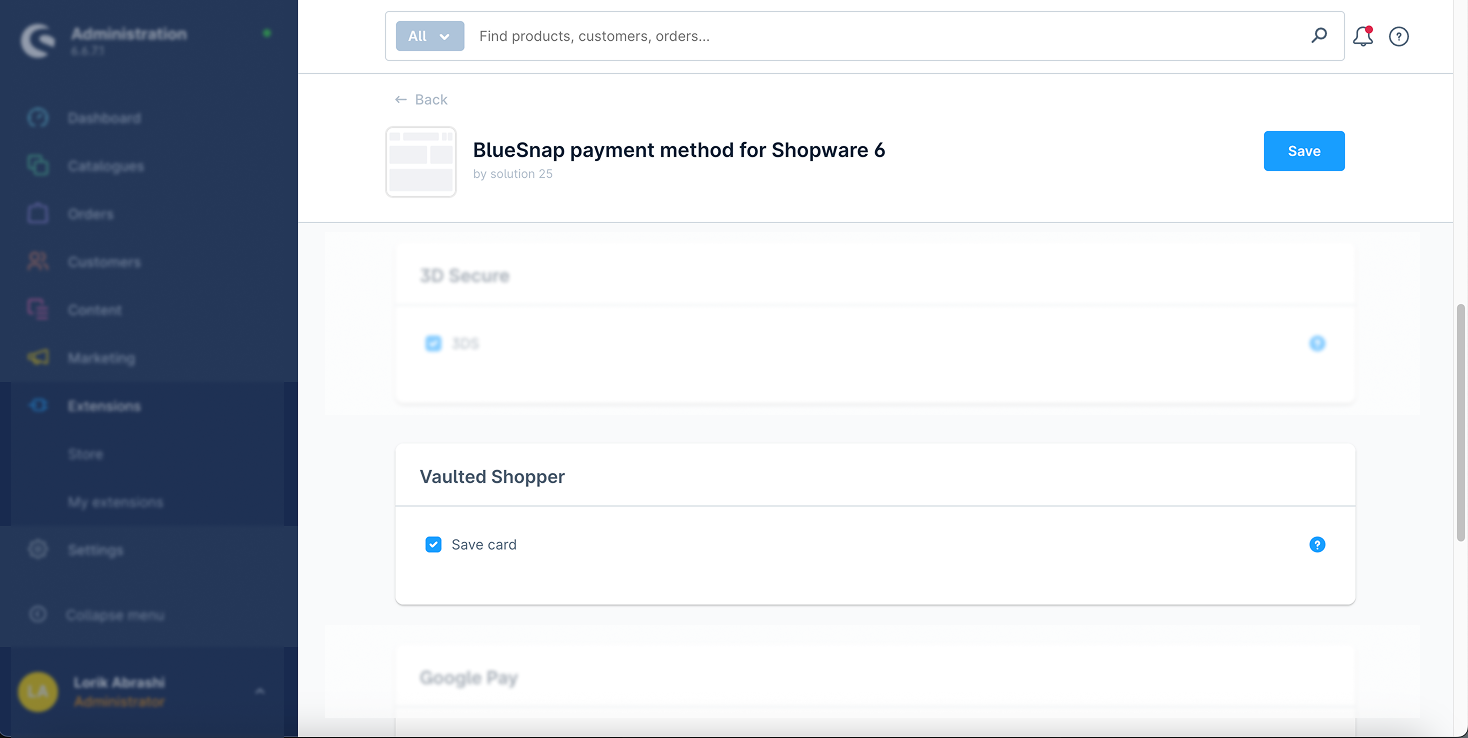
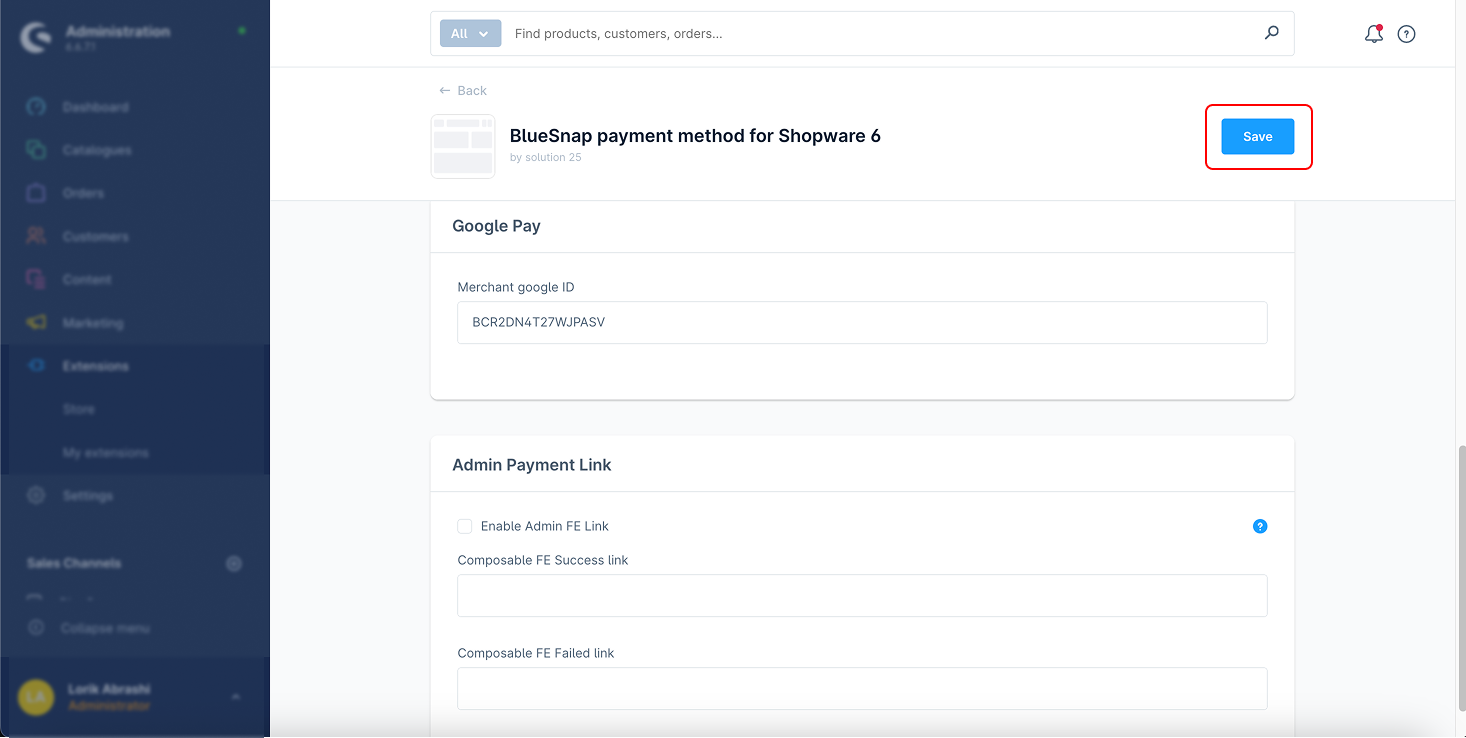
3.Save Configuration
1. Credit Card Capture
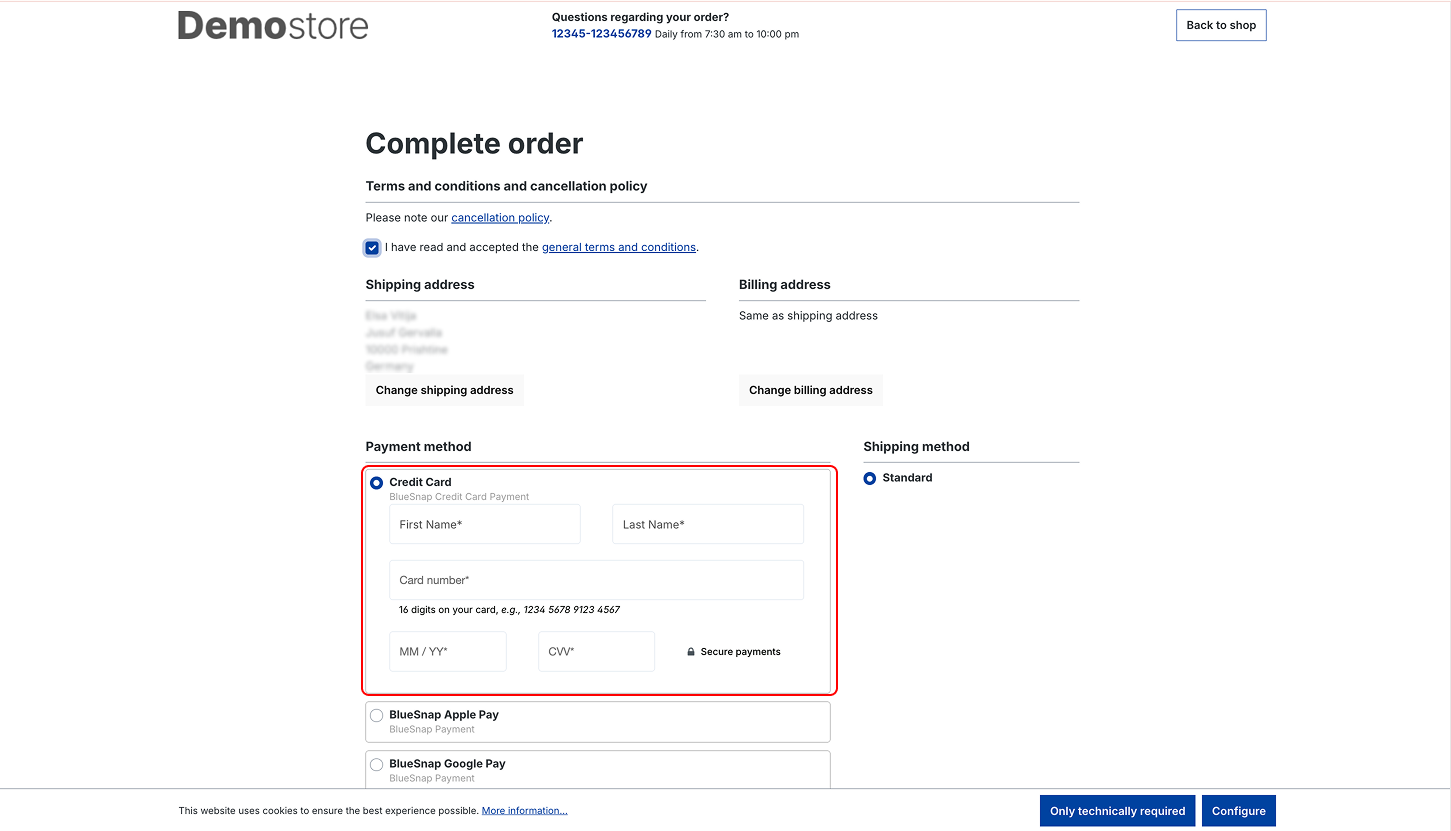
This feature allows customers to complete transactions via Bluesnap’s PCI-compliant payment gateway using their credit card.
How It Works:
Customers enter their credit card details in a secure form.
The payment is processed via Bluesnap’s gateway.
Steps:
1. Select “Bluesnap Credit Card” as the payment method.
2.Enter the customer’s credit card details into the Bluesnap form.
3.Submit payment.
2. Hosted Checkout
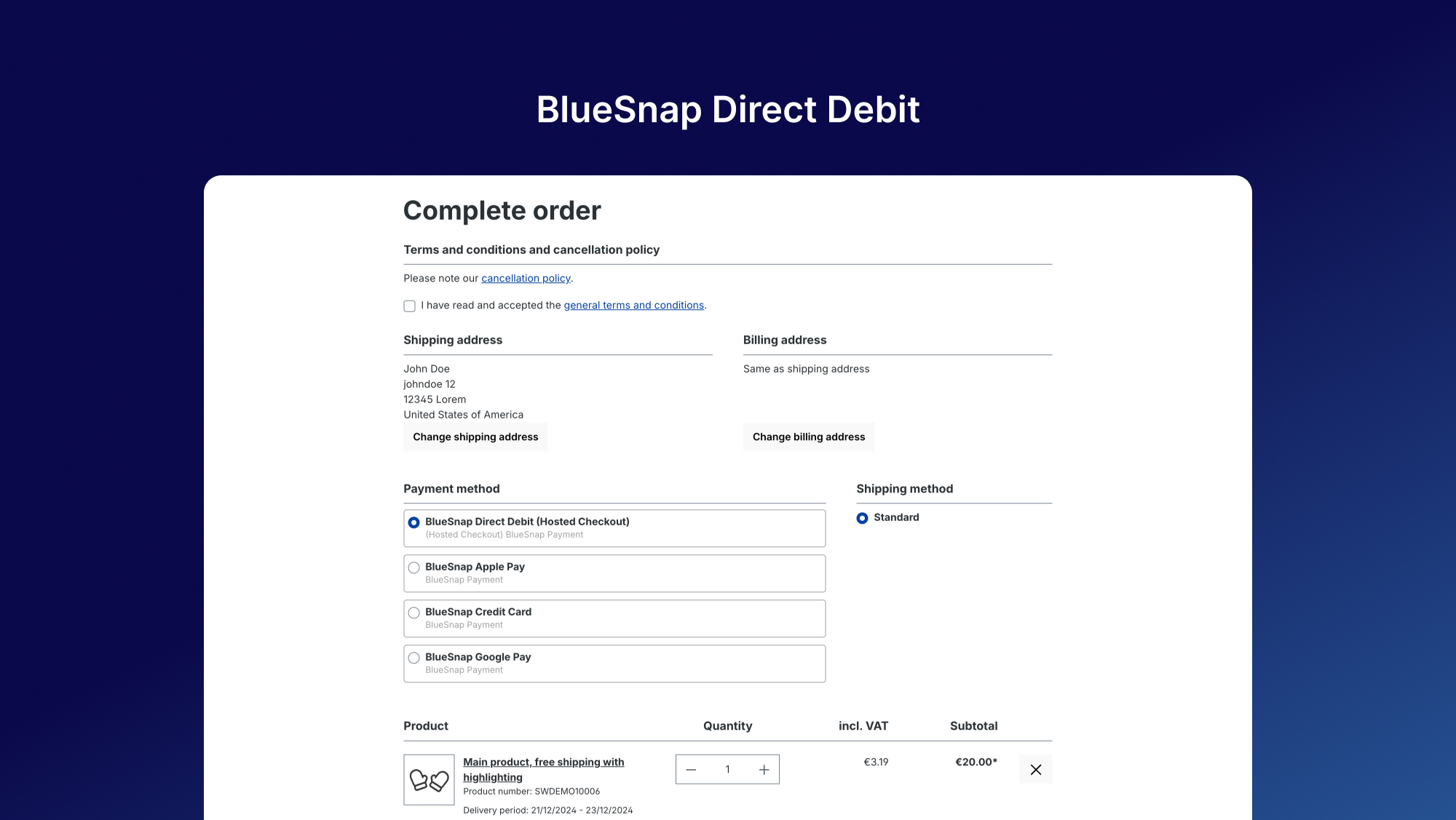
Bluesnap’s Hosted Checkout provides a secure checkout page hosted by Bluesnap, removing the need for merchants to handle sensitive payment information directly.
How It Works:
Customers are redirected to a secure hosted checkout page.
Payments are securely processed through Bluesnap.
Steps:
Select “Bluesnap Hosted Checkout” as the payment method.
The customer is redirected to the hosted checkout page.
The customer completes the transaction on the hosted page.
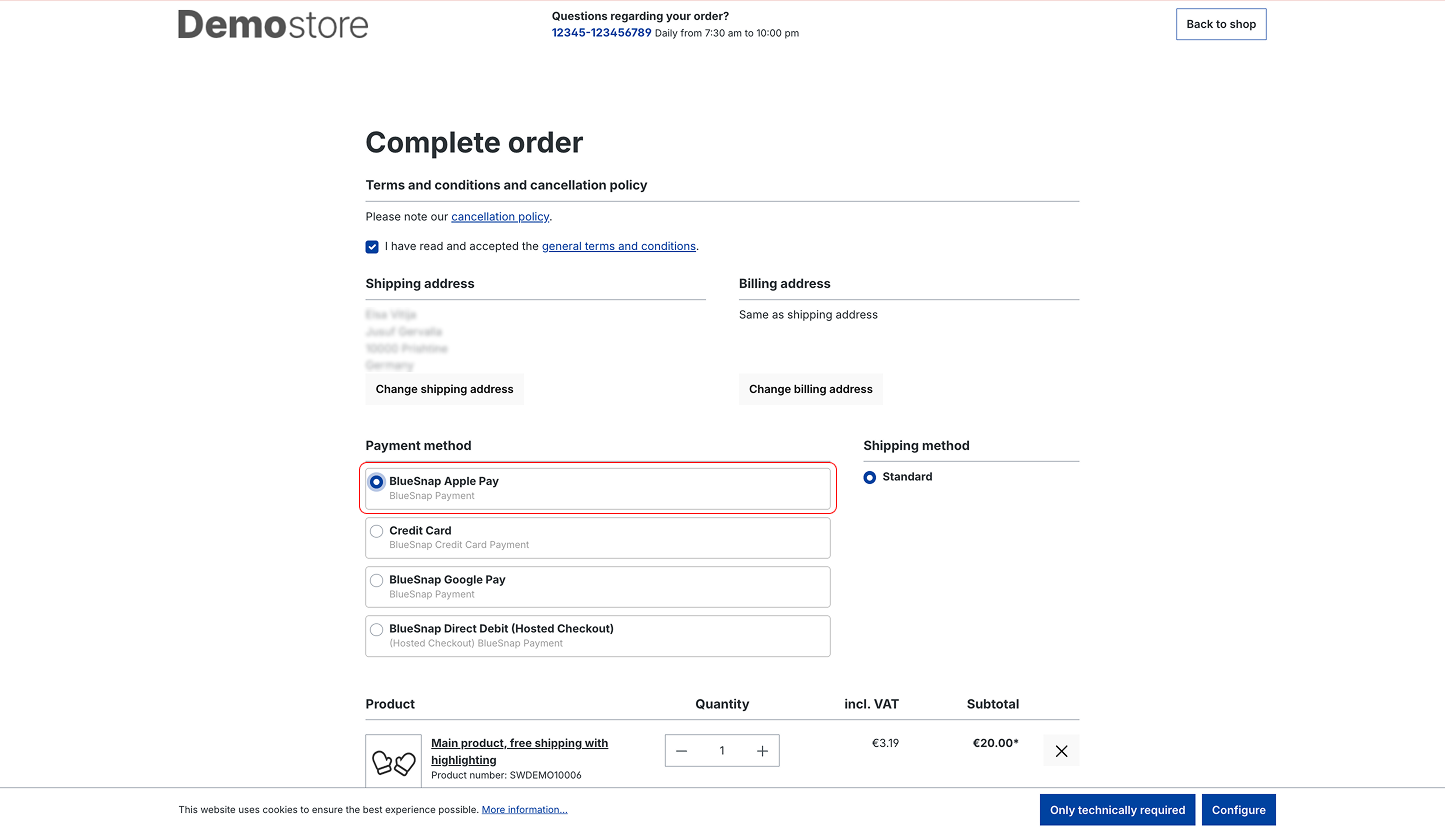
3. Apple Pay Integration
Bluesnap supports Apple Pay, enabling customers to pay using their Apple devices with a single tap.
How It Works:
Customers use their Apple device to authenticate the transaction via Face ID, Touch ID, or Apple Watch.
Steps:
Select “Apple Pay” as the payment method.
Confirm payment through Face ID, Touch ID, or an Apple Watch.
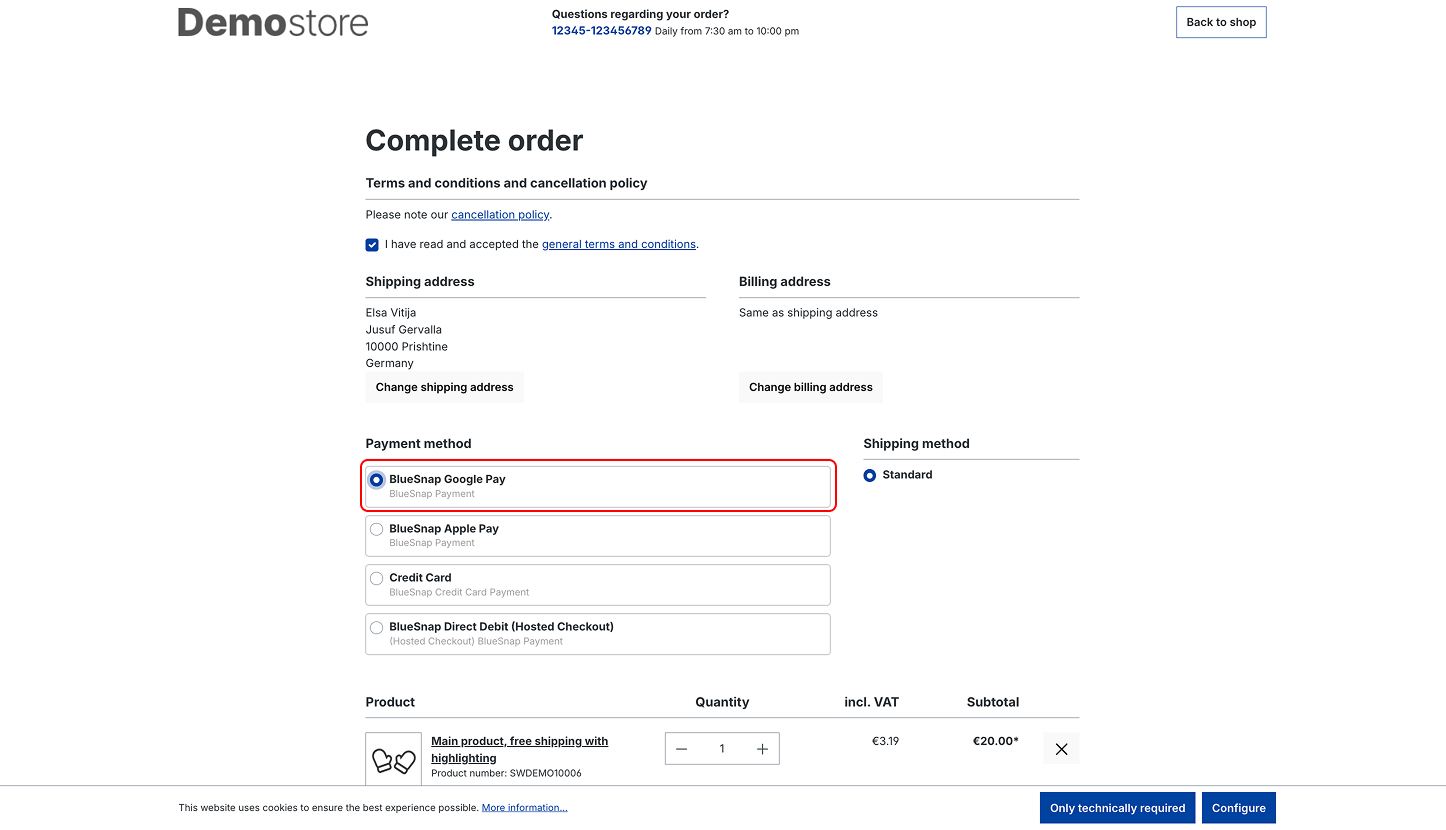
4. Google Pay Integration
Customers can use Google Pay to complete transactions securely and quickly.
How It Works:
Customers authenticate the payment using their Google Pay account.
Steps:
Select “Google Pay” as the payment method.
Authenticate the payment via the customer’s Google Pay account.
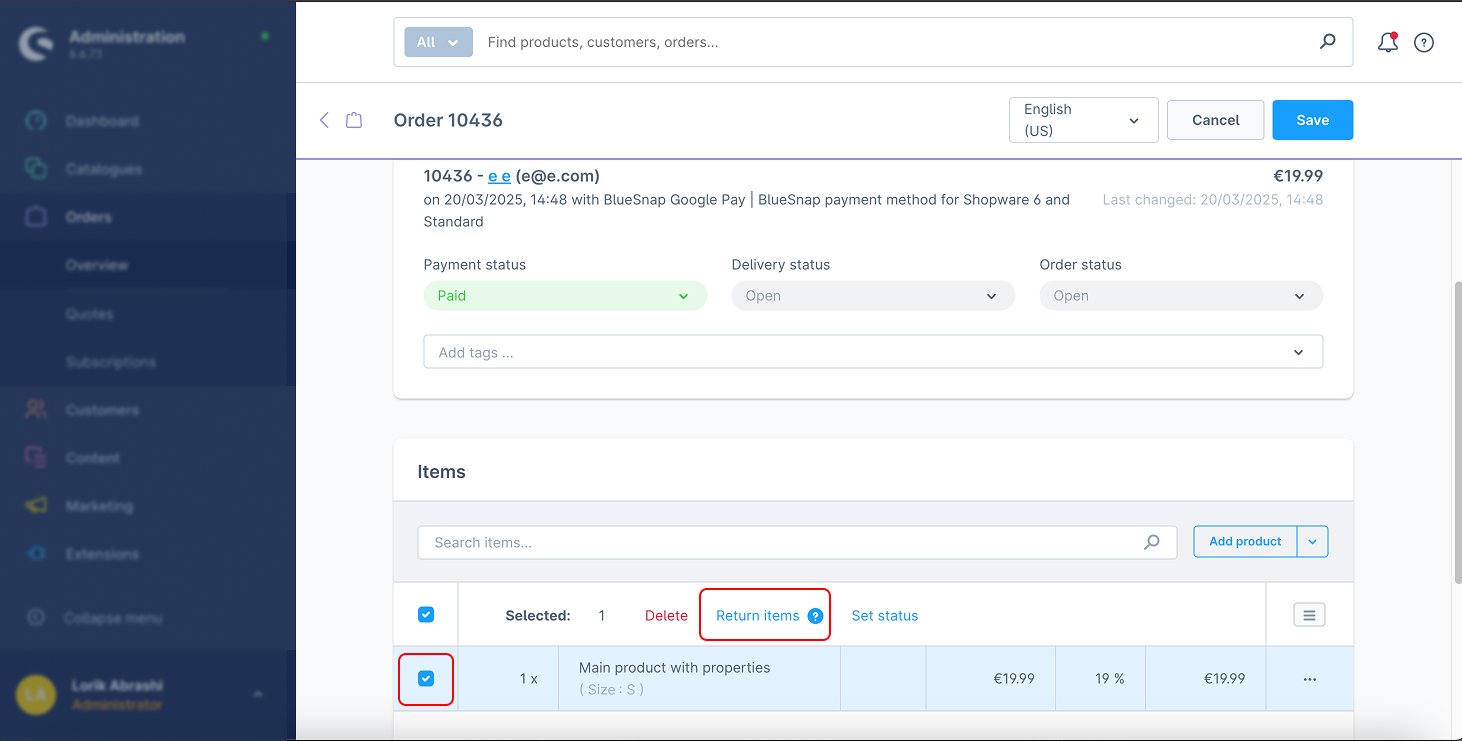
5. Refunds (Full & Partial)
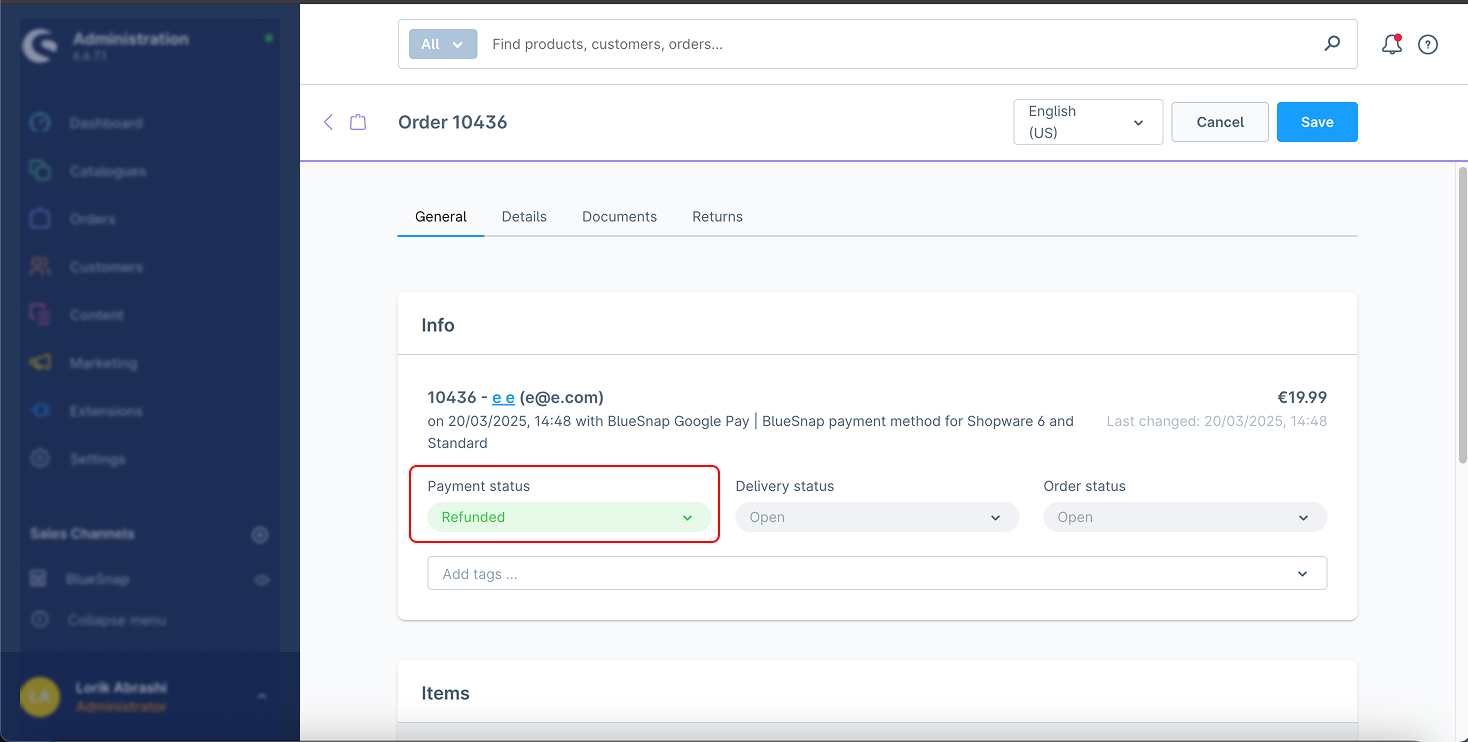
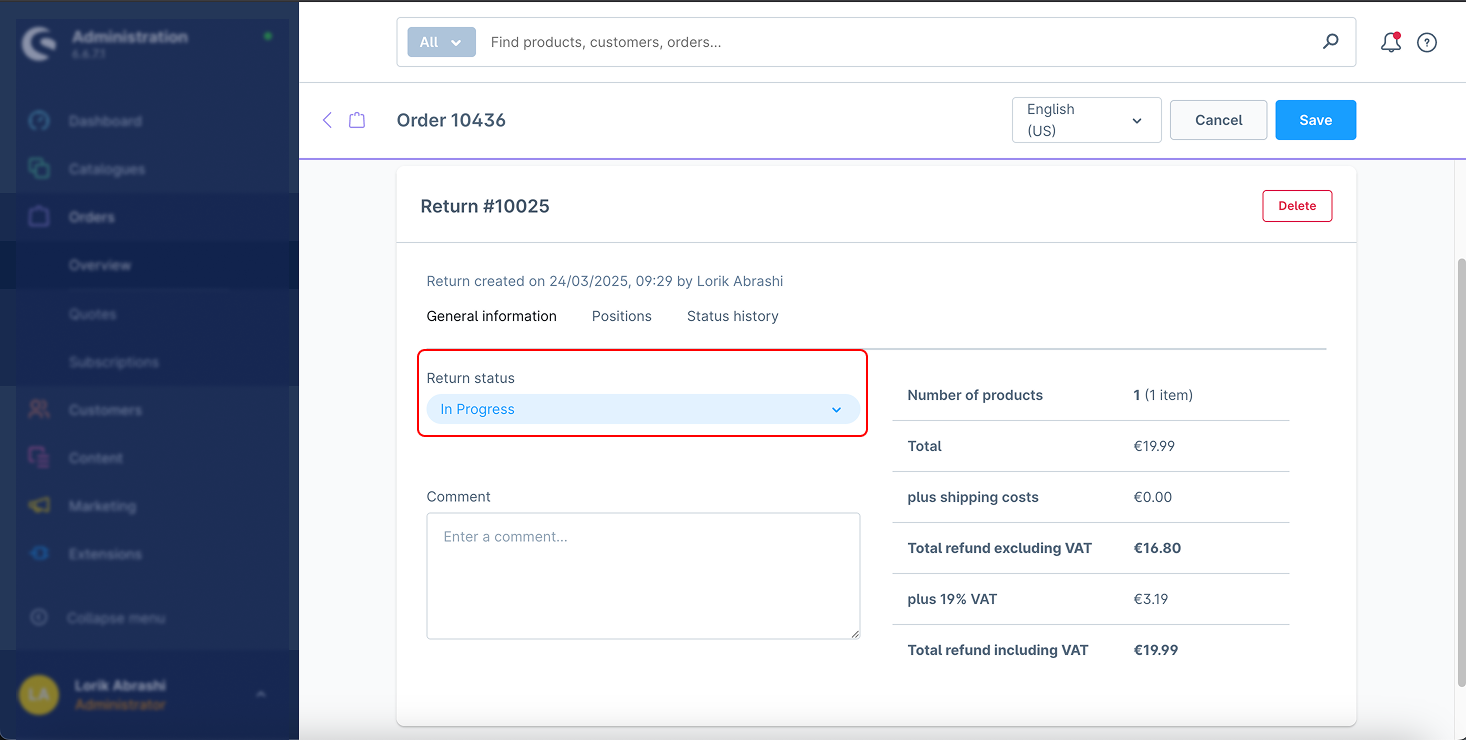
The Bluesnap plugin supports both full and partial refunds for transactions.
How It Works:
Full refunds return the entire payment.
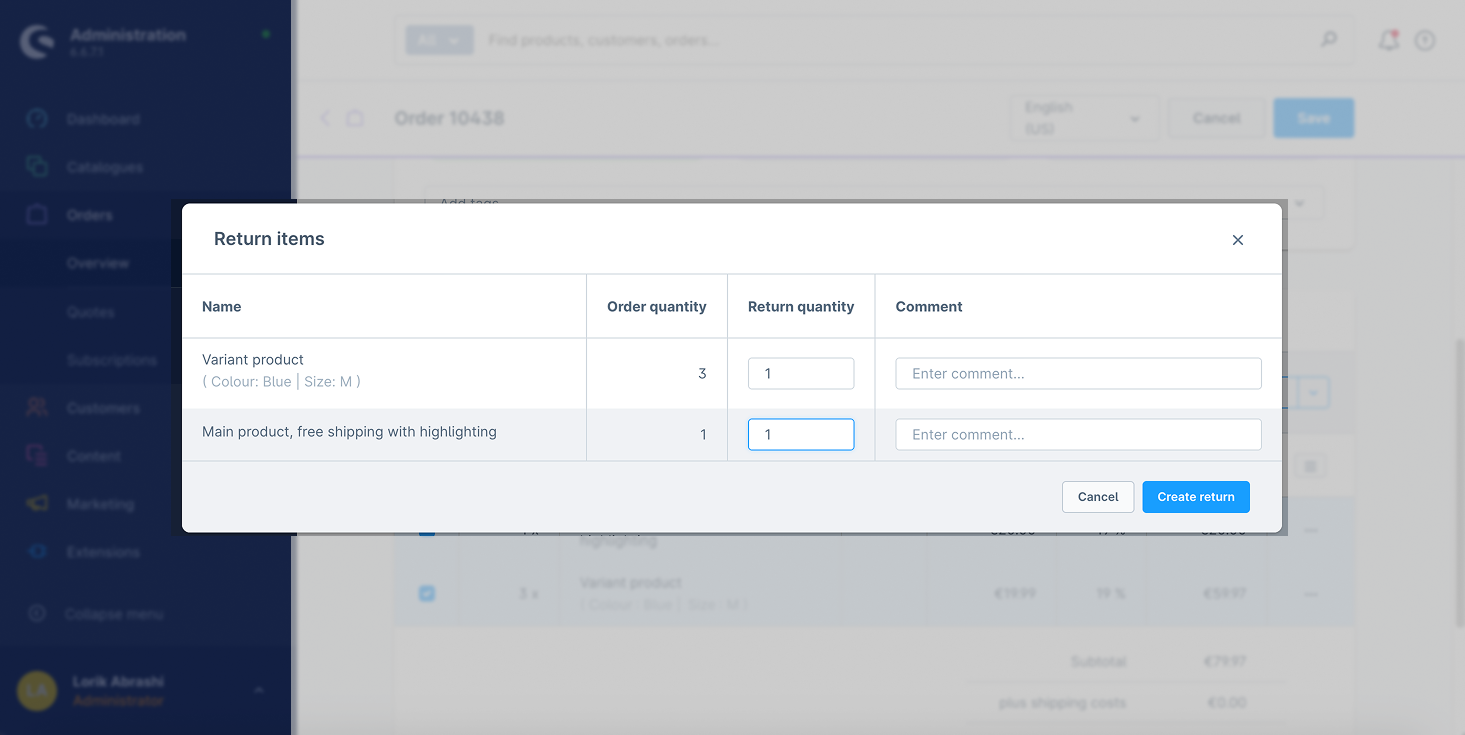
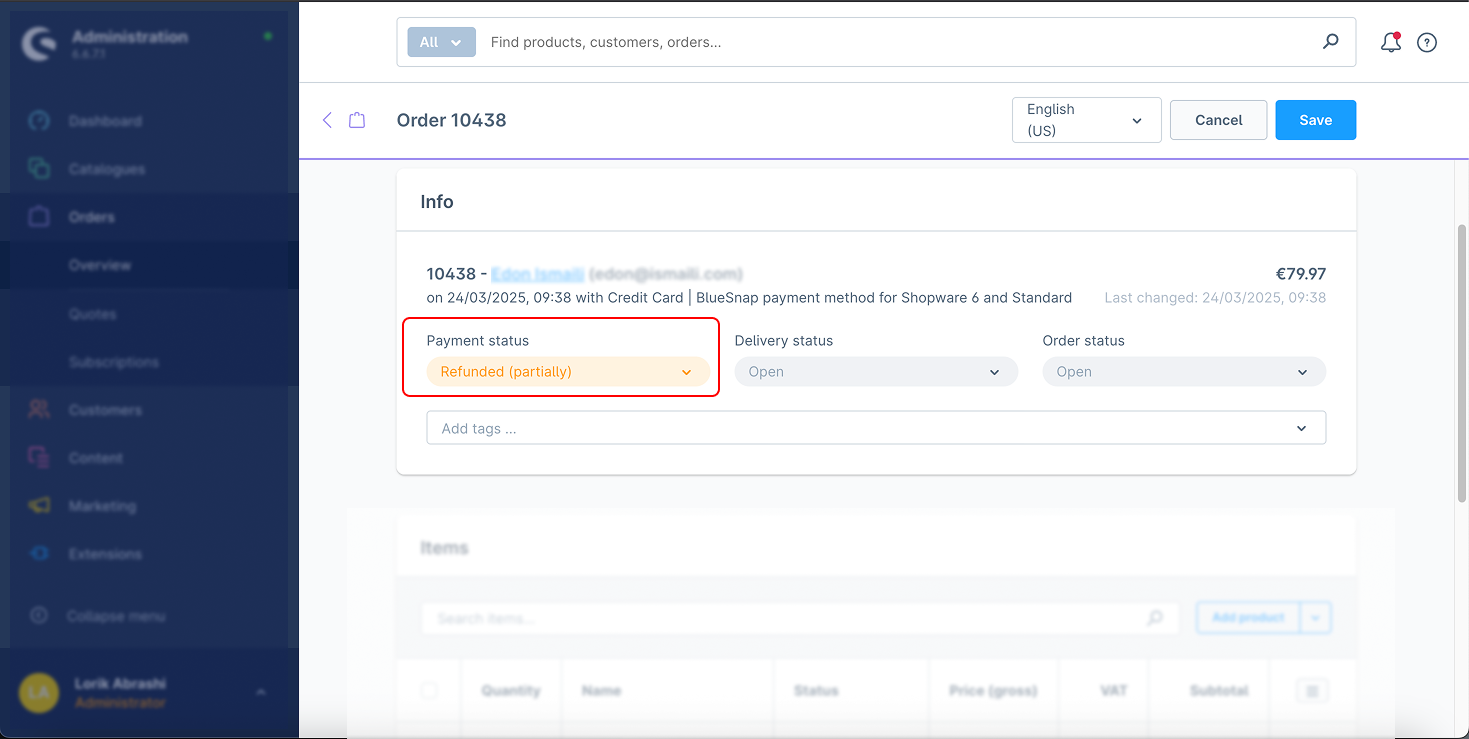
Partial refunds return a portion of the payment.
Steps for Full Refund:
Navigate to the Orders section.
Select the order to be refunded.
Click “Create Refund.”
Change the status to “In Progress.”
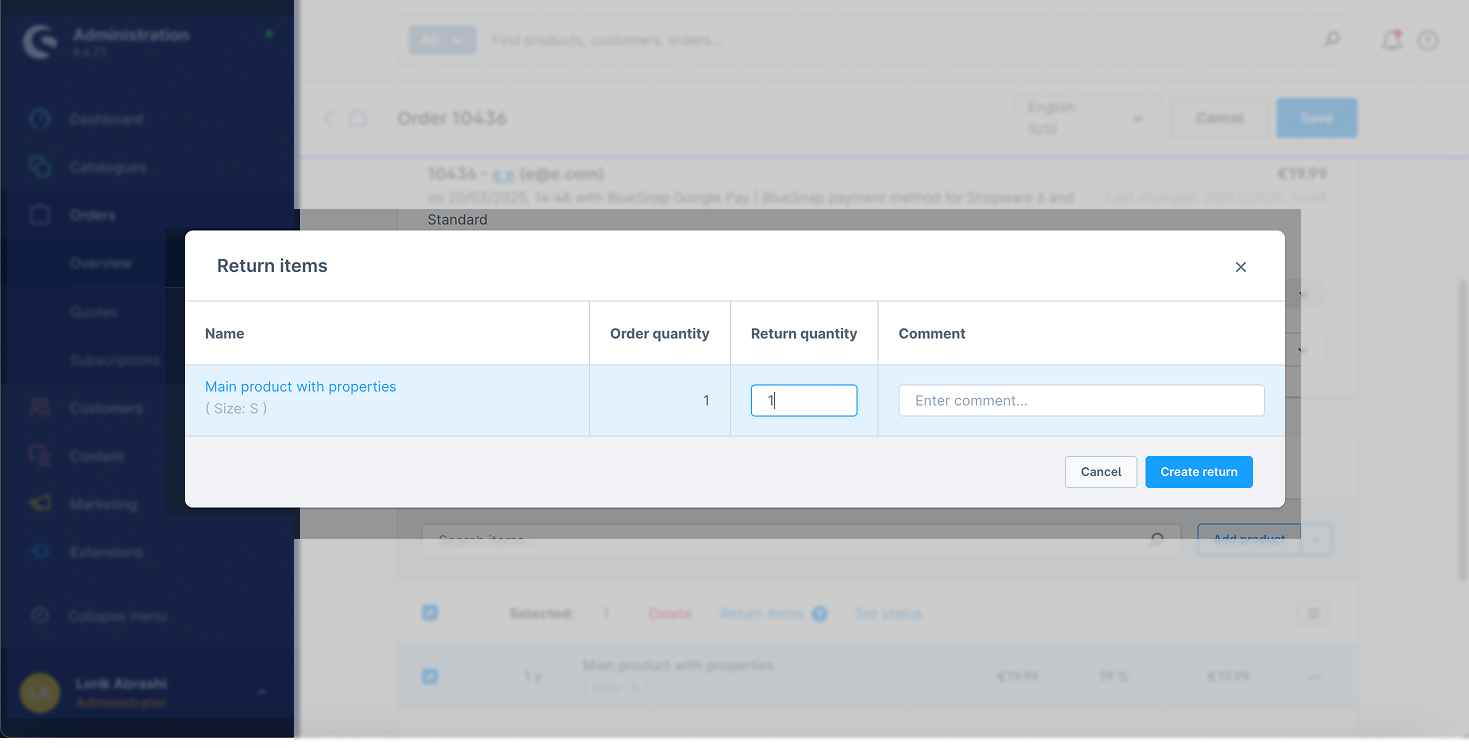
Steps for Partial Refund:
Navigate to the Orders section.
Select the order to be partially refunded.
Specify the refund amount.
Click “Create Refund.”
Change the status to “In Progress.”
6. Save Card Feature
This feature allows customers to securely save their card details for future transactions.
How It Works:
A Vaulted ID is created to store the customer’s payment details securely.
Customers can select saved cards for future transactions.
Steps:
During checkout, select “Save my card for future use.”
The card is securely stored and available for future use.
7. Update Card Feature
Allows customers to update their saved card details securely for future transactions.
How It Works:
Customers can modify their saved card information directly within the payment gateway.
Steps:
Navigate to checkout.
Update the saved card details.
Save the updated card information.
8. Delete Card Feature
This feature allows customers to delete their stored card details when they no longer wish to use them.
How It Works:
Customers can remove their stored card information from the system.
Steps:
Navigate to checkout.
Select the card to be deleted.
Click “Delete” to remove the card from the system.
9. 3D Secure Authentication
Enabling 3D Secure adds an extra layer of authentication to credit card transactions, reducing fraud.
How It Works:
After the customer enters their credit card details, they will be redirected to their bank’s authentication page to complete the transaction.
Steps:
Enable 3D Secure in the plugin configuration.
Customers will automatically be prompted for 3D Secure authentication during checkout.
This document provides detailed information about the API endpoints available in the BlueSnap Plugin for Shopware 6. These endpoints allow secure integration with BlueSnap’s payment services, enabling the generation of payment tokens and facilitating hosted payment field rendering within your Shopware storefront.
Endpoint:
POST /services/2/payment-fields-tokens
Description:
This endpoint is used to generate a payment field token, which is required to securely render BlueSnap’s hosted payment fields on the frontend.
Request Headers:
Authorization: Basic
Successful Response:
HTTP/1.1 201 Created
Location: https://sandbox.bluesnap.com/services/2/payment-fields-tokens/eyJhbGciOiJIUzI1NiJ9...
Example Error Response:
{
  "errorCode": "401",
  "errorDescription": "Unauthorized Error"
}
Endpoint:
POST /services/2/transactions
Description:
This endpoint is used to capture a payment (authorize and capture funds) for a transaction using BlueSnap. It is typically called after the tokenization of payment data via BlueSnap’s hosted fields.
Request Headers:
Authorization: Basic
Content-Type: application/json
Example Request Body:
{
  "amount": 39.98,
  "softDescriptor": "Card Capture",
  "currency": "EUR",
  "cardHolderInfo": {
    "firstName": "asd",
    "lastName": "asd",
    "zip": "12345",
    "country": "us",
    "city": "test",
    "email": "tst@test.com"
  },
  "pfToken": "token",
  "cardTransactionType": "AUTH_CAPTURE",
  "transactionInitiator": "SHOPPER"
}
Successful Response:
{
  "transactionId": 100123456,
  "transactionType": "AUTH_CAPTURE",
  "amount": 39.98,
  "currency": "EUR",
  "card": {
    "cardLastFourDigits": "1111",
    "cardType": "VISA"
  },
  "processingInfo": {
    "processingStatus": "SUCCESS",
    "authCode": "XYZ123"
  }
}
Example Error Response:
{
  "errorCode": "401",
  "errorDescription": "Unauthorized Error"
}
Endpoint:
POST /services/2/wallets/
Description:
This endpoint is used to create or update an Apple Wallet entry associated with a customer. It typically requires authorization and a JSON payload describing the wallet data. The request sends payment or pass-related information to BlueSnap’s Apple Wallet service.
Request Headers:
Authorization: Basic
Content-Type: application/json
Example Request Body:
{
  "walletType": "APPLE_PAY",
  "validationUrl": "https://apple-pay-gateway-cert.apple.com/paymentservices/startSession",
  "domainName": "merchant.com"
}
Successful Response:
{
  "walletType": "APPLE_PAY",
  "walletToken": "ImRhdGEiOiJuY1AvRitIUy8zeG5ISk1pSm9RbXhCMFd"
}
Example Error Response:
{
  "message": "Invalid wallet request",
  "code": 400
}
Endpoint:
GET /services/2/vaulted-shoppers/{vaultedShopperI
Description:
This endpoint retrieves the details of a vaulted shopper from BlueSnap using their unique ID. Vaulted shoppers store payment details and personal data for future transactions (e.g. subscriptions or saved payment methods). This is typically used to manage or reuse stored shopper data securely.
Request Headers:
Example Request:
GET /services/2/vaulted-shoppers/123456789
Successful Response:
{
  "vaultedShopperId": 123456789,
  "firstName": "John",
  "lastName": "Doe",
  "email": "john.doe@example.com",
  "paymentSources": {
    "creditCardInfo": [
      {
        "cardLastFourDigits": "1111",
        "cardType": "VISA",
        "expirationMonth": "12",
        "expirationYear": "2025"
      }
    ]
  },
  "billingContactInfo": {
    "zip": "12345",
    "country": "US",
    "state": "CA",
    "city": "Los Angeles",
    "address": "123 Main St"
  }
}
Example Error Response:
{
  "error": true,
  "code": 15001,
  "message": "Vaulted shopper not found."
}
Endpoint:
POST /services/2/bn3-services/jwt
Description:
This endpoint is used to generate a JWT (JSON Web Token) for initiating a BlueSnap Hosted Checkout session.
Request Headers:
Authorization: Basic
Content-Type: application/json
Successful Response:
HTTP/1.1 201 Created
Location: https://sandbox.bluesnap.com/services/2/payment-fields-tokens/12345abcde*********
Example Error Response:
{
  "message": "Invalid credentials",
  "code": 401
}
Endpoint:
PUT /services/2/vaulted-shoppers/
Description:
Updates an existing vaulted shopper’s payment or personal information.
Request Headers:
Authorization: Basic
Content-Type: application/json
Example Request Body:
{
  "paymentSources": {
    "creditCardInfo": [
      {
        "creditCard": {
          "expirationYear": 2023,
          "securityCode": 837,
          "expirationMonth": "02",
          "cardNumber": 4263982640269299
        }
      }
    ]
  },
  "firstName": "FirstName",
  "lastName": "LastName",
  "softDescriptor": "MYCOMPANY"
}
Successful Response:
{
  "vaultedShopperId": 19549048,
  "firstName": "FirstName",
  "lastName": "LastName",
  "country": "us",
  "zip": "02453",
  "phone": "1234567890",
  "shopperCurrency": "USD",
  "paymentSources": {
    "ecpDetails": [
      {
        "billingContactInfo": {
          "firstName": "FirstName",
          "lastName": "LastName"
        },
        "ecp": {
          "accountType": "CONSUMER_CHECKING",
          "publicAccountNumber": "99992",
          "publicRoutingNumber": "75150"
        },
        "dateCreated": "09/30/2020",
        "timeCreated": "05:59:40"
      },
      {
        "billingContactInfo": {
          "firstName": "FirstName 2",
          "lastName": "LastName 2"
        },
        "ecp": {
          "accountType": "CONSUMER_SAVINGS",
          "publicAccountNumber": "99992",
          "publicRoutingNumber": "75150"
        },
        "dateCreated": "09/30/2020",
        "timeCreated": "05:59:40"
      }
    ]
  },
  "fraudResultInfo": {
    "deviceDataCollector": "Y"
  },
  "dateCreated": "09/22/2020",
  "timeCreated": "13:41:10"
}
Example Error Response:
{
  "error": true,
  "code": 14002,
  "message": "Invalid credit card details."
}
Endpoint:
POST /services/2/transactions/refund/
Description:
Processes a refund for a transaction. Can include metadata and options to cancel subscriptions.
Request Headers:
Authorization: Basic
Content-Type: application/json
Example Request Body:
{
  "reason": "Refund for order #1992",
  "cancelSubscriptions": false,
  "transactionMetaData": {
    "metaData": [
      {
        "metaValue": "1552,8832",
        "metaKey": "refundedItems",
        "metaDescription": "Refunded Items"
      },
      {
        "metaValue": "Value 2",
        "metaKey": "metaKey2",
        "metaDescription": "Metadata 2"
      }
    ]
  }
}
Successful Response:
{
  "refundTransactionId": 1039288153,
  "transactionMetaData": {
    "metaData": [
      {
        "metaKey": "refundedItems",
        "metaValue": "1552,8832",
        "metaDescription": "Refunded Items"
      },
      {
        "metaKey": "metaKey2",
        "metaValue": "Value 2",
        "metaDescription": "Metadata 2"
      }
    ]
  },
  "reason": "Refund for order #1992",
  "cancelSubscriptions": false
}
Example Error Response:
{
  "errorCode": "400",
  "errorDescription": "Transaction not eligible for refund"
}
Issue: Payment method not appearing at checkout
Issue: 3D Secure not triggering
Issue: Saved cards are not displaying
Issue: Refund fails or doesn’t reflect in order status
1.What payment methods does the Bluesnap Shopware 6 Plugin support?
The plugin supports Credit Card, Apple Pay, Google Pay, Hosted Checkout, and Pay by Link.
2.Can customers save their card details for future use?
Yes, customers can securely save card details and manage them (update or delete) within their account.
3.How do I enable 3D Secure?
You can activate 3D Secure in the plugin configuration settings under the API section.
4.Is sandbox testing supported?
Yes, the plugin supports sandbox mode for safe testing. Use the Sandbox API keys in the configuration section.
5.Can I issue partial refunds?
Yes, both full and partial refunds are supported via the order management interface.
Read more about the plugin configuration on our WIKI