

The Abandoned Cart Saver plugin for Shopware 6 is designed to help store owners recover potentially lost sales by monitoring and managing abandoned shopping carts. When customers add items to their carts but do not complete a purchase, the plugin automatically logs these abandoned carts and makes them easily accessible from the Shopware administration panel. This functionality allows store owners, customer service teams, and sales staff to follow up with customers, send reminders, or even generate orders directly from abandoned carts, turning potential losses into completed sales.
By providing detailed tracking and easy access to abandoned carts, this plugin enables businesses to implement targeted recovery strategies, improve conversion rates, and strengthen customer engagement. It is particularly useful for stores that want to maximize revenue from visitors who show strong purchase intent but fail to complete checkout. The Abandoned Cart Saver plugin not only helps recover missed sales but also supports better analytics, allowing merchants to identify trends in abandoned carts and optimize the shopping experience for future customers. With this tool, Shopware store owners gain a practical and effective way to reduce cart abandonment and increase overall revenue.
1.Abandoned Cart Tracking
Monitors user carts and identifies carts abandoned after a configurable time.
2.Admin Module for Abandoned Carts
Adds a new section under Orders → AdminOrders displaying all abandoned carts.
3.Customer Cart Overview
Adds a new “Abandoned Cards” tab in the customer profile for detailed cart insights.
4.Manual Order Creation
Allows administrators to create an order directly from an abandoned cart.
5.Scheduled Tasks
Automatically updates and maintains abandoned cart data via scheduled Symfony tasks.
Installation & Activation
1.Download
Git
git clone https://github.com/solution25com/abandoned-cart-saver-shopware-6-solution25.git
2.Install the Plugin in Shopware 6
3.Activate the Plugin
4.Verify Installation
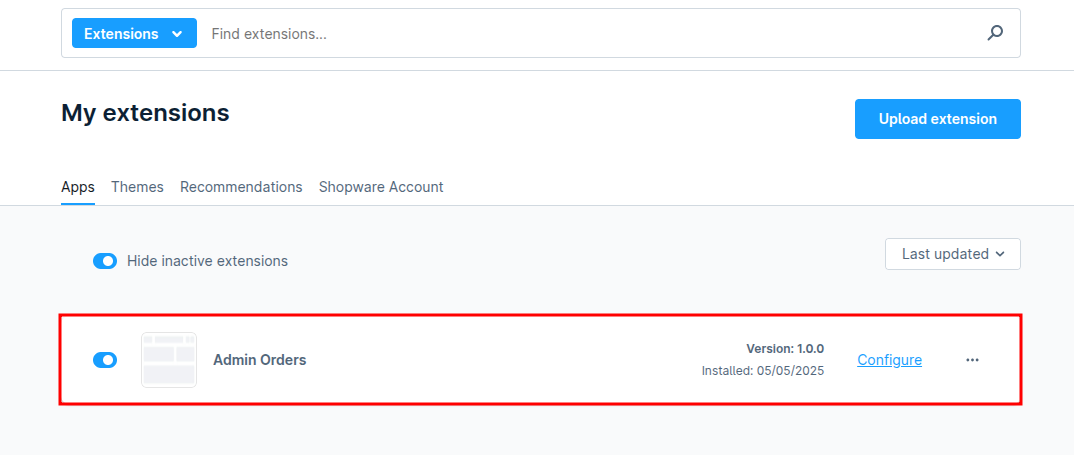
After installing and activating the plugin, basic functionality works out of the box. However, you can configure how long the system waits before marking a cart as abandoned.
Configurable Timeout Navigate to Extensions > My Extensions > AdminOrders > Configure.
Set the timeout period (in seconds) after which a cart is considered abandoned.
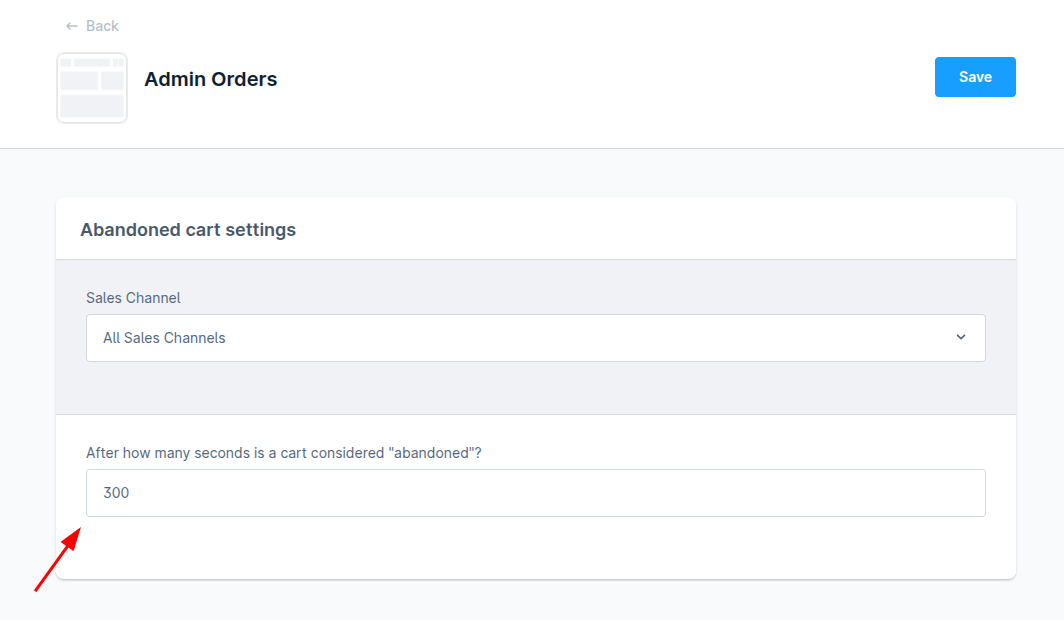
To ensure the abandoned cart tracking works as expected, run the following commands from the root of your Shopware 6 project:
bin/console scheduled-task:register
bin/console scheduled-task:run
bin/console messenger:consume
After running the last command, press 1 and hit Enter when prompted. This updates the database with the latest execution times and ensures scheduled tasks run properly.
1.Customer Adds Items to Cart
The system tracks all active carts.
2.Cart is Abandoned
If the customer leaves the cart without checking out, it appears in the Abandoned Carts page.
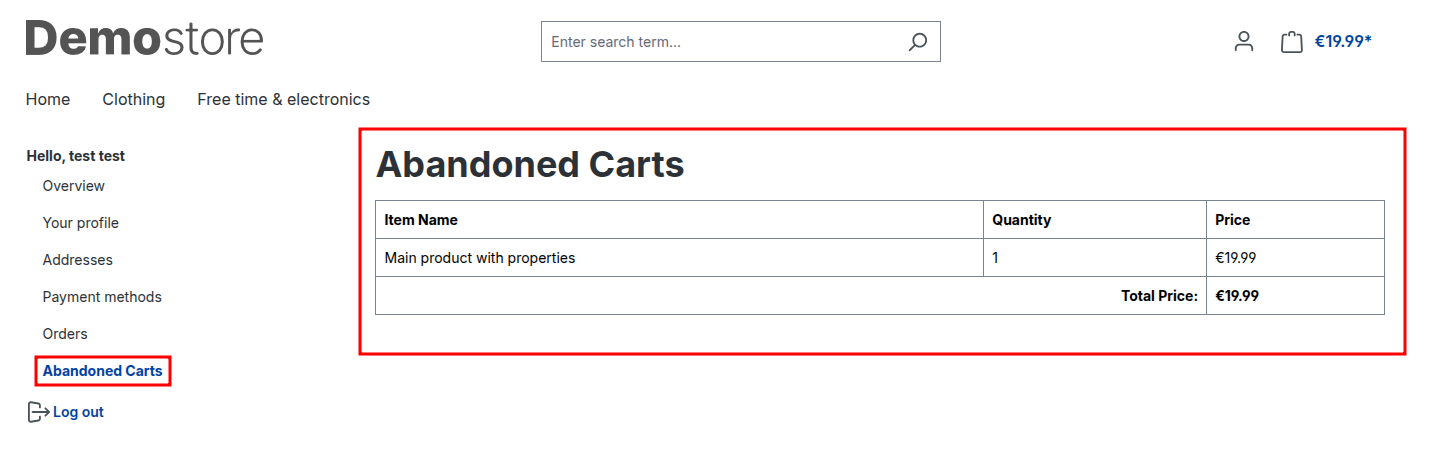
3.View and Manage Abandoned Carts from Admin
Visit Orders > AdminOrders to see the cart list.

Click the Create Order button to convert a cart into an official Shopware order.
This document describes the custom Admin API endpoint provided by the Save Carts Plugin for Shopware 6. This endpoint allows authorized users to create an order from a customer’s existing (abandoned) cart.
POST /api/_action/abandoned-cart/{customerId}/create-order
Creates an order from a saved cart associated with the given customerId.
This endpoint is useful for:
Authorization: Bearer
Content-Type: application/json
{
"success": true,
"message": "Order created successfully"
}
{
"success": false,
"message": "Cart not found"
}
All endpoints require a valid Admin API Bearer token.
You can obtain this token via the standard Shopware Admin API authentication process.
Set an Appropriate Timeout Period
Make sure the timeout period for marking a cart as abandoned aligns with your store’s sales cycle.
Regularly Monitor Abandoned Carts
Make it a routine to check the Abandoned Carts section under Orders > AdminOrders.
Communicate with Customers
In addition to creating orders, reaching out to customers whose carts have been abandoned can help personalize the shopping experience and improve customer retention.
1.Carts Not Being Marked as Abandoned
If carts aren’t being marked as abandoned after a period of inactivity, check the plugin configuration.
2.Plugin Not Loading or Showing Errors
If the plugin is not loading correctly or showing errors in the Admin interface, it could be due to installation issues.
3.Customer Profile Not Showing Abandoned Cart Tab
If the “Abandoned Cart” tab is missing in the customer profile, verify that the plugin is correctly installed and activated.
4.Scheduled Tasks Not Running
If the plugin isn’t updating or processing abandoned carts as expected, the scheduled tasks may not be running correctly. Ensure the scheduled tasks are registered and running by executing the following commands:
bin/console scheduled-task:register
bin/console scheduled-task:run
bin/console messenger:consume
1.How long before a cart is marked abandoned?
By default, after 300 seconds of inactivity.
2.Can I customize the timeout period?
Yes, you can configure the timeout value through the plugin settings in the admin panel.
3.What data is stored for each cart?
The plugin logs the customer’s name, cart total, number of items, creation time, and individual line items.